
- MVVM 教程
- MVVM - 首頁
- MVVM – 簡介
- MVVM - 優點
- MVVM - 職責
- MVVM - 第一個應用程式
- MVVM - 連線檢視
- MVVM - 連線 ViewModel
- MVVM - WPF 資料繫結
- MVVM - WPF 資料模板
- MVVM - ViewModel 通訊
- MVVM - 層次結構和導航
- MVVM - 驗證
- MVVM - 依賴注入
- MVVM - 事件
- MVVM - 單元測試
- MVVM - 框架
- MVVM - 面試問題
- MVVM 有用資源
- MVVM - 快速指南
- MVVM - 有用資源
- MVVM - 討論
MVVM – WPF 資料模板
模板描述了控制元件的整體外觀和視覺效果。每個控制元件都與其關聯了一個預設模板,該模板賦予該控制元件外觀。在 WPF 應用程式中,當您想要自定義控制元件的視覺行為和視覺外觀時,可以輕鬆建立自己的模板。邏輯和模板之間的連線可以透過資料繫結來實現。
在 MVVM 中,還有另一種主要形式,稱為 ViewModel 優先構建。
ViewModel 優先構建方法利用了 WPF 中隱式資料模板的功能。
隱式資料模板可以根據使用資料繫結呈現的資料物件型別,自動從當前資源字典中為使用資料繫結的元素選擇合適的模板。首先,您需要有一些繫結到資料物件的元素。
讓我們再次看看我們簡單的示例,您將瞭解如何利用資料模板(特別是隱式資料模板)來實現 ViewModel 優先。以下是我們 StudentViewModel 類的實現。
using MVVMDemo.Model;
using System.Collections.ObjectModel;

namespace MVVMDemo.ViewModel {

   public class StudentViewModel {

      public StudentViewModel() {
         LoadStudents();
      }

      public ObservableCollection<Student> Students {
         get;
         set;
      }

      public void LoadStudents() {
         ObservableCollection<Student> students = new ObservableCollection<Student>();

         students.Add(new Student { FirstName = "Mark", LastName = "Allain" });
         students.Add(new Student { FirstName = "Allen", LastName = "Brown" });
         students.Add(new Student { FirstName = "Linda", LastName = "Hamerski" });

         Students = students;
      }
   }
}
您可以看到上面的 ViewModel 沒有改變。我們將繼續使用上一章中的相同示例。此 ViewModel 類僅公開 Students 集合屬性,並在構造時填充它。讓我們轉到 StudentView.xaml 檔案,刪除現有的實現並在 Resources 部分定義一個數據模板。
<UserControl.Resources>
   <DataTemplate x:Key = "studentsTemplate">

      <StackPanel Orientation = "Horizontal">
         <TextBox Text = "{Binding Path = FirstName, Mode = TwoWay}"
            Width = "100" Margin = "3 5 3 5"/>

         <TextBox Text = "{Binding Path = LastName, Mode = TwoWay}"
            Width = "100" Margin = "0 5 3 5"/>

         <TextBlock Text = "{Binding Path = FullName, Mode = OneWay}"
            Margin = "0 5 3 5"/>
      </StackPanel>

   </DataTemplate>
</UserControl.Resources>
現在新增一個列表框並將該列表框資料繫結到 Students 屬性,如下面的程式碼所示。
<ListBox ItemsSource = "{Binding Students}" ItemTemplate = "{StaticResource studentsTemplate}"/>
在 Resource 部分,DataTemplate 的鍵為 studentsTemplate,然後要實際使用該模板,我們需要使用 ListBox 的 ItemTemplate 屬性。因此,現在您可以看到我們指示列表框使用該特定模板來呈現這些 Students。以下是 StudentView.xaml 檔案的完整實現。
<UserControl x:Class = "MVVMDemo.Views.StudentView"
   xmlns = "http://schemas.microsoft.com/winfx/2006/xaml/presentation"
   xmlns:x = "http://schemas.microsoft.com/winfx/2006/xaml"
   xmlns:mc = "http://schemas.openxmlformats.org/markup-compatibility/2006"
   xmlns:d = "http://schemas.microsoft.com/expression/blend/2008"
   xmlns:local = "clr-namespace:MVVMDemo.Views"
   xmlns:viewModel = "clr-namespace:MVVMDemo.ViewModel"
   xmlns:vml = "clr-namespace:MVVMDemo.VML"
   vml:ViewModelLocator.AutoHookedUpViewModel = "True"
   mc:Ignorable = "d" d:DesignHeight = "300" d:DesignWidth = "300">

   <UserControl.Resources>
      <DataTemplate x:Key = "studentsTemplate">

         <StackPanel Orientation = "Horizontal">
            <TextBox Text = "{Binding Path = FirstName, Mode = TwoWay}"
               Width = "100" Margin = "3 5 3 5"/>

            <TextBox Text = "{Binding Path = LastName, Mode = TwoWay}"
               Width = "100" Margin = "0 5 3 5"/>

            <TextBlock Text = "{Binding Path = FullName, Mode = OneWay}"
               Margin = "0 5 3 5"/>

         </StackPanel>

      </DataTemplate>
   </UserControl.Resources>

   <Grid>
      <ListBox
         ItemsSource = "{Binding Students}"
         ItemTemplate = "{StaticResource studentsTemplate}"/>
   </Grid>

</UserControl>
編譯並執行上述程式碼後,您將看到以下視窗,其中包含一個 ListBox。每個 ListBoxItem 包含 Student 類物件資料,這些資料顯示在 TextBlock 和文字框中。
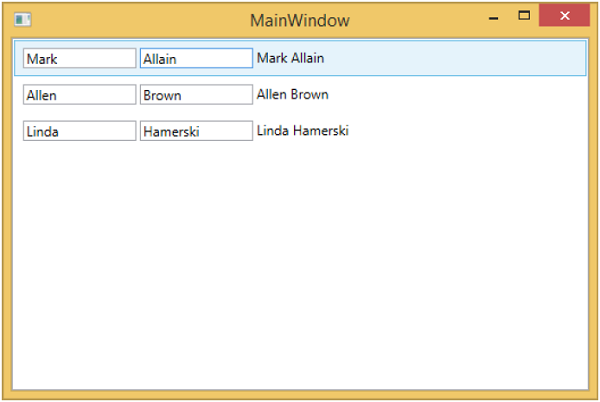
要將其設為隱式模板,我們需要從列表框中刪除 ItemTemplate 屬性並在模板定義中新增 DataType 屬性,如下面的程式碼所示。
<UserControl.Resources>
   <DataTemplate DataType = "{x:Type data:Student}">

      <StackPanel Orientation = "Horizontal">
         <TextBox Text = "{Binding Path = FirstName, Mode = TwoWay}"
            Width = "100" Margin = "3 5 3 5"/>

         <TextBox Text = "{Binding Path = LastName, Mode = TwoWay}"
            Width = "100" Margin = "0 5 3 5"/>

         <TextBlock Text = "{Binding Path = FullName, Mode = OneWay}"
            Margin = "0 5 3 5"/>

      </StackPanel>

   </DataTemplate>
</UserControl.Resources>

<Grid>
   <ListBox ItemsSource = "{Binding Students}"/>
</Grid>
在 DataTemplate 中,x:Type 標記擴充套件非常重要,它類似於 XAML 中的運算子。因此,基本上我們需要指向 MVVMDemo.Model 名稱空間中的 Student 資料型別。以下是更新後的完整 XAML 檔案。
<UserControl x:Class="MVVMDemo.Views.StudentView"
   xmlns = "http://schemas.microsoft.com/winfx/2006/xaml/presentation"
   xmlns:x = "http://schemas.microsoft.com/winfx/2006/xaml"
   xmlns:mc = "http://schemas.openxmlformats.org/markup-compatibility/2006"
   xmlns:d = "http://schemas.microsoft.com/expression/blend/2008"
   xmlns:local = "clr-namespace:MVVMDemo.Views"
   xmlns:viewModel = "clr-namespace:MVVMDemo.ViewModel"
   xmlns:data = "clr-namespace:MVVMDemo.Model"
   xmlns:vml = "clr-namespace:MVVMDemo.VML"
   vml:ViewModelLocator.AutoHookedUpViewModel = "True"
   mc:Ignorable = "d" d:DesignHeight = "300" d:DesignWidth = "300">

   <UserControl.Resources>
      <DataTemplate DataType = "{x:Type data:Student}">

         <StackPanel Orientation = "Horizontal">
            <TextBox Text = "{Binding Path = FirstName, Mode = TwoWay}"
               Width = "100" Margin = "3 5 3 5"/>

            <TextBox Text = "{Binding Path = LastName, Mode = TwoWay}"
               Width = "100" Margin = "0 5 3 5"/>

            <TextBlock Text = "{Binding Path = FullName, Mode = OneWay}"
               Margin = "0 5 3 5"/>

         </StackPanel>

      </DataTemplate>
   </UserControl.Resources>

   <Grid>
      <ListBox ItemsSource = "{Binding Students}"/>
   </Grid>

</UserControl>
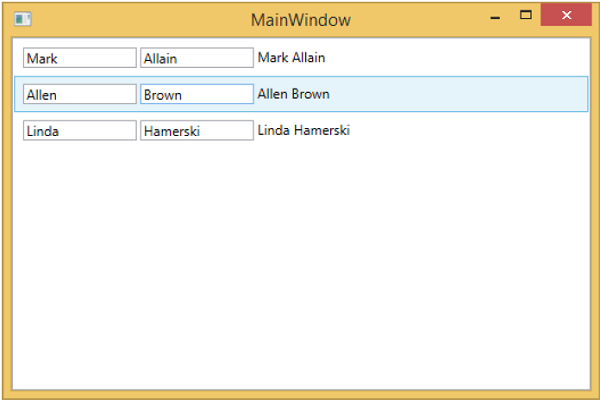
當您再次執行此應用程式時,您仍然會獲得相同的資料模板的學生呈現,因為它透過查詢合適的 DataTemplate 自動對映正在呈現的物件的型別。
我們建議您逐步執行上述示例以更好地理解。