
- Ionic 基礎教程
- Ionic - 首頁
- Ionic - 概述
- Ionic - 環境搭建
- Ionic CSS 元件
- Ionic - 顏色
- Ionic - 內容
- Ionic - 頁首
- Ionic - 頁尾
- Ionic - 按鈕
- Ionic - 列表
- Ionic - 卡片
- Ionic - 表單
- Ionic - 開關
- Ionic - 複選框
- Ionic - 單選按鈕
- Ionic - 範圍選擇器
- Ionic - 選擇器
- Ionic - 標籤頁
- Ionic - 網格
- Ionic - 圖示
- Ionic - 內邊距
- Ionic Javascript 元件
- Ionic - JS 動作面板
- Ionic - JS 背景幕
- Ionic - JS 內容
- Ionic - JS 表單
- Ionic - JS 事件
- Ionic - JS 頁首
- Ionic - JS 頁尾
- Ionic - JS 鍵盤
- Ionic - JS 列表
- Ionic - JS 載入
- Ionic - JS 模態框
- Ionic - JS 導航
- Ionic - JS 彈出框
- Ionic - JS 彈窗
- Ionic - JS 滾動
- Ionic - JS 側邊選單
- Ionic - JS 滑動框
- Ionic - JS 標籤頁
- Ionic 高階概念
- Ionic - Cordova 整合
- Ionic - AdMob
- Ionic - 相機
- Ionic - Facebook
- Ionic - 應用內瀏覽器
- Ionic - 原生音訊
- Ionic - 地理位置
- Ionic - 媒體
- Ionic - 啟動畫面
- Ionic 有用資源
- Ionic - 快速指南
- Ionic - 有用資源
- Ionic - 討論
Ionic - 頁尾
Ionic 頁尾位於應用螢幕底部。頁尾的使用方式與頁首幾乎相同。
新增頁尾
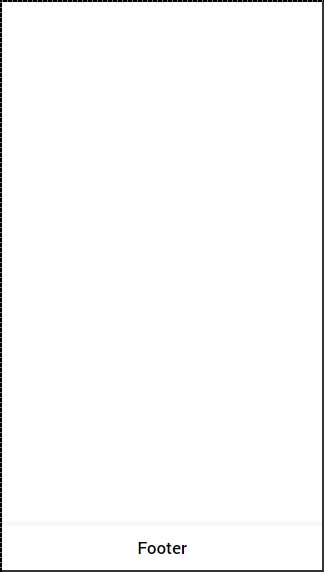
Ionic 頁尾的主要類是bar(與頁首相同)。當您想在螢幕中新增頁尾時,需要在主bar類之後,為您的元素新增bar-footer類。由於我們希望在應用的每個螢幕上使用頁尾,因此我們將其新增到index.html檔案的body中。我們還將為頁尾新增標題。
<div class = "bar bar-footer">
   <h1 class = "title">Footer</h1>
</div>
以上程式碼將生成以下螢幕:
頁尾顏色
如果要設定頁尾樣式,只需向其新增相應的顏色類即可。設定元素樣式時,需要將主元素類作為字首新增到顏色類中。由於我們正在設定頁尾欄的樣式,因此字首類將是bar,在本例中我們要使用的顏色類是assertive(紅色)。
<div class = "bar bar-footer bar-assertive">
   <h1 class = "title">Footer</h1>
</div>
以上程式碼將生成以下螢幕:

您可以使用以下九個類中的任何一個,為您的應用頁尾指定您選擇的顏色:
| 顏色類 | 描述 | 結果 |
|---|---|---|
| bar-light | 用於白色 | |
| bar-stable | 用於淺灰色 | |
| bar-positive | 用於藍色 | |
| bar-calm | 用於淺藍色 | |
| bar-balanced | 用於綠色 | |
| bar-energized | 用於黃色 | |
| bar-assertive | 用於紅色 | |
| bar-royal | 用於紫色 | |
| bar-dark | 用於黑色 |
頁尾元素
頁尾可以包含其中的元素。大多數情況下,您需要在頁尾中新增帶有圖示的按鈕。
新增的第一個按鈕始終位於左角。最後一個按鈕將放置在右側。中間的按鈕將分組在頁尾左側的第一個按鈕旁邊。在下面的示例中,您還可以注意到我們使用icon類在按鈕頂部新增圖示。
<div class = "bar bar-footer bar-assertive">
   <button class = "button icon ion-navicon"></button>
   <button class = "button icon ion-home"></button>
   <button class = "button icon ion-star"></button>
   <button class = "button icon ion-checkmark-round"></button>
</div>
以上程式碼將生成以下螢幕:

如果要將按鈕移到右側,可以新增pull-right類。
<div class = "bar bar-footer bar-assertive">
   <button class = "button icon ion-navicon pull-right"></button>
</div>
以上程式碼將生成以下螢幕:

廣告