
- GWT 教程
- GWT - 首頁
- GWT - 概述
- GWT - 環境設定
- GWT - 應用程式
- GWT - 建立應用程式
- GWT - 部署應用程式
- GWT - 使用 CSS 設定樣式
- GWT - 基本部件
- GWT - 表單部件
- GWT - 複雜部件
- GWT - 佈局面板
- GWT - 事件處理
- GWT - 自定義部件
- GWT - UIBinder
- GWT - RPC 通訊
- GWT - JUnit 整合
- GWT - 除錯應用程式
- GWT - 國際化
- GWT - History 類
- GWT - 書籤支援
- GWT - 日誌框架
- GWT 有用資源
- GWT - 問題與解答
- GWT - 快速指南
- GWT - 有用資源
- GWT - 討論
GWT - 建立應用程式
由於 GWT 的強大功能在於**用 Java 編寫,在 JavaScript 中執行**,我們將使用 Java IDE Eclipse 來演示我們的示例。
讓我們從一個簡單的HelloWorld應用程式開始 -
步驟 1 - 建立專案
第一步是使用 Eclipse IDE 建立一個簡單的 Web 應用程式專案。使用選項**Google 圖示  > 新建 Web 應用程式專案...**啟動專案嚮導。現在使用嚮導視窗將您的專案命名為HelloWorld,如下所示 -
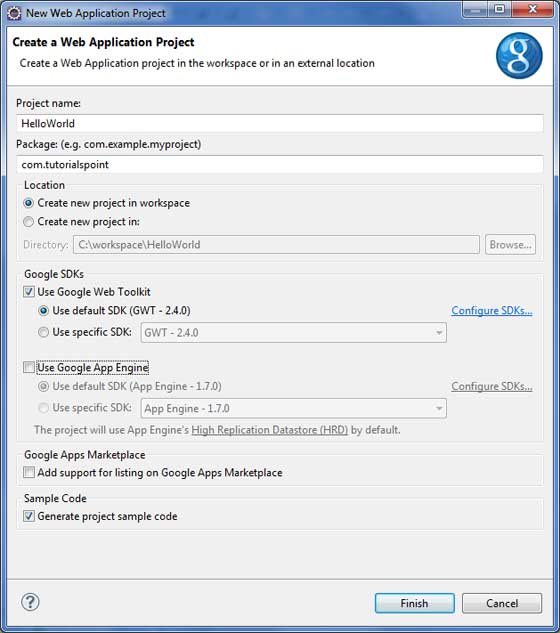
取消選中**使用 Google App Engine**,因為我們在此專案中不使用它,並保留其他預設值(保留**生成示例專案程式碼**選項選中),然後單擊“完成”按鈕。
專案成功建立後,您的專案資源管理器中將包含以下內容 -
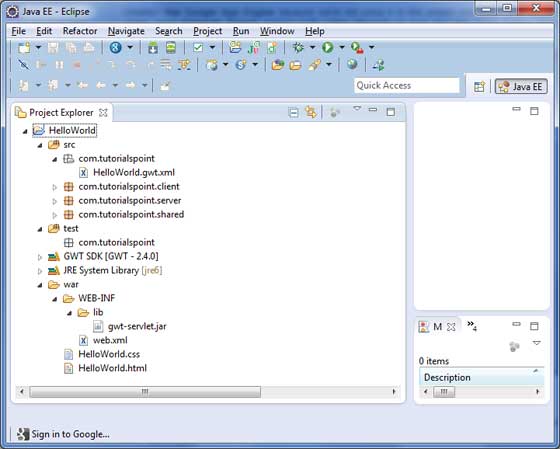
以下是所有重要資料夾的簡要說明
| 序號 | 資料夾 & 位置 |
|---|---|
| 1 |
src 原始碼(Java 類)檔案。 包含負責客戶端 UI 顯示的客戶端特定 Java 類的 Client 資料夾。 包含負責伺服器端處理的伺服器端 Java 類的 Server 資料夾。 包含用於在伺服器和客戶端之間傳輸資料的 Java 模型類的 Shared 資料夾。 HelloWorld.gwt.xml,GWT 編譯器編譯 HelloWorld 專案所需的模組描述符檔案。 |
| 2 |
test 測試程式碼(Java 類)原始檔。 包含負責測試 gwt 客戶端程式碼的 Java 類的 Client 資料夾。 |
| 3 |
war 這是最重要的部分,它代表實際的可部署 Web 應用程式。 包含已編譯類、gwt 庫、servlet 庫的 WEB-INF。 HelloWorld.css,專案樣式表。 HelloWorld.html,將呼叫 GWT UI 應用程式的 HTML 檔案。 |
步驟 2 - 修改模組描述符:HelloWorld.gwt.xml
GWT 外掛將建立一個預設的模組描述符檔案src/com.tutorialspoint/HelloWorld.gwt.xml,如下所示。對於此示例,我們不會修改它,但您可以根據需要修改它。
<?xml version = "1.0" encoding = "UTF-8"?>
<module rename-to = 'helloworld'>
   <!-- Inherit the core Web Toolkit stuff.                        -->
   <inherits name = 'com.google.gwt.user.User'/>

   <!-- Inherit the default GWT style sheet.  You can change       -->
   <!-- the theme of your GWT application by uncommenting          -->
   <!-- any one of the following lines.                            -->
   <inherits name = 'com.google.gwt.user.theme.clean.Clean'/>
   <!-- <inherits name = 'com.google.gwt.user.theme.chrome.Chrome'/> -->
   <!-- <inherits name = 'com.google.gwt.user.theme.dark.Dark'/>     -->

   <!-- Other module inherits                                      -->

   <!-- Specify the app entry point class.                         -->
   <entry-point class = 'com.tutorialspoint.client.HelloWorld'/>

   <!-- Specify the paths for translatable code                    -->
   <source path = 'client'/>
   <source path = 'shared'/>

</module>
步驟 3 - 修改樣式表:HelloWorld.css
GWT 外掛將建立一個預設的樣式表文件war/HelloWorld.css。讓我們修改此檔案,以使我們的示例保持最簡單的理解水平 -
body {
   text-align: center;
   font-family: verdana, sans-serif;
}

h1 {
   font-size: 2em;
   font-weight: bold;
   color: #777777;
   margin: 40px 0px 70px;
   text-align: center;
}
步驟 4 - 修改主機檔案:HelloWorld.html
GWT 外掛將建立一個預設的 HTML 主機檔案war/HelloWorld.html。讓我們修改此檔案,以使我們的示例保持最簡單的理解水平 -
<html>
   <head>
      <title>Hello World</title>
      <link rel = "stylesheet" href = "HelloWorld.css"/>
      <script language = "javascript" src = "helloworld/helloworld.nocache.js">
      </script>
   </head>

   <body>
      <h1>Hello World</h1>
      <p>Welcome to first GWT application</p>
   </body>
</html>
您可以在同一個源目錄中建立更多靜態檔案,如 HTML、CSS 或影像,或者您可以建立更多子目錄並將檔案移動到這些子目錄中,並在應用程式的模組描述符中配置這些子目錄。
步驟 5 - 修改入口點:HelloWorld.java
GWT 外掛將建立一個預設的 Java 檔案src/com.tutorialspoint/HelloWorld.java,該檔案為應用程式保留了一個入口點。
讓我們修改此檔案以顯示“Hello,World!”
package com.tutorialspoint.client;

import com.google.gwt.core.client.EntryPoint;
import com.google.gwt.user.client.Window;

public class HelloWorld implements EntryPoint {
   public void onModuleLoad() {
      Window.alert("Hello, World!");
   }
}
您可以在同一個源目錄中建立更多 Java 檔案來定義入口點或定義輔助例程。
步驟 6 - 編譯應用程式
完成所有更改後,現在是時候編譯專案了。使用選項**Google 圖示 > GWT 編譯專案...**啟動 GWT 編譯對話方塊,如下所示 -
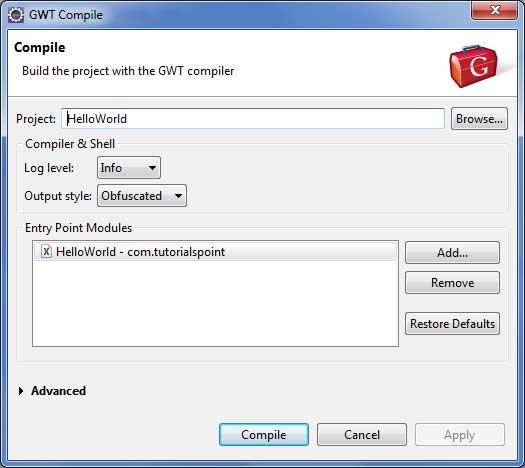
保持預設值不變,然後單擊“編譯”按鈕。如果一切順利,您將在 Eclipse 控制檯中看到以下輸出
Compiling module com.tutorialspoint.HelloWorld
   Compiling 6 permutations
      Compiling permutation 0...
      Compiling permutation 1...
      Compiling permutation 2...
      Compiling permutation 3...
      Compiling permutation 4...
      Compiling permutation 5...
   Compile of permutations succeeded
Linking into C:\workspace\HelloWorld\war\helloworld
   Link succeeded
   Compilation succeeded -- 33.029s
步驟 7 - 執行應用程式
現在點選 執行應用程式選單,然後選擇**HelloWorld**應用程式來執行該應用程式。
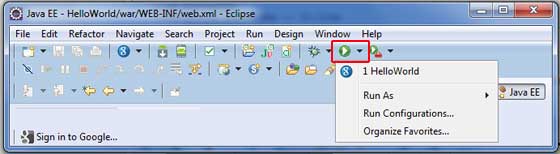
如果一切正常,您應該會看到 Eclipse 中啟用的 GWT 開發模式,其中包含如下所示的 URL。雙擊 URL 以開啟 GWT 應用程式。
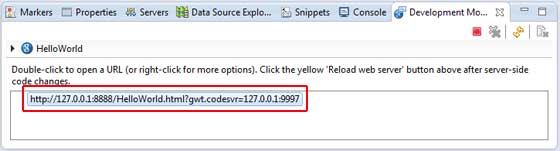
因為您是在開發模式下執行應用程式,所以您需要為瀏覽器安裝 GWT 外掛。只需按照螢幕上的說明安裝外掛即可。
如果您已為瀏覽器設定了 GWT 外掛,那麼您應該能夠看到以下輸出
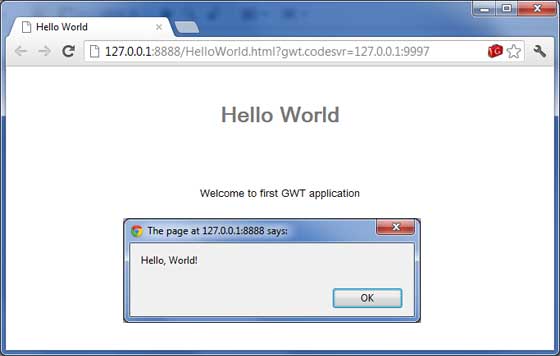
恭喜!您已使用 Google Web Toolkit (GWT) 實現您的第一個應用程式。