
- GraphQL 教程
- GraphQL - 首頁
- GraphQL - 簡介
- GraphQL - 環境搭建
- GraphQL - 架構
- GraphQL - 應用元件
- GraphQL - 示例
- GraphQL - 型別系統
- GraphQL - 模式
- GraphQL - 解析器
- GraphQL - 查詢
- GraphQL - 變更
- GraphQL - 驗證
- GraphQL - JQuery 整合
- GraphQL - React 整合
- GraphQL - Apollo Client
- GraphQL - 客戶端身份驗證
- GraphQL - 快取
- GraphQL 有用資源
- GraphQL - 快速指南
- GraphQL - 有用資源
- GraphQL - 討論
GraphQL - 快取
快取是指將資料儲存在稱為快取的臨時儲存區域中的過程。當您返回到最近訪問過的頁面時,瀏覽器可以從快取中獲取這些檔案,而不是從原始伺服器獲取。這樣可以節省您的時間,並減輕網路的額外流量負擔。
與 GraphQL 互動的客戶端應用程式負責在其端快取資料。一種可能的模式是保留一個欄位,例如 id,作為全域性唯一識別符號。
記憶體快取
InMemoryCache 是一個規範化的資料儲存,通常用於 GraphQL 客戶端應用程式,無需使用 Redux 等其他庫。
下面給出了使用 InMemoryCache 與 ApolloClient 的示例程式碼:
import {ApolloClient, HttpLink, InMemoryCache} from 'apollo-boost'
const cache = new InMemoryCache();

const client = new ApolloClient({
   link: new HttpLink(),
   cache
});
InMemoryCache 建構函式接受一個可選的配置物件,其中包含用於自定義快取的屬性。
| 序號 | 引數及描述 |
|---|---|
| 1 | addTypename 一個布林值,用於確定是否將 __typename 新增到文件中(預設值:true) |
| 2 | dataIdFromObject 一個函式,接收一個數據物件並返回一個唯一識別符號,該識別符號將在將資料規範化到儲存區時使用 |
| 3 | fragmentMatcher 預設情況下,InMemoryCache 使用啟發式片段匹配器 |
| 4 | cacheRedirects 一個函式對映,用於在請求發生之前將查詢重定向到快取中的另一個條目。 |
圖示
我們將在 ReactJS 中建立一個單頁面應用程式,其中包含兩個選項卡 - 一個用於主頁選項卡,另一個用於學生。學生選項卡將從 GraphQL 伺服器 API 載入資料。當用戶從主頁選項卡導航到學生選項卡時,應用程式將查詢學生資料。生成的 資料將被應用程式快取。
我們還將使用getTime欄位查詢伺服器時間,以驗證頁面是否已快取。如果資料是從快取中返回的,則頁面將顯示傳送到伺服器的第一個請求的時間。如果資料是向伺服器發出的新請求的結果,它將始終顯示來自伺服器的最新時間。
設定伺服器
以下是設定伺服器的步驟:
步驟 1 - 下載並安裝專案所需的依賴項
建立一個資料夾cache-server-app。從終端將您的目錄更改為cache-server-app。按照環境設定章節中解釋的步驟 3 到 5 進行操作。
步驟 2 - 建立模式
在專案資料夾cache-server-app中新增schema.graphql檔案,並新增以下程式碼:
type Query {
   students:[Student]
   getTime:String
}

type Student {
   id:ID!
   firstName:String
   lastName:String
   fullName:String
}
步驟 3 - 新增解析器
在專案資料夾中建立一個檔案resolvers.js,並新增以下程式碼:
const db = require('./db')

const Query = {
      students:() => db.students.list(),
      getTime:() => {
      const today = new Date();
      var h = today.getHours();
      var m = today.getMinutes();
      var s = today.getSeconds();
      return `${h}:${m}:${s}`;
   }
}
module.exports = {Query}
步驟 4 - 執行應用程式
建立一個server.js檔案。參考環境設定章節中的步驟 8。在終端中執行命令npm start。伺服器將在 9000 埠啟動並執行。在這裡,我們將使用 GraphiQL 作為客戶端來測試應用程式。
開啟瀏覽器並輸入 URLhttps://:9000/graphiql。在編輯器中鍵入以下查詢:
{
   getTime
   students {
      id
      firstName
   }
}
示例響應顯示了學生姓名和伺服器時間。
{
   "data": {
      "getTime": "22:18:42",
      "students": [
         {
            "id": "S1001",
            "firstName": "Mohtashim"
         },
         {
            "id": "S1002",
            "firstName": "Kannan"
         },
         {
            "id": "S1003",
            "firstName": "Kiran"
         }
      ]
   }
}
設定 ReactJS 客戶端
為客戶端開啟一個新的終端。在執行客戶端應用程式之前,應保持伺服器終端執行。React 應用程式將在 3000 埠執行,伺服器應用程式將在 9000 埠執行。
步驟 1 - 建立 React 應用程式
在客戶端終端中,鍵入以下命令:
npx create-react-app hello-world-client
這將安裝典型 React 應用程式所需的一切。npx 實用程式和create-react-app工具建立了一個名為 hello-world-client 的專案。安裝完成後,在 VSCode 中開啟專案。
使用以下命令安裝 React 的路由模組 – npm install react-router-dom。
步驟 2 - 啟動 hello-world-client
在終端中更改當前資料夾路徑到 hello-world-client。鍵入 npm start 以啟動專案。這將在 3000 埠執行開發伺服器,並自動開啟瀏覽器並載入索引頁面。
這在下面給出的螢幕截圖中顯示:

步驟 3 - 安裝 Apollo Client 庫
要安裝 Apollo Client,請開啟一個新終端並位於當前專案資料夾路徑中。鍵入以下命令:
npm install apollo-boost graphql
這將下載客戶端的 graphql 庫以及 Apollo Boost 包。我們可以透過鍵入 npm view apollo-boost dependencies 來交叉驗證這一點。這將具有許多依賴項,如下所示:
{
   'apollo-cache': '^1.1.15',
   'apollo-cache-inmemory': '^1.2.8',
   'apollo-client': '^2.4.0',
   'apollo-link': '^1.0.6',
   'apollo-link-error': '^1.0.3',
   'apollo-link-http': '^1.3.1',
   'apollo-link-state': '^0.4.0',
   'graphql-tag': '^2.4.2'
}
我們可以清楚地看到已安裝 apollo-client 庫。
步驟 4 - 修改 index.js 檔案中的 App 元件
對於簡單的 React 應用程式,您只需要保留src資料夾中的index.js和public資料夾中的index.html;所有其他自動生成的 檔案都可以刪除。
目錄結構如下所示:
hello-world-client /
   -->node_modules
   -->public
      index.html
   -->src
      index.js
      students.js
   -->package.json
新增一個額外的檔案students.js,它將包含 Students 元件。學生詳細資訊透過 Student 元件獲取。在 App 元件中,我們使用 HashRouter。
以下是 React 應用程式中的index.js:
import React, {Component} from 'react';
import ReactDOM from 'react-dom';
import {HashRouter, Route, Link} from 'react-router-dom'

//components
import Students from './students'
class App extends Component {
   render() {
      return(
         <div><h1>Home !!</h1>
         <h2>Welcome to React Application !! </h2>
         </div>
      )
   }
}

function getTime() {
   var d = new Date();
   return d.getHours()+":"+d.getMinutes()+":"+d.getSeconds()
}

const routes = <HashRouter>
   <div>
      <h4>Time from react app:{getTime()}</h4>
      <header>
         <h1>  <Link to="/">Home</Link>
         <Link to = "/students">Students</Link>  </h1>
      </header>
      <Route exact path = "/students" component = {Students}></Route>
      <Route exact path = "/" component = {App}></Route>
   </div>
</HashRouter>

ReactDOM.render(routes, document.querySelector("#root"))
步驟 5 - 編輯 Students.js 中的元件 Students
在 Students 元件中,我們將使用以下兩種方法載入資料:
Fetch API (loadStudents_noCache) - 這將在每次單擊學生選項卡時觸發一個新請求。
Apollo Client (loadWithApolloclient) - 這將從快取中獲取資料。
新增一個函式loadWithApolloclient,該函式查詢伺服器中的學生和時間。此函式將啟用快取。這裡我們使用 gql 函式來解析查詢。
async loadWithApolloclient() {
   const query = gql`{
      getTime
      students {
         id
         firstName
      }
   }`;

   const {data} = await  client.query({query})
   return data;
}
Fetch API是一個用於獲取資源的簡單介面。與舊的 XMLHttpRequest 相比,Fetch 使發出 Web 請求和處理響應變得更加容易。以下方法顯示了直接使用 fetch api 載入資料:
async  loadStudents_noCache() {
      const response = await fetch('https://:9000/graphql', {
      method:'POST',
      headers:{'content-type':'application/json'},
      body:JSON.stringify({query:`{
         getTime
         students {
            id
            firstName
         }
      }`})
   })

   const rsponseBody = await response.json();
   return rsponseBody.data;
}
在 StudentsComponent 的建構函式中,呼叫loadWithApolloClient方法。完整的Student.js檔案如下所示:
import React, {Component} from 'react';
import { Link} from 'react-router-dom'

//Apollo Client
import {ApolloClient, HttpLink, InMemoryCache} from 'apollo-boost'
import gql from 'graphql-tag'
const client = new ApolloClient({
   link: new HttpLink({uri:`https://:9000/graphql`}),
   cache:new InMemoryCache()
})

class Students extends Component {
   constructor(props) {
      super(props);
      this.state = {
         students:[{id:1,firstName:'test'}],
         serverTime:''
      }
      this.loadWithApolloclient().then(data => {
         this.setState({
            students:data.students,
            serverTime:data.getTime
         })
      })
   }

   async  loadStudents_noCache() {
      const response = await fetch('https://:9000/graphql', {
         method:'POST',
         headers:{'content-type':'application/json'},
         body:JSON.stringify({query:`{
            getTime
            students {
               id
               firstName
            }
         }`})
      })
      const rsponseBody =  await response.json();
      return rsponseBody.data;
   }

   async loadWithApolloclient() {
      console.log("inside apollo client function")
      const query = gql`{
         getTime
         students {
            id
            firstName
         }
      }`;
      const {data} = await  client.query({query})
      return data;
   }

   render() {
      return(
         <div>
            <h3>Time from GraphQL server :{this.state.serverTime}</h3>
            <p>Following Students Found </p>
            <div>
               <ul>
                  {
                     this.state.students.map(s => {
                        return(
                           <li key = {s.id}>
                              {s.firstName}
                           </li>
                        )
                     })
                  }
               </ul>
            </div>
         </div>
      )
   }
}
export default Students
步驟 6 - 使用npm start執行 React 應用程式
您可以透過在主頁選項卡和學生選項卡之間切換來測試 React 應用程式。一旦學生選項卡從伺服器載入了資料。它將快取資料。您可以透過多次在主頁和學生選項卡之間切換來測試它。輸出將如下所示:
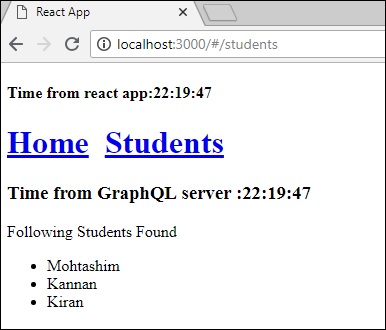
如果您首先透過鍵入 URLhttps://:3000/#/students載入了學生頁面,您可以看到 React 應用程式和 GraphQL 的載入時間大致相同。之後,如果您切換到主頁檢視並返回到 GraphQL 伺服器,時間將不會改變。這表明資料已快取。
步驟 7 - 將 loadWithApolloclient 呼叫更改為 loadStudents_noCache
如果將 StudentComponent 建構函式中的載入方法更改為loadStudents_noCache,則輸出將不會快取資料。這顯示了快取和非快取之間的區別。
this.loadStudents_noCache().then(data => {
   this.setState({
      students:data.students,
      serverTime:data.getTime
   })
})
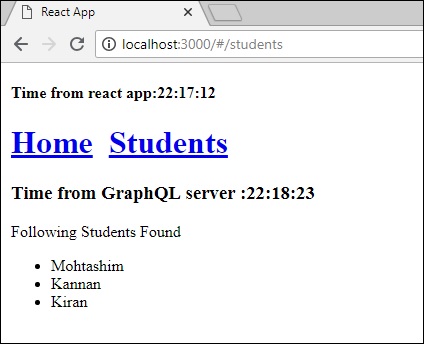
從以上輸出可以看出,如果您在選項卡之間來回切換,來自 graphql 伺服器的時間將始終是最新的,這意味著資料未被快取。