
- Adobe Flex 教程
- Flex - 首頁
- Flex - 概述
- Flex - 環境
- Flex - 應用程式
- Flex - 建立應用程式
- Flex - 部署應用程式
- Flex - 生命週期階段
- Flex - 使用 CSS 樣式
- Flex - 使用皮膚樣式
- Flex - 資料繫結
- Flex - 基本控制元件
- Flex - 表單控制元件
- Flex - 複雜控制元件
- Flex - 佈局面板
- Flex - 視覺效果
- Flex - 事件處理
- Flex - 自定義控制元件
- Flex - RPC 服務
- Flex - FlexUnit 整合
- Flex - 除錯應用程式
- Flex - 國際化
- Flex - 列印支援
- Adobe Flex 資源
- Flex - 快速指南
- Flex - 有用資源
- Flex - 討論
Flex - 資料繫結
什麼是資料繫結?
資料繫結是一個將一個物件的資料與另一個物件繫結的過程。它需要一個源屬性、一個目標屬性和一個觸發事件,該事件指示何時將資料從源複製到目標。
Flex 提供以下三種資料繫結方式
- MXML 指令碼中的花括號語法 ({})
- <fx:binding> 標籤在 MXML 中
- ActionScript 中的 BindingUtils
資料繫結 – 在 MXML 中使用花括號
以下示例演示瞭如何使用花括號指定源到目標的資料繫結。
<s:TextInput id = "txtInput1" />
<s:TextInput id = "txtInput2" text = "{txtInput1.text}" />
資料繫結 – 在 MXML 中使用 <fx:Binding> 標籤
以下示例演示瞭如何使用
<fx:Binding source = "txtInput1.text" destination = "txtInput2.text" />
<s:TextInput id = "txtInput1" />
<s:TextInput id = "txtInput2" />
資料繫結 – 在 ActionScript 中使用 BindingUtils
以下示例演示瞭如何使用 BindingUtils 指定源到目標的資料繫結。
<fx:Script>
   <![CDATA[
      import mx.binding.utils.BindingUtils;
      import mx.events.FlexEvent;

      protected function txtInput2_preinitializeHandler(event:FlexEvent):void {
         BindingUtils.bindProperty(txtInput2,"text",txtInput1, "text");
      }
   ]]>
</fx:Script>

<s:TextInput id = "txtInput1" />
<s:TextInput id = "txtInput2"
   preinitialize = "txtInput2_preinitializeHandler(event)" />
Flex 資料繫結示例
讓我們按照以下步驟,透過建立一個測試應用程式,在 Flex 應用程式中檢視皮膚的實際效果:
| 步驟 | 描述 |
|---|---|
| 1 | 在包 com.tutorialspoint.client 下建立一個名為 HelloWorld 的專案,如Flex - 建立應用程式章節中所述。 |
| 2 | 修改 HelloWorld.mxml,如下所述。保持其他檔案不變。 |
| 3 | 編譯並執行應用程式,以確保業務邏輯按要求工作。 |
以下是修改後的 HelloWorld.mxml 檔案 src/com/tutorialspoint/client/HelloWorld.mxml 的內容。
<?xml version = "1.0" encoding = "utf-8"?>
<s:Application xmlns:fx = "http://ns.adobe.com/mxml/2009"
xmlns:s = "library://ns.adobe.com/flex/spark"
xmlns:mx = "library://ns.adobe.com/flex/mx
width = "100%" height = "100%" minWidth = "500" minHeight = "500">
<fx:Style source = "/com/tutorialspoint/client/Style.css" />
<fx:Script>
<![CDATA[
import mx.binding.utils.BindingUtils;
import mx.events.FlexEvent;
protected function txtInput6_preinitializeHandler(event:FlexEvent):void {
BindingUtils.bindProperty(txtInput6,"text",txtInput5, "text");
}
]]>
</fx:Script>
<fx:Binding source = "txtInput3.text" destination = "txtInput4.text" />
<s:BorderContainer width = "500" height = "550" id = "mainContainer"
styleName = "container">
<s:VGroup width = "100%" height = "100%" gap = "50" horizontalAlign = "center"
verticalAlign = "middle">
<s:Label id = "lblHeader" text = "Data Binding Demonstration"
fontSize = "40" color = "0x777777" styleName = "heading" />
<s:Panel title = "Example #1 (Using Curly Braces,\{\})" width = "400"
height = "100" >
<s:layout>
<s:VerticalLayout paddingTop = "10" paddingLeft = "10" />
</s:layout>
<s:HGroup >
<s:Label text = "Type here: " width = "100" paddingTop = "6" />
<s:TextInput id = "txtInput1" />
</s:HGroup>
<s:HGroup >
<s:Label text = "Copied text: " width = "100" paddingTop = "6" />
<s:TextInput id = "txtInput2" text = "{txtInput1.text}" />
</s:HGroup>
</s:Panel>
<s:Panel title = "Example #2 (Using <fx:Binding>)" width = "400"
height = "100" >
<s:layout>
<s:VerticalLayout paddingTop = "10" paddingLeft = "10" />
</s:layout>
<s:HGroup >
<s:Label text = "Type here: " width = "100" paddingTop = "6" />
<s:TextInput id = "txtInput3" />
</s:HGroup>
<s:HGroup >
<s:Label text = "Copied text: " width = "100" paddingTop = "6" />
<s:Label id = "txtInput4" />
</s:HGroup>
</s:Panel>
<s:Panel title = "Example #3 (Using BindingUtils)" width = "400"
height = "100" >
<s:layout>
<s:VerticalLayout paddingTop = "10" paddingLeft = "10" />
</s:layout>
<s:HGroup >
<s:Label text = "Type here: " width = "100" paddingTop = "6" />
<s:TextInput id = "txtInput5" />
</s:HGroup>
<s:HGroup >
<s:Label text = "Copied text: " width = "100" paddingTop = "6" />
<s:TextInput enabled = "false" id = "txtInput6"
preinitialize = "txtInput6_preinitializeHandler(event)" />
</s:HGroup>
</s:Panel>
</s:VGroup>
</s:BorderContainer>
</s:Application>
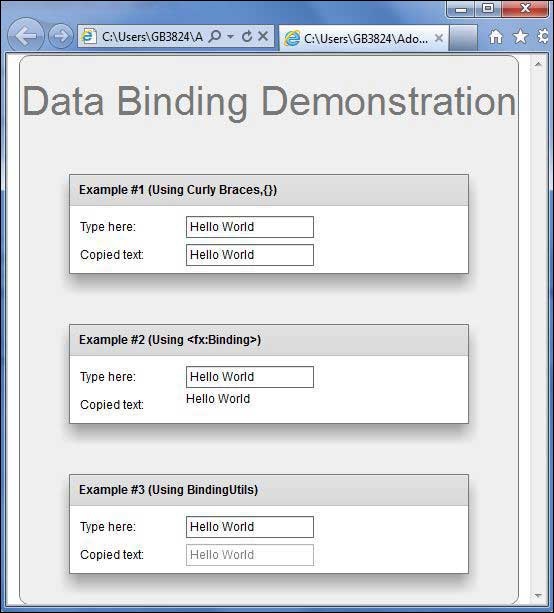
完成所有更改後,讓我們像在Flex - 建立應用程式章節中那樣,以普通模式編譯並執行應用程式。如果應用程式一切正常,它將產生以下結果:[ 線上嘗試 ]
廣告