- ASP.NET MVC 教程
- ASP.NET MVC - 首頁
- ASP.NET MVC - 概述
- ASP.NET MVC - 模式
- ASP.NET MVC - 環境設定
- ASP.NET MVC - 入門
- ASP.NET MVC - 生命週期
- ASP.NET MVC - 路由
- ASP.NET MVC - 控制器
- ASP.NET MVC - 操作
- ASP.NET MVC - 過濾器
- ASP.NET MVC - 選擇器
- ASP.NET MVC - 檢視
- ASP.NET MVC - 資料模型
- ASP.NET MVC - 輔助方法
- ASP.NET MVC - 模型繫結
- ASP.NET MVC - 資料庫
- ASP.NET MVC - 驗證
- ASP.NET MVC - 安全性
- ASP.NET MVC - 快取
- ASP.NET MVC - Razor
- ASP.NET MVC - 資料註解
- Nuget 包管理
- ASP.NET MVC - Web API
- ASP.NET MVC - 腳手架
- ASP.NET MVC - Bootstrap
- ASP.NET MVC - 單元測試
- ASP.NET MVC - 部署
- ASP.NET MVC - 自託管
- ASP.NET MVC 有用資源
- ASP.NET MVC - 快速指南
- ASP.NET MVC - 有用資源
- ASP.NET MVC - 討論
ASP.NET MVC - 單元測試
在計算機程式設計中,單元測試是一種軟體測試方法,透過該方法測試原始碼的單個單元以確定它們是否適合使用。換句話說,它是一種軟體開發過程,其中應用程式中最小的可測試部分(稱為單元)被單獨且獨立地檢查以確保其正常執行。
在程序式程式設計中,一個單元可以是一個完整的模組,但更常見的是一個單獨的函式或過程。在面向物件程式設計中,一個單元通常是一個完整的介面,例如一個類,但也可能是一個單獨的方法。
單元測試通常是自動化的,但也可以手動完成。
單元測試的目標
單元測試的主要目標是獲取應用程式中最小的可測試軟體片段,並確定其行為是否完全符合預期。在將每個單元整合到模組中以測試模組之間的介面之前,會單獨測試每個單元。
讓我們來看一個單元測試的簡單示例,其中我們使用單元測試建立一個新的 ASP.NET MVC 應用程式。
步驟 1 - 開啟 Visual Studio 並單擊“檔案”→“新建”→“專案”選單選項。
將開啟一個“新建專案”對話方塊。
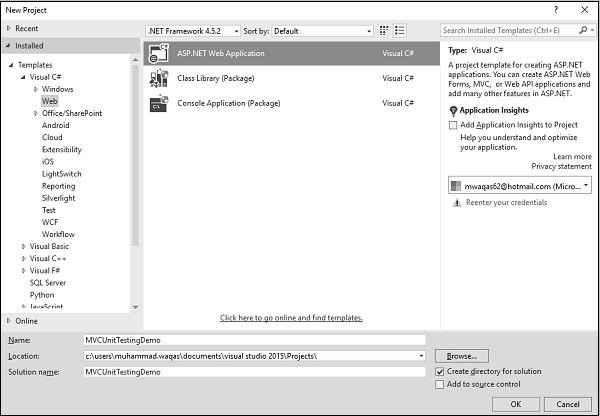
步驟 2 - 從左側窗格中,選擇“模板”>“Visual C#”>“Web”。
步驟 3 - 在中間窗格中,選擇“ASP.NET Web 應用程式”。
步驟 4 - 在“名稱”欄位中輸入專案名稱“MVCUnitTestingDemo”,然後單擊“確定”繼續。您將看到以下對話方塊,該對話方塊要求您設定 ASP.NET 專案的初始內容。
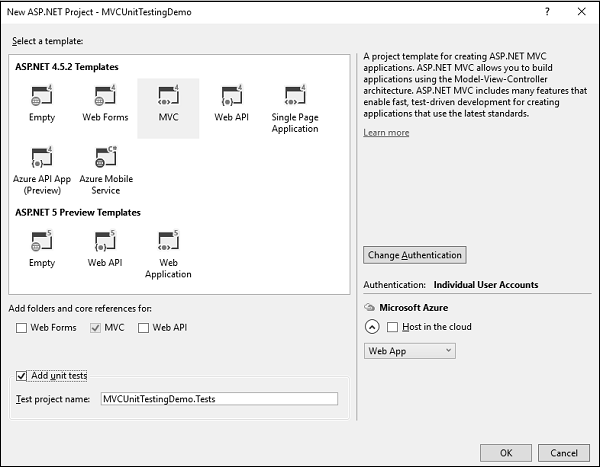
步驟 5 - 選擇 MVC 作為模板,並且不要忘記選中對話方塊底部的“新增單元測試”複選框。您也可以更改測試專案名稱,但在本示例中,我們保持不變,因為它是預設名稱。
Visual Studio 建立專案後,您將在“解決方案資源管理器”視窗中看到許多檔案和資料夾。
步驟 6 - 您可以在解決方案資源管理器中看到有兩個專案。一個是 ASP.NET Web 專案,另一個是單元測試專案。
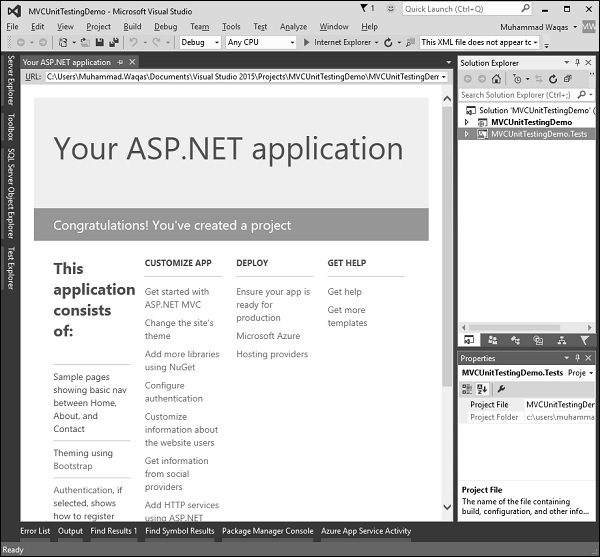
步驟 7 - 執行此應用程式,您將看到以下輸出。
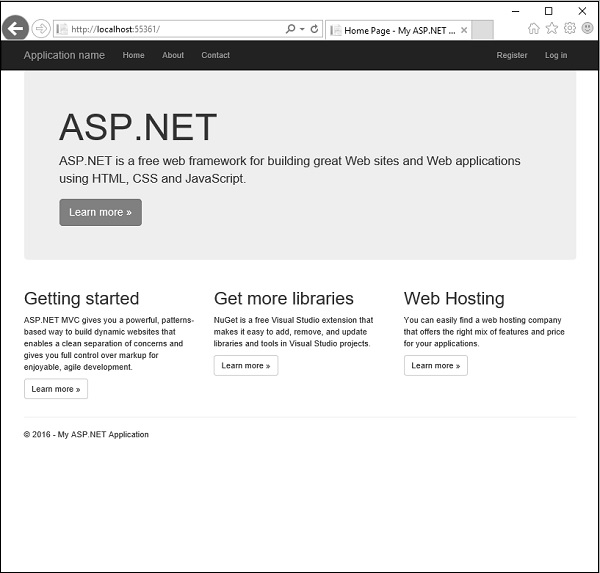
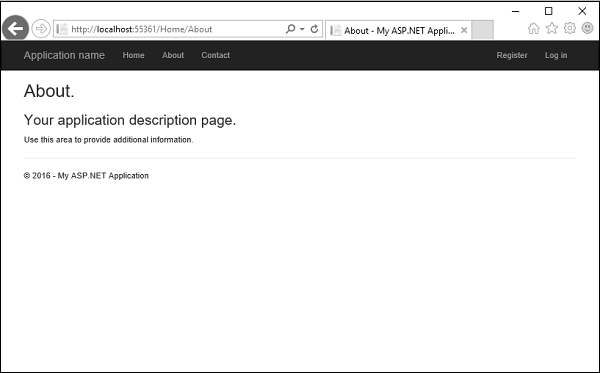
如上圖所示,導航欄上有“首頁”、“關於”和“聯絡”按鈕。讓我們選擇“關於”,您將看到以下檢視。
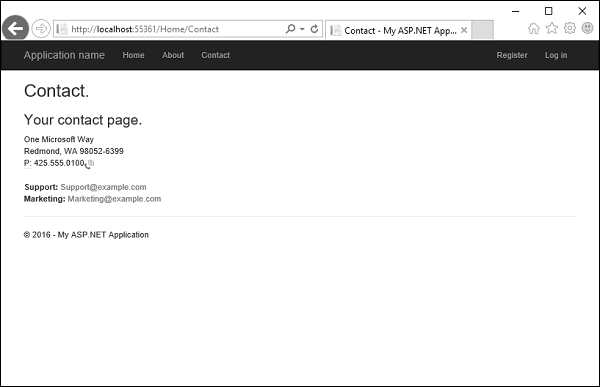
讓我們選擇“聯絡”,以下螢幕將彈出。
現在讓我們展開“MVCUnitTestingDemo”專案,您將在“Controllers”資料夾下看到 HomeController.cs 檔案。

HomeController 包含三個操作方法,如下面的程式碼所示。
using System;
using System.Collections.Generic;
using System.Linq;

using System.Web;
using System.Web.Mvc;

namespace MVCUnitTestingDemo.Controllers {
   public class HomeController : Controller{
      public ActionResult Index(){
         return View();
      }

      public ActionResult About(){
         ViewBag.Message = "Your application description page.";
         return View();
      }

      public ActionResult Contact(){
         ViewBag.Message = "Your contact page.";
         return View();
      }
   }
}
讓我們展開MVCUnitTestingDemo.Tests專案,您將在“Controllers”資料夾下看到 HomeControllerTest.cs 檔案。
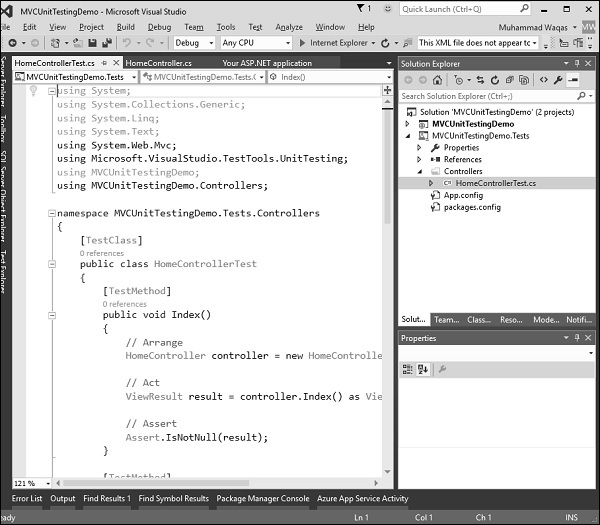
在此 HomeControllerTest 類中,您將看到三個方法,如下面的程式碼所示。
using System;
using System.Collections.Generic;
using System.Linq;
using System.Text;

using System.Web.Mvc;
using Microsoft.VisualStudio.TestTools.UnitTesting;

using MVCUnitTestingDemo;
using MVCUnitTestingDemo.Controllers;

namespace MVCUnitTestingDemo.Tests.Controllers{
   [TestClass]
   public class HomeControllerTest{

      [TestMethod]
      public void Index(){
         // Arrange
         HomeController controller = new HomeController();
         // Act
         ViewResult result = controller.Index() as ViewResult;
         // Assert
         Assert.IsNotNull(result);
      }

      [TestMethod]
      public void About(){
         // Arrange
         HomeController controller = new HomeController();
         // Act
         ViewResult result = controller.About() as ViewResult;
         // Assert
         Assert.AreEqual("Your application description page.", result.ViewBag.Message);
      }

      [TestMethod]
      public void Contact(){
         // Arrange
         HomeController controller = new HomeController();
         // Act
         ViewResult result = controller.Contact() as ViewResult;
         // Assert
         Assert.IsNotNull(result);
      }
   }
}
這三個方法將測試 Index、About 和 Contact 操作方法是否正常工作。要測試這三個操作方法,請轉到“測試”選單。
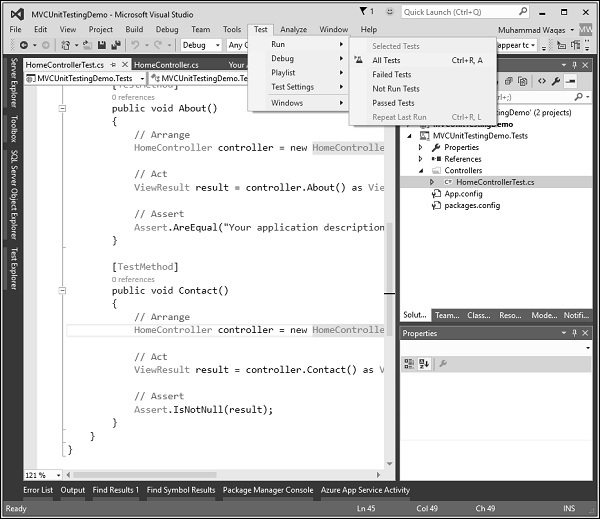
選擇“執行”→“所有測試”以測試這些操作方法。
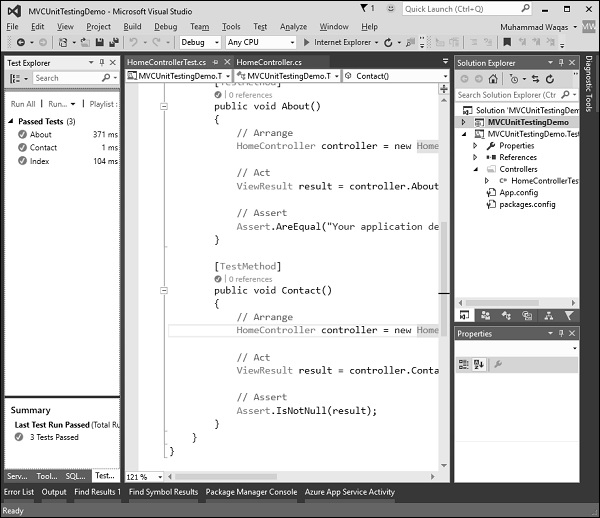
現在您將在左側看到“測試資源管理器”,您可以在其中看到所有測試都已透過。讓我們再新增一個操作方法,該方法將列出所有員工。首先,我們需要在 Models 資料夾中新增一個 Employee 類。
以下是 Employee 類的實現。
using System;
using System.Collections.Generic;
using System.Linq;

using System.Web;

namespace MVCUnitTestingDemo.Models{
   public class Employee{
      public int ID { get; set; }
      public string Name { get; set; }
      public DateTime JoiningDate { get; set; }
      public int Age { get; set; }
   }
}
我們需要新增 EmployeeController。右鍵單擊解決方案資源管理器中的控制器資料夾,然後選擇“新增”→“控制器”。
它將顯示“新增腳手架”對話方塊。
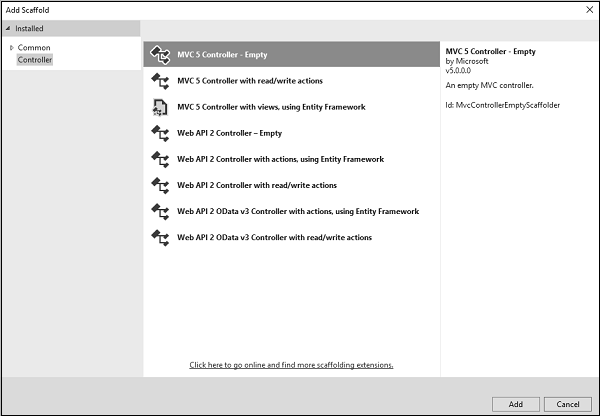
選擇“MVC 5 控制器 - 空”選項,然後單擊“新增”按鈕,將出現“新增控制器”對話方塊。
將名稱設定為 EmployeeController 並單擊“新增”按鈕。
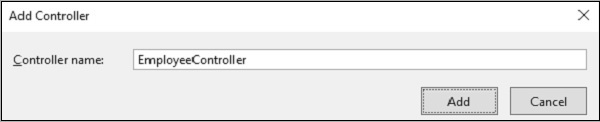
您將在“Controllers”資料夾中看到一個新的 C# 檔案“EmployeeController.cs”,該檔案在 Visual Studio 中開啟以進行編輯。讓我們使用以下程式碼更新 EmployeeController。
using MVCUnitTestingDemo.Models;
using System;
using System.Collections.Generic;
using System.Linq;

using System.Web;
using System.Web.Mvc;

namespace MVCUnitTestingDemo.Controllers {
   public class EmployeeController : Controller{
      [NonAction]

      public List<Employee> GetEmployeeList(){
         return new List<Employee>{
            new Employee{
               ID = 1,
               Name = "Allan",
               JoiningDate = DateTime.Parse(DateTime.Today.ToString()),
               Age = 23
            },

            new Employee{
               ID = 2,
               Name = "Carson",
               JoiningDate = DateTime.Parse(DateTime.Today.ToString()),
               Age = 45
            },

            new Employee{
               ID = 3,
               Name = "Carson",
               JoiningDate = DateTime.Parse(DateTime.Today.ToString()),
               Age = 37
            },

            new Employee{
               ID = 4,
               Name = "Laura",
               JoiningDate = DateTime.Parse(DateTime.Today.ToString()),
               Age = 26
            },
         };
      }

      // GET: Employee
      public ActionResult Index(){
         return View();
      }

      public ActionResult Employees(){
         var employees = from e in GetEmployeeList()
         orderby e.ID
         select e;
         return View(employees);
      }
   }
}
要為 Employees 操作方法新增檢視,請右鍵單擊 Employees 操作並選擇“新增檢視…”。
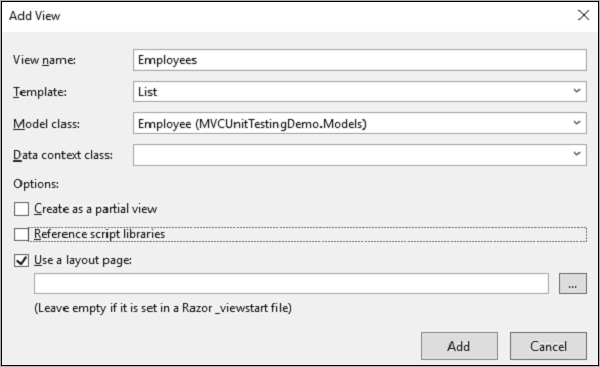
您將看到檢視的預設名稱。從“模板”下拉列表中選擇“列表”,從“模型類”下拉列表中選擇“Employee”,然後單擊“確定”。
現在我們需要新增員工列表連結,讓我們開啟位於 Views/Shared 資料夾下的 _layout.cshtml 檔案,並在“聯絡”連結下方新增員工列表的連結。
<li>@Html.ActionLink("Employees List", "Employees", "Employee")</li>
以下是 _layout.cshtml 的完整實現。
<!DOCTYPE html>
<html>
   <head>
      <meta charset = "utf-8" />
      <meta name = "viewport" content = "width = device-width, initial-scale = 1.0">
      <title>@ViewBag.Title - My ASP.NET Application</title>
      @Styles.Render("~/Content/css")
      @Scripts.Render("~/bundles/modernizr")
   </head>

   <body>
      <div class = "navbar navbar-inverse navbar-fixed-top">
         <div class = "container">

            <div class = "navbar-header">
               <button type = "button" class = "navbar-toggle" datatoggle =
                  "collapse" data-target = ".navbar-collapse">
                  <span class = "icon-bar"></span>
                  <span class = "icon-bar"></span>
                  <span class = "icon-bar"></span>
               </button>

               @Html.ActionLink("Application name", "Index", "Home", new
                  { area = "" }, new { @class = "navbar-brand" })
            </div>

            <div class = "navbar-collapse collapse">
               <ul class = "nav navbar-nav">
                  <li>@Html.ActionLink("Home", "Index", "Home")</li>
                  <li>@Html.ActionLink("About", "About", "Home")</li>
                  <li>@Html.ActionLink("Contact", "Contact", "Home")</li>
                  <li>@Html.ActionLink("Employees List", "Employees", "Employee")</li>
               </ul>

               @Html.Partial("_LoginPartial")
            </div>

         </div>

      </div>

      <div class = "container body-content">
         @RenderBody()
         <hr />
         <footer>
            <p>© @DateTime.Now.Year - My ASP.NET Application</p>
         </footer>
      </div>

      @Scripts.Render("~/bundles/jquery")
      @Scripts.Render("~/bundles/bootstrap")
      @RenderSection("scripts", required: false)

   </body>
</html>
要測試 Employee 控制器中的 Employees 操作方法,我們需要在單元測試專案中新增另一個測試方法。以下是 EmployeeControllerTest 類,我們將在其中測試 Employees 操作方法。
[TestClass]
public class EmployeeControllerTest{
   [TestMethod]
   public void Employees(){
      // Arrange
      EmployeeController controller = new EmployeeController();

      // Act
      ViewResult result = controller.Index() as ViewResult;

      // Assert
      Assert.IsNotNull(result);
   }
}
從“測試”選單中選擇“執行”→“所有測試”以測試這些操作方法。
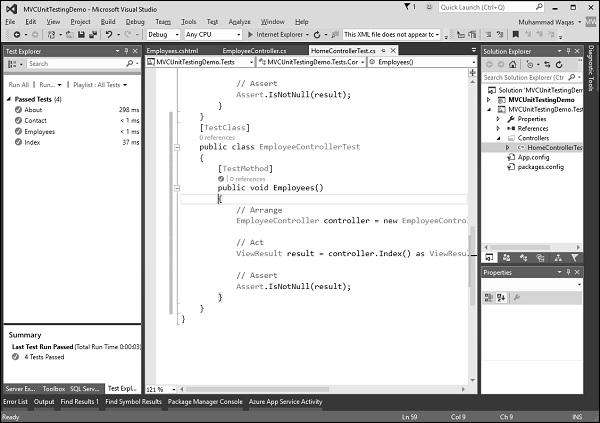
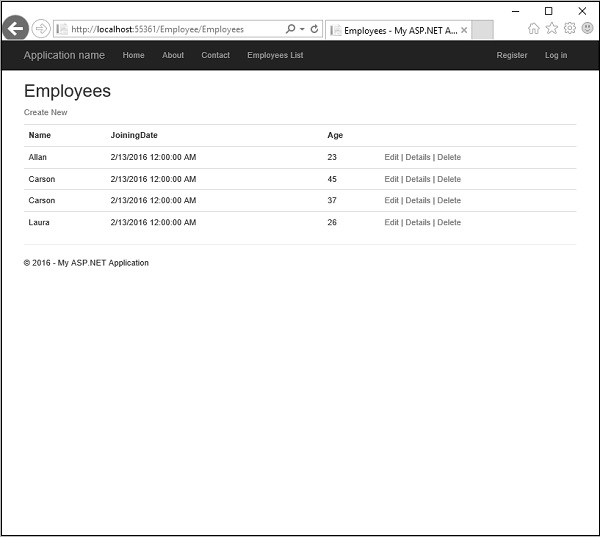
您可以看到 Employees 測試方法現在也已透過。執行應用程式時,您將看到以下輸出。
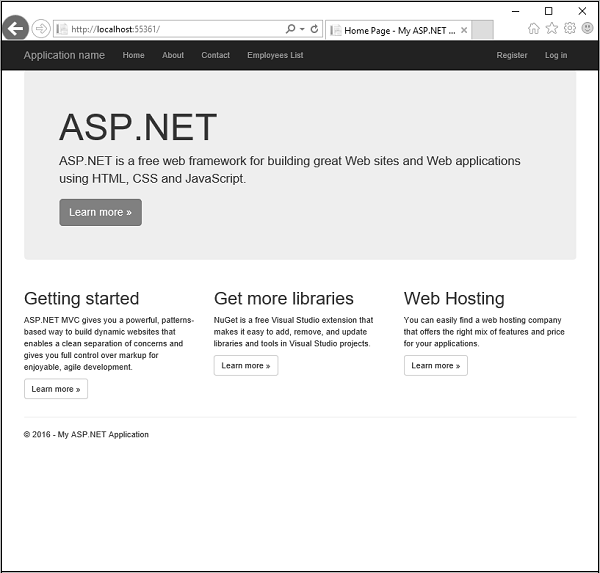
單擊導航欄中的“員工列表”選項,您將看到員工列表。