
- WebRTC 教程
- WebRTC - 首頁
- WebRTC - 概述
- WebRTC - 架構
- WebRTC - 環境
- WebRTC - MediaStream APIs
- WebRTC - RTCPeerConnection APIs
- WebRTC - RTCDataChannel APIs
- WebRTC - 傳送訊息
- WebRTC - 信令
- WebRTC - 瀏覽器支援
- WebRTC - 移動裝置支援
- WebRTC - 影片演示
- WebRTC - 語音演示
- WebRTC - 文字演示
- WebRTC - 安全性
- WebRTC 資源
- WebRTC - 快速指南
- WebRTC - 有用資源
- WebRTC - 討論
WebRTC - 影片演示
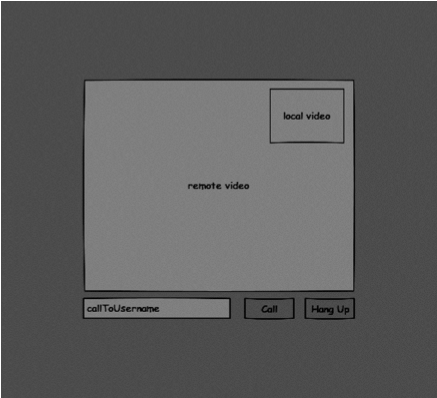
在本章中,我們將構建一個客戶端應用程式,允許兩個在不同裝置上的使用者使用 WebRTC 進行通訊。我們的應用程式將有兩個頁面。一個用於登入,另一個用於呼叫其他使用者。
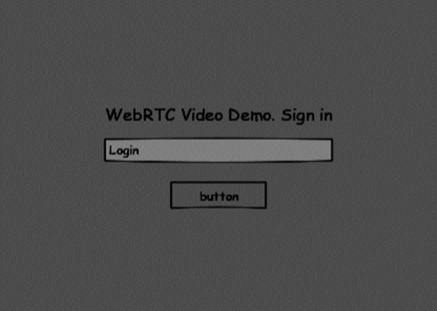
這兩個頁面將是div標籤。大多數輸入都是透過簡單的事件處理程式完成的。
信令伺服器
要建立 WebRTC 連線,客戶端必須能夠在不使用 WebRTC 對等連線的情況下傳輸訊息。這就是我們將使用 HTML5 WebSockets 的地方 - 兩個端點(Web 伺服器和 Web 瀏覽器)之間的雙向套接字連線。現在讓我們開始使用 WebSocket 庫。建立server.js檔案並插入以下程式碼 -
//require our websocket library
var WebSocketServer = require('ws').Server;

//creating a websocket server at port 9090
var wss = new WebSocketServer({port: 9090});

//when a user connects to our sever
wss.on('connection', function(connection) {
   console.log("user connected");

   //when server gets a message from a connected user
   connection.on('message', function(message) {
      console.log("Got message from a user:", message);
   });

   connection.send("Hello from server");
});
第一行需要我們已經安裝的 WebSocket 庫。然後我們在埠 9090 上建立一個套接字伺服器。接下來,我們監聽connection事件。當用戶與伺服器建立 WebSocket 連線時,將執行此程式碼。然後,我們監聽使用者傳送的任何訊息。最後,我們向已連線的使用者傳送響應,內容為“Hello from server”。
在我們的信令伺服器中,我們將為每個連線使用基於字串的使用者名稱,以便我們知道將訊息傳送到哪裡。讓我們稍微更改一下我們的連線handler -
connection.on('message', function(message) {
   var data;

   //accepting only JSON messages
   try {
      data = JSON.parse(message);
   } catch (e) {
      console.log("Invalid JSON");
      data = {};
   }
});
這樣我們只接受 JSON 訊息。接下來,我們需要將所有已連線的使用者儲存在某個地方。我們將為此使用一個簡單的 Javascript 物件。更改我們檔案頂部的內容 -
//require our websocket library
var WebSocketServer = require('ws').Server;

//creating a websocket server at port 9090
var wss = new WebSocketServer({port: 9090});

//all connected to the server users
var users = {};
我們將為來自客戶端的每條訊息新增一個type欄位。例如,如果使用者想要登入,他傳送login型別的訊息。讓我們定義它 -
connection.on('message', function(message) {
   var data;

   //accepting only JSON messages
   try {
      data = JSON.parse(message);
   } catch (e) {
      console.log("Invalid JSON");
      data = {};
   }

   //switching type of the user message
   switch (data.type) {
      //when a user tries to login
      case "login":
         console.log("User logged:", data.name);

         //if anyone is logged in with this username then refuse
         if(users[data.name]) {
            sendTo(connection, {
               type: "login",
               success: false
            });
         } else {
            //save user connection on the server
            users[data.name] = connection;
            connection.name = data.name;

            sendTo(connection, {
               type: "login",
               success: true
            });
         }

         break;

      default:
         sendTo(connection, {
            type: "error",
            message: "Command no found: " + data.type
         });

         break;
   }
});
如果使用者傳送一條帶有login型別的訊息,我們將 -
檢查是否有人已使用此使用者名稱登入
如果是,則告訴使用者他未成功登入
如果沒有人使用此使用者名稱,我們將使用者名稱作為鍵新增到連線物件。
如果未識別命令,我們將傳送錯誤。
以下程式碼是用於向連線傳送訊息的輔助函式。將其新增到server.js檔案中 -
function sendTo(connection, message) {
   connection.send(JSON.stringify(message));
}
當用戶斷開連線時,我們應該清理其連線。當close事件觸發時,我們可以刪除使用者。將以下程式碼新增到connection處理程式中 -
connection.on("close", function() {
   if(connection.name) {
      delete users[connection.name];
   }
});
成功登入後,使用者希望呼叫另一個使用者。他應該向另一個使用者發出offer以實現它。新增offer處理程式 -
case "offer":
   //for ex. UserA wants to call UserB
   console.log("Sending offer to: ", data.name);

   //if UserB exists then send him offer details
   var conn = users[data.name];

   if(conn != null) {
      //setting that UserA connected with UserB
      connection.otherName = data.name;

      sendTo(conn, {
         type: "offer",
         offer: data.offer,
         name: connection.name
      });

   }

   break;
首先,我們獲取我們嘗試呼叫的使用者connection。如果它存在,我們將向他傳送offer詳細資訊。我們還在connection物件中新增otherName。這是為了簡化以後查詢它。
對響應的答覆具有與我們在offer處理程式中使用的類似模式。我們的伺服器只是將所有訊息作為answer傳遞給另一個使用者。在offer處理程式之後新增以下程式碼 -
case "answer":
   console.log("Sending answer to: ", data.name);

   //for ex. UserB answers UserA
   var conn = users[data.name];

   if(conn != null) {
      connection.otherName = data.name;

      sendTo(conn, {
         type: "answer",
         answer: data.answer
      });
   }

   break;
最後的部分是處理使用者之間的 ICE 候選。我們使用相同的技術,只是在使用者之間傳遞訊息。主要區別在於,候選訊息可能每個使用者多次發生,並且順序可能不同。新增candidate處理程式 -
case "candidate":
   console.log("Sending candidate to:",data.name);
   var conn = users[data.name];

   if(conn != null) {
      sendTo(conn, {
         type: "candidate",
         candidate: data.candidate
      });
   }

   break;
為了允許我們的使用者斷開與另一個使用者的連線,我們應該實現結束通話功能。它還會告訴伺服器刪除所有使用者引用。新增leave處理程式 -
case "leave":
   console.log("Disconnecting from", data.name);
   var conn = users[data.name];
   conn.otherName = null;

   //notify the other user so he can disconnect his peer connection
   if(conn != null) {
      sendTo(conn, {
         type: "leave"
      });
   }

   break;
這也會向另一個使用者傳送leave事件,以便他可以相應地斷開其對等連線。我們還應該處理使用者從信令伺服器中刪除其連線的情況。讓我們修改我們的close處理程式 -
connection.on("close", function() {

   if(connection.name) {
      delete users[connection.name];

      if(connection.otherName) {
         console.log("Disconnecting from ", connection.otherName);
         var conn = users[connection.otherName];
         conn.otherName = null;

         if(conn != null) {
            sendTo(conn, {
               type: "leave"
            });
         }

      }
   }
});
以下是信令伺服器的完整程式碼 -
//require our websocket library
var WebSocketServer = require('ws').Server;

//creating a websocket server at port 9090
var wss = new WebSocketServer({port: 9090});

//all connected to the server users
var users = {};

//when a user connects to our sever
wss.on('connection', function(connection) {

   console.log("User connected");

   //when server gets a message from a connected user
   connection.on('message', function(message) {

      var data;

      //accepting only JSON messages
      try {
         data = JSON.parse(message);
      } catch (e) {
         console.log("Invalid JSON");
         data = {};
      }

      //switching type of the user message
      switch (data.type) {
         //when a user tries to login
         case "login":
            console.log("User logged", data.name);

            //if anyone is logged in with this username then refuse
            if(users[data.name]) {
               sendTo(connection, {
                  type: "login",
                  success: false
               });
            } else {
               //save user connection on the server
               users[data.name] = connection;
               connection.name = data.name;

               sendTo(connection, {
                  type: "login",
                  success: true
               });
            }

            break;

         case "offer":
            //for ex. UserA wants to call UserB
            console.log("Sending offer to: ", data.name);

            //if UserB exists then send him offer details
            var conn = users[data.name];

            if(conn != null) {
               //setting that UserA connected with UserB
               connection.otherName = data.name;

               sendTo(conn, {
                  type: "offer",
                  offer: data.offer,
                  name: connection.name
               });
            }

            break;

         case "answer":
            console.log("Sending answer to: ", data.name);
            //for ex. UserB answers UserA
            var conn = users[data.name];

            if(conn != null) {
               connection.otherName = data.name;
               sendTo(conn, {
                  type: "answer",
                  answer: data.answer
               });
            }

            break;

         case "candidate":
            console.log("Sending candidate to:",data.name);
            var conn = users[data.name];

            if(conn != null) {
               sendTo(conn, {
                  type: "candidate",
                  candidate: data.candidate
               });
            }

            break;

         case "leave":
            console.log("Disconnecting from", data.name);
            var conn = users[data.name];
            conn.otherName = null;

            //notify the other user so he can disconnect his peer connection
            if(conn != null) {
               sendTo(conn, {
                  type: "leave"
              });
            }

            break;

         default:
            sendTo(connection, {
               type: "error",
               message: "Command not found: " + data.type
            });

            break;
      }

   });

   //when user exits, for example closes a browser window
   //this may help if we are still in "offer","answer" or "candidate" state
   connection.on("close", function() {

      if(connection.name) {
         delete users[connection.name];

         if(connection.otherName) {
            console.log("Disconnecting from ", connection.otherName);
            var conn = users[connection.otherName];
            conn.otherName = null;

            if(conn != null) {
               sendTo(conn, {
                  type: "leave"
               });
            }
         }
      }

   });

   connection.send("Hello world");
});

function sendTo(connection, message) {
   connection.send(JSON.stringify(message));
}
客戶端應用程式
測試此應用程式的一種方法是開啟兩個瀏覽器選項卡並嘗試互相呼叫。
首先,我們需要安裝bootstrap庫。Bootstrap 是一個用於開發 Web 應用程式的前端框架。您可以在https://bootstrap.tw/.瞭解更多資訊。建立一個名為“videochat”的資料夾。這將是我們的根應用程式資料夾。在此資料夾內建立一個package.json檔案(它對於管理 npm 依賴項是必要的)並新增以下內容 -
{
   "name": "webrtc-videochat",
   "version": "0.1.0",
   "description": "webrtc-videochat",
   "author": "Author",
   "license": "BSD-2-Clause"
}
然後執行npm install bootstrap。這將在videochat/node_modules資料夾中安裝 bootstrap 庫。
現在我們需要建立一個基本的 HTML 頁面。在根資料夾中建立一個index.html檔案,其中包含以下程式碼 -
<html>

   <head>
      <title>WebRTC Video Demo</title>
      <link rel = "stylesheet" href = "node_modules/bootstrap/dist/css/bootstrap.min.css"/>
   </head>

   <style>

      body {
         background: #eee;
         padding: 5% 0;
      }

      video {
         background: black;
         border: 1px solid gray;
      }

      .call-page {
         position: relative;
         display: block;
         margin: 0 auto;
         width: 500px;
         height: 500px;
      }

      #localVideo {
         width: 150px;
         height: 150px;
         position: absolute;
         top: 15px;
         right: 15px;
      }

      #remoteVideo {
         width: 500px;
         height: 500px;
      }

   </style>

   <body>

   <div id = "loginPage" class = "container text-center">

      <div class = "row">
         <div class = "col-md-4 col-md-offset-4">

            <h2>WebRTC Video Demo. Please sign in</h2>
            <label for = "usernameInput" class = "sr-only">Login</label>
            <input type = "email" id = "usernameInput" c
               lass = "form-control formgroup" placeholder = "Login"
               required = "" autofocus = "">
            <button id = "loginBtn" class = "btn btn-lg btn-primary btnblock">
               Sign in</button>

         </div>
      </div>

   </div>

   <div id = "callPage" class = "call-page">
      <video id = "localVideo" autoplay></video>
      <video id = "remoteVideo" autoplay></video>

      <div class = "row text-center">
         <div class = "col-md-12">
            <input id = "callToUsernameInput" type = "text"
               placeholder = "username to call" />
            <button id = "callBtn" class = "btn-success btn">Call</button>
            <button id = "hangUpBtn" class = "btn-danger btn">Hang Up</button>
         </div>
      </div>

   </div>

   <script src = "client.js"></script>

   </body>

</html>
此頁面應該對你來說很熟悉。我們添加了bootstrap css 檔案。我們還定義了兩個頁面。最後,我們建立了幾個文字欄位和按鈕以獲取來自使用者的資訊。您應該看到用於本地和遠端影片流的兩個影片元素。請注意,我們添加了指向client.js檔案的連結。
現在我們需要與信令伺服器建立連線。在根資料夾中建立client.js檔案,其中包含以下程式碼 -
//our username
var name;
var connectedUser;

//connecting to our signaling server
var conn = new WebSocket('ws://:9090');

conn.onopen = function () {
   console.log("Connected to the signaling server");
};

//when we got a message from a signaling server
conn.onmessage = function (msg) {
   console.log("Got message", msg.data);

   var data = JSON.parse(msg.data);

   switch(data.type) {
      case "login":
         handleLogin(data.success);
         break;
      //when somebody wants to call us
      case "offer":
         handleOffer(data.offer, data.name);
         break;
      case "answer":
         handleAnswer(data.answer);
         break;
      //when a remote peer sends an ice candidate to us
      case "candidate":
         handleCandidate(data.candidate);
         break;
      case "leave":
         handleLeave();
         break;
      default:
         break;
   }
};

conn.onerror = function (err) {
   console.log("Got error", err);
};

//alias for sending JSON encoded messages
function send(message) {
   //attach the other peer username to our messages
   if (connectedUser) {
      message.name = connectedUser;
   }

   conn.send(JSON.stringify(message));
};
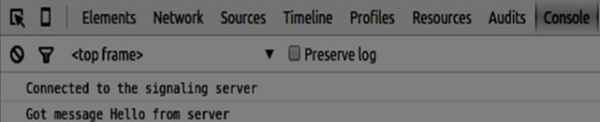
現在透過node server執行我們的信令伺服器。然後,在根資料夾中執行static命令並在瀏覽器中開啟頁面。您應該看到以下控制檯輸出 -
下一步是實現使用唯一使用者名稱的使用者登入。我們只需將使用者名稱傳送到伺服器,然後伺服器會告訴我們它是否已被佔用。將以下程式碼新增到client.js檔案中 -
//******
//UI selectors block
//******

var loginPage = document.querySelector('#loginPage');
var usernameInput = document.querySelector('#usernameInput');
var loginBtn = document.querySelector('#loginBtn');

var callPage = document.querySelector('#callPage');
var callToUsernameInput = document.querySelector('#callToUsernameInput');
var callBtn = document.querySelector('#callBtn');

var hangUpBtn = document.querySelector('#hangUpBtn');

//hide call page
callPage.style.display = "none";

// Login when the user clicks the button
loginBtn.addEventListener("click", function (event) {
   name = usernameInput.value;

   if (name.length > 0) {
      send({
         type: "login",
         name: name
      });
   }

});

function handleLogin(success) {

   if (success === false) {
      alert("Ooops...try a different username");
   } else {
      //display the call page if login is successful
      loginPage.style.display = "none";
      callPage.style.display = "block";
      //start peer connection
   }
};
首先,我們選擇頁面上元素的一些引用。然後,我們隱藏呼叫頁面。然後,我們在登入按鈕上新增一個事件偵聽器。當用戶點選它時,我們將他的使用者名稱傳送到伺服器。最後,我們實現了 handleLogin 回撥。如果登入成功,我們將顯示呼叫頁面並開始設定對等連線。
要啟動對等連線,我們需要 -
- 從網路攝像頭獲取流。
- 建立 RTCPeerConnection 物件。
將以下程式碼新增到“UI 選擇器塊”中 -
var localVideo = document.querySelector('#localVideo');
var remoteVideo = document.querySelector('#remoteVideo');

var yourConn;
var stream;
修改handleLogin函式 -
function handleLogin(success) {

   if (success === false) {
      alert("Ooops...try a different username");
   } else {
      loginPage.style.display = "none";
      callPage.style.display = "block";

      //**********************
      //Starting a peer connection
      //**********************

      //getting local video stream
      navigator.webkitGetUserMedia({ video: true, audio: true }, function (myStream) {
         stream = myStream;

         //displaying local video stream on the page
         localVideo.src = window.URL.createObjectURL(stream);

         //using Google public stun server
         var configuration = {
            "iceServers": [{ "url": "stun:stun2.1.google.com:19302" }]
         };

         yourConn = new webkitRTCPeerConnection(configuration);

         // setup stream listening
         yourConn.addStream(stream);

         //when a remote user adds stream to the peer connection, we display it
         yourConn.onaddstream = function (e) {
            remoteVideo.src = window.URL.createObjectURL(e.stream);
         };

         // Setup ice handling
         yourConn.onicecandidate = function (event) {

            if (event.candidate) {
               send({
                  type: "candidate",
                  candidate: event.candidate
               });
            }

         };

      }, function (error) {
         console.log(error);
      });
   }
};
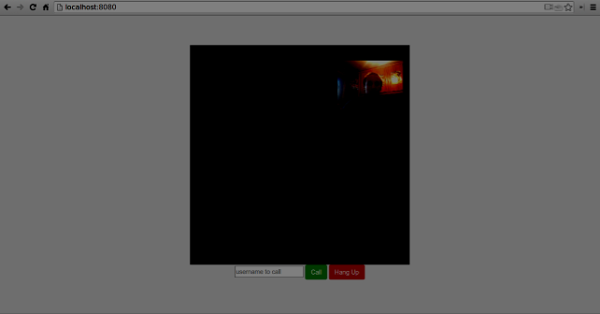
現在,如果您執行程式碼,頁面應該允許您登入並在頁面上顯示您的本地影片流。
現在我們準備發起呼叫。首先,我們向另一個使用者傳送一個offer。一旦使用者收到 offer,他就會建立一個answer並開始交換 ICE 候選。將以下程式碼新增到client.js檔案中 -
//initiating a call
callBtn.addEventListener("click", function () {
   var callToUsername = callToUsernameInput.value;

   if (callToUsername.length > 0) {

      connectedUser = callToUsername;

      // create an offer
      yourConn.createOffer(function (offer) {
         send({
            type: "offer",
            offer: offer
         });

         yourConn.setLocalDescription(offer);

      }, function (error) {
         alert("Error when creating an offer");
      });
   }
});

//when somebody sends us an offer
function handleOffer(offer, name) {
   connectedUser = name;
   yourConn.setRemoteDescription(new RTCSessionDescription(offer));

   //create an answer to an offer
   yourConn.createAnswer(function (answer) {
      yourConn.setLocalDescription(answer);

      send({
         type: "answer",
         answer: answer
      });

   }, function (error) {
      alert("Error when creating an answer");
   });
};

//when we got an answer from a remote user
function handleAnswer(answer) {
   yourConn.setRemoteDescription(new RTCSessionDescription(answer));
};

//when we got an ice candidate from a remote user
function handleCandidate(candidate) {
   yourConn.addIceCandidate(new RTCIceCandidate(candidate));
};
我們在“呼叫”按鈕上添加了一個click處理程式,它會發起 offer。然後我們實現onmessage處理程式期望的幾個處理程式。它們將非同步處理,直到兩個使用者都建立連線。
最後一步是實現結束通話功能。這將停止傳輸資料並告訴另一個使用者關閉呼叫。新增以下程式碼 -
//hang up
hangUpBtn.addEventListener("click", function () {

   send({
      type: "leave"
   });

   handleLeave();
});

function handleLeave() {
   connectedUser = null;
   remoteVideo.src = null;

   yourConn.close();
   yourConn.onicecandidate = null;
   yourConn.onaddstream = null;
};
當用戶點選“結束通話”按鈕時 -
- 它將向另一個使用者傳送“leave”訊息
- 它將關閉 RTCPeerConnection 並本地銷燬連線
現在執行程式碼。您應該能夠使用兩個瀏覽器選項卡登入到伺服器。然後,您可以呼叫該選項卡並結束通話呼叫。
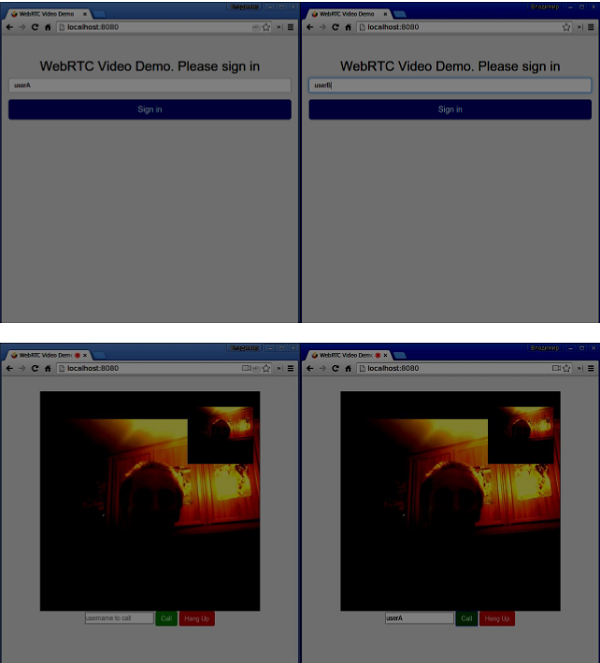
以下是完整的client.js檔案 -
//our username
var name;
var connectedUser;

//connecting to our signaling server
var conn = new WebSocket('ws://:9090');

conn.onopen = function () {
   console.log("Connected to the signaling server");
};

//when we got a message from a signaling server
conn.onmessage = function (msg) {
   console.log("Got message", msg.data);

   var data = JSON.parse(msg.data);

   switch(data.type) {
      case "login":
         handleLogin(data.success);
         break;
      //when somebody wants to call us
      case "offer":
         handleOffer(data.offer, data.name);
         break;
      case "answer":
         handleAnswer(data.answer);
         break;
      //when a remote peer sends an ice candidate to us
      case "candidate":
         handleCandidate(data.candidate);
         break;
      case "leave":
         handleLeave();
         break;
      default:
         break;
   }
};

conn.onerror = function (err) {
   console.log("Got error", err);
};

//alias for sending JSON encoded messages
function send(message) {
   //attach the other peer username to our messages
   if (connectedUser) {
      message.name = connectedUser;
   }

   conn.send(JSON.stringify(message));
};

//******
//UI selectors block
//******

var loginPage = document.querySelector('#loginPage');
var usernameInput = document.querySelector('#usernameInput');
var loginBtn = document.querySelector('#loginBtn');

var callPage = document.querySelector('#callPage');
var callToUsernameInput = document.querySelector('#callToUsernameInput');
var callBtn = document.querySelector('#callBtn');

var hangUpBtn = document.querySelector('#hangUpBtn');

var localVideo = document.querySelector('#localVideo');
var remoteVideo = document.querySelector('#remoteVideo');

var yourConn;
var stream;

callPage.style.display = "none";

// Login when the user clicks the button
loginBtn.addEventListener("click", function (event) {
   name = usernameInput.value;

   if (name.length > 0) {
      send({
         type: "login",
         name: name
      });
   }

});

function handleLogin(success) {
   if (success === false) {
      alert("Ooops...try a different username");
   } else {
      loginPage.style.display = "none";
      callPage.style.display = "block";

      //**********************
      //Starting a peer connection
      //**********************

      //getting local video stream
      navigator.webkitGetUserMedia({ video: true, audio: true }, function (myStream) {
         stream = myStream;

         //displaying local video stream on the page
         localVideo.src = window.URL.createObjectURL(stream);

         //using Google public stun server
         var configuration = {
            "iceServers": [{ "url": "stun:stun2.1.google.com:19302" }]
         };

         yourConn = new webkitRTCPeerConnection(configuration);

         // setup stream listening
         yourConn.addStream(stream);

         //when a remote user adds stream to the peer connection, we display it
         yourConn.onaddstream = function (e) {
            remoteVideo.src = window.URL.createObjectURL(e.stream);
         };

         // Setup ice handling
         yourConn.onicecandidate = function (event) {
            if (event.candidate) {
               send({
                  type: "candidate",
                  candidate: event.candidate
               });
            }
         };

      }, function (error) {
         console.log(error);
      });

   }
};

//initiating a call
callBtn.addEventListener("click", function () {
   var callToUsername = callToUsernameInput.value;

   if (callToUsername.length > 0) {

      connectedUser = callToUsername;

      // create an offer
      yourConn.createOffer(function (offer) {
         send({
            type: "offer",
            offer: offer
         });

         yourConn.setLocalDescription(offer);
      }, function (error) {
         alert("Error when creating an offer");
      });

   }
});

//when somebody sends us an offer
function handleOffer(offer, name) {
   connectedUser = name;
   yourConn.setRemoteDescription(new RTCSessionDescription(offer));

   //create an answer to an offer
   yourConn.createAnswer(function (answer) {
      yourConn.setLocalDescription(answer);

      send({
         type: "answer",
         answer: answer
      });

   }, function (error) {
      alert("Error when creating an answer");
   });
};

//when we got an answer from a remote user
function handleAnswer(answer) {
   yourConn.setRemoteDescription(new RTCSessionDescription(answer));
};

//when we got an ice candidate from a remote user
function handleCandidate(candidate) {
   yourConn.addIceCandidate(new RTCIceCandidate(candidate));
};

//hang up
hangUpBtn.addEventListener("click", function () {

   send({
      type: "leave"
   });

   handleLeave();
});

function handleLeave() {
   connectedUser = null;
   remoteVideo.src = null;

   yourConn.close();
   yourConn.onicecandidate = null;
   yourConn.onaddstream = null;
};
總結
此演示提供了每個 WebRTC 應用程式所需的基線功能。要改進此演示,您可以新增透過 Facebook 或 Google 等平臺的使用者身份驗證,處理無效資料的使用者輸入。此外,由於多種原因(例如不支援該技術或無法穿越防火牆),WebRTC 連線可能會失敗。為了使任何 WebRTC 應用程式穩定,已經付出了很多工作。