
 資料結構
資料結構 網路
網路 關係資料庫管理系統 (RDBMS)
 作業系統
作業系統 Java
Java MS Excel
 iOS
iOS HTML
HTML CSS
CSS Android
 Python
 C語言程式設計
 C++
C++ C#
C# MongoDB
 MySQL
MySQL Javascript
 PHP
PHP 物理
物理 化學
化學 生物
生物 數學
數學 英語
英語 經濟學
經濟學 心理學
心理學 社會學
社會學 服裝學
服裝學 法學
法學如何根據Excel表格中的單元格列表重新命名資料夾中的所有影像名稱?
您是否曾經面臨過根據Excel電子表格中儲存的特定資料重新命名大量影像檔案的挑戰性任務?每個檔案都需要手動重新命名,這既費力又容易出錯。幸運的是,利用程式設計和自動化的力量,有一種更有效的方法來完成這項任務。本教程將逐步指導您完成該過程,向您展示如何根據Excel檔案中的單元格列表重新命名資料夾中的所有影像。
根據單元格列表重新命名資料夾中的所有影像名稱
在這裡,我們將首先獲取工作表上影像的原始名稱,然後重新命名它們。讓我們來看一個簡單的過程,瞭解如何根據Excel中的單元格列表重新命名資料夾中的所有影像。
步驟1
考慮任何Excel工作表。
首先,右鍵單擊工作表名稱,然後選擇“檢視程式碼”以開啟VBA應用程式。
右鍵單擊 > 檢視程式碼。
步驟2
然後單擊“插入”,選擇“模組”,然後將下面的程式碼複製到文字框中。
插入 > 模組 > 複製。
程式碼
Sub PictureNametoExcel()
   Dim I As Long
   Dim xRg As Range
   Dim xAddress As String
   Dim xFileName As String
   Dim xFileDlg As FileDialog
   Dim xFileDlgItem As Variant
   On Error Resume Next
   xAddress = ActiveWindow.RangeSelection.Address
   Set xRg = Application.InputBox("Select a cell to place name list:", "Rename All Images", xAddress, , , , , 8)
   If xRg Is Nothing Then Exit Sub
   Application.ScreenUpdating = False
   Set xRg = xRg(1)
   xRg.Value = "Picture Name"
   With xRg.Font
   .Name = "Arial"
   .FontStyle = "Bold"
   .Size = 10
   End With
   xRg.EntireColumn.AutoFit
   Set xFileDlg = Application.FileDialog(msoFileDialogFolderPicker)
   I = 1
   If xFileDlg.Show = -1 Then
      xFileDlgItem = xFileDlg.SelectedItems.Item(1)
      xFileName = Dir(xFileDlgItem & "")
      Do While xFileName <> ""
         If InStr(1, xFileName, ".jpg") + InStr(1, xFileName, ".png") + InStr(1, xFileName, ".img") + InStr(1, xFileName, ".gif") + InStr(1, xFileName, ".ioc") + InStr(1, xFileName, ".bmp") > 0 Then
            xRg.Offset(I).Value = xFileDlgItem & "" & xFileName
            I = I + 1
         End If
         xFileName = Dir
      Loop
   End If
   Application.ScreenUpdating = True
End Sub
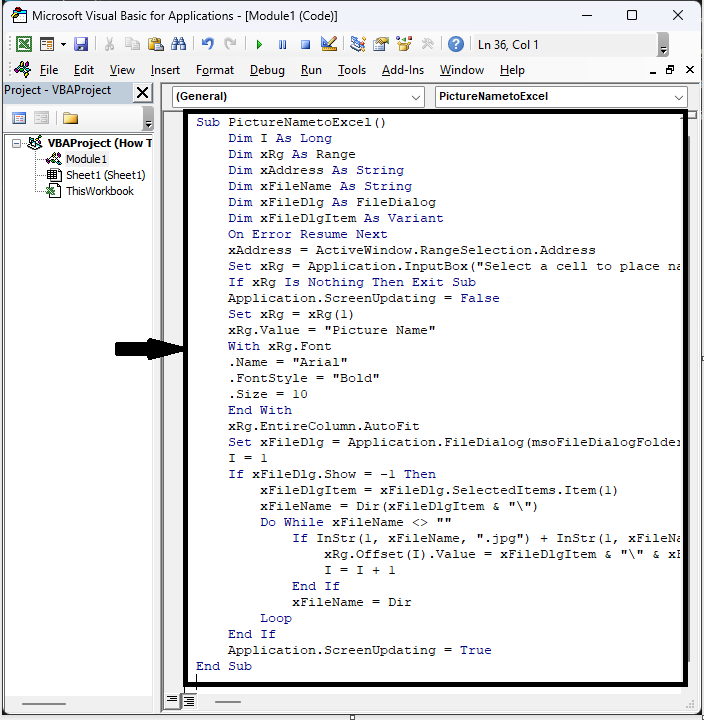
步驟3
然後單擊F5執行模組。然後選擇一個單元格來放置影像名稱,然後單擊“確定”。
F5 > 選擇單元格 > 確定。
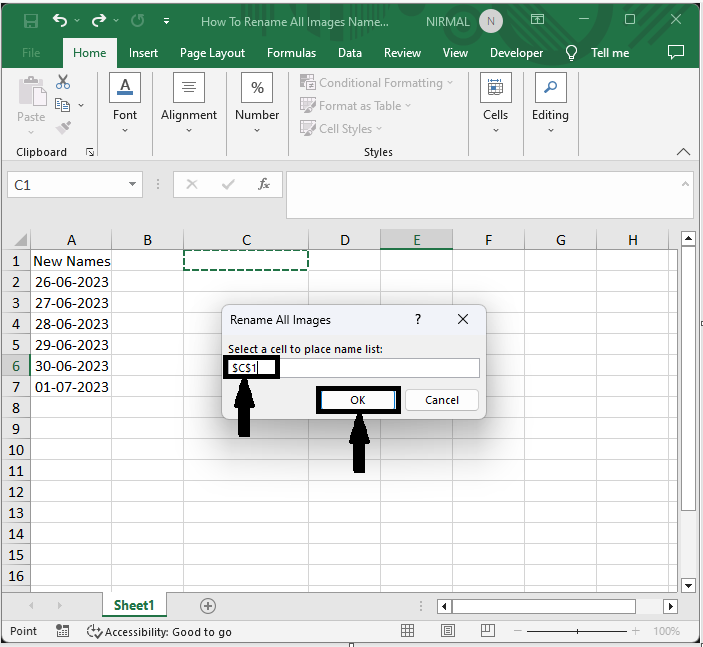
步驟4
然後選擇包含影像的資料夾,然後單擊“確定”。
選擇資料夾 > 確定。
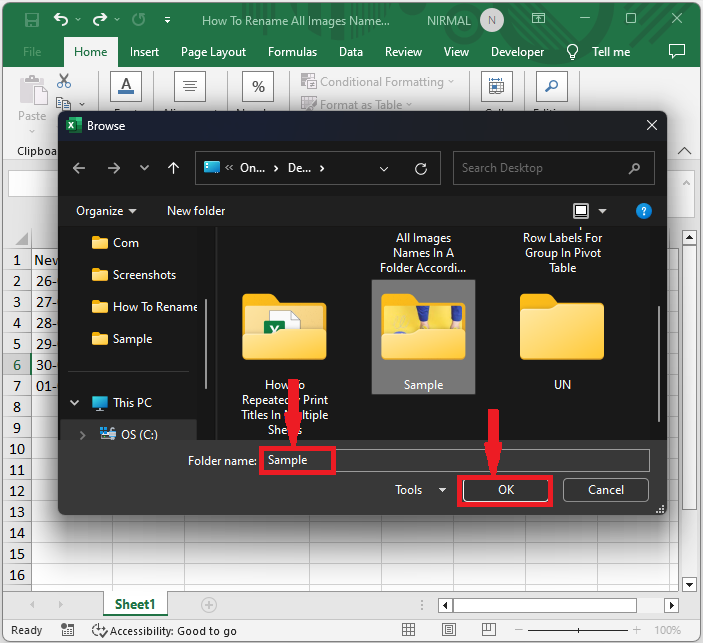
步驟5
然後您將看到原始名稱將被放置在工作表上。現在再次在VBA中,單擊“插入”,選擇“模組”,並將下面的程式碼複製到文字框中。
插入 > 模組 > 複製。
程式碼
Sub RenameFile()
   Dim I As Long
   Dim xLastRow As Long
   Dim xAddress As String
   Dim xRgS, xRgD As Range
   Dim xNumLeft, xNumRight As Long
   Dim xOldName, xNewName As String
   On Error Resume Next
   xAddress = ActiveWindow.RangeSelection.Address
   Set xRgS = Application.InputBox("Select Original Names(Single Column):", "Rename All Images", xAddress, , , , , 8)
   If xRgS Is Nothing Then Exit Sub
   Set xRgD = Application.InputBox("Select New Names(Single Column):", "Rename All Images", , , , , , 8)
   If xRgD Is Nothing Then Exit Sub
   Application.ScreenUpdating = False
   xLastRow = xRgS.Rows.Count
   Set xRgS = xRgS(1)
   Set xRgD = xRgD(1)
   For I = 1 To xLastRow
      xOldName = xRgS.Offset(I - 1).Value
      xNumLeft = InStrRev(xOldName, "")
      xNumRight = InStrRev(xOldName, ".")
      xNewName = xRgD.Offset(I - 1).Value
      If xNewName <> "" Then
         xNewName = Left(xOldName, xNumLeft) & xNewName & Mid(xOldName, xNumRight)
         Name xOldName As xNewName
      End If
   Next
   MsgBox "Congratulations! You have successfully renamed all the files", vbInformation, "Rename All Images"
   Application.ScreenUpdating = True
End Sub
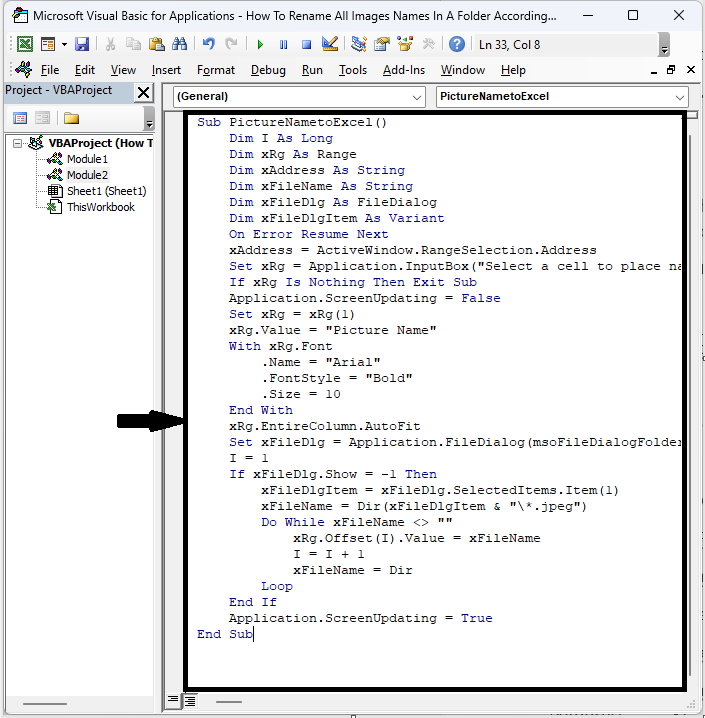
步驟6
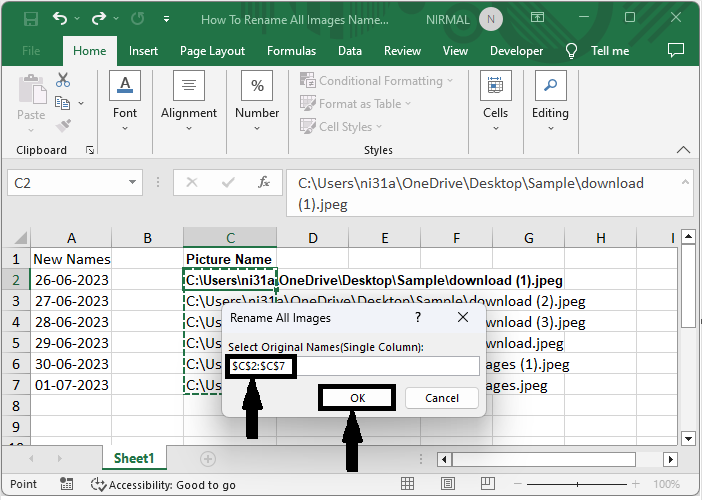
然後單擊F5執行模組。然後選擇包含原始名稱的單元格範圍,然後單擊“確定”。
選擇單元格 > 確定。
步驟7
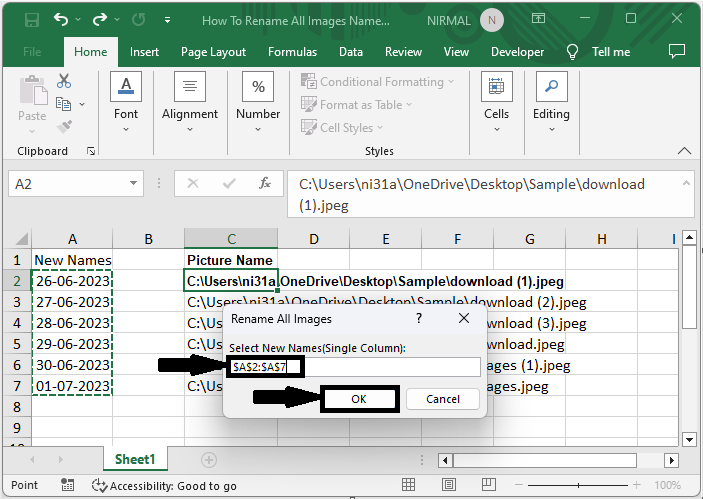
然後選擇新名稱,然後單擊“確定”以完成任務。
選擇單元格 > 確定。
這就是您如何在Excel中重新命名資料夾中的所有影像的方法。
結論
在本教程中,我們使用了一個簡單的過程來展示如何根據Excel中的單元格列表重新命名資料夾中的所有影像,以突出顯示特定資料集。

更新於:2023年9月13日
972 次瀏覽

廣告