
 資料結構
資料結構 網路
網路 關係資料庫管理系統 (RDBMS)
 作業系統
作業系統 Java
Java MS Excel
 iOS
iOS HTML
HTML CSS
CSS Android
 Python
 C 程式設計
 C++
C++ C#
C# MongoDB
 MySQL
MySQL Javascript
 PHP
PHP 物理學
物理學 化學
化學 生物學
生物學 數學
數學 英語
英語 經濟學
經濟學 心理學
心理學 社會學
社會學 服裝設計
服裝設計 法學
法學如何在 Excel 中將多個文字檔案匯入到多個工作表?
Microsoft Excel 在管理和分析海量資料方面的效率廣受好評。然而,將多個文字檔案匯入到 Excel 中的不同工作表中,乍一看似乎是一項艱鉅的任務。幸運的是,Excel 本身提供了一個簡單而強大的解決方案,可以無縫地實現這一點。本文將逐步介紹將多個文字檔案匯入到不同工作表中的技術,以增強組織結構並促進對資料集的有效分析。
一旦您掌握了這些方法,您將能夠更好地將資料從多個文字檔案匯入到 Excel 中,從而在處理大型資料集時節省時間和精力。無論您是處理來自各種來源的資料,還是需要整合來自多個文字檔案的的資訊,Excel 多功能的匯入功能都將使您能夠簡化工作流程。讓我們深入瞭解在 Excel 中匯入文字檔案的世界,並發現能夠增強您的資料管理技能的實用技術。
使用 VBA 宏匯入多個文字檔案
如果您熟悉 Excel VBA(Visual Basic for Applications),您可以利用其程式設計功能將多個文字檔案匯入到單獨的工作表中。這種方法為處理特定需求提供了靈活性和自定義選項。
要啟用 Excel 中的 VBA,請按照以下說明操作:
右鍵單擊功能區,然後選擇“自定義功能區”選項。

選中“開發工具”框,然後單擊“確定”。

方法一:透過選擇包含所有所需文字檔案的資料夾,使用 VBA 宏匯入多個文字檔案
如果您熟悉 Excel VBA(Visual Basic for Applications),您可以利用其程式設計功能將多個文字檔案匯入到單獨的工作表中。這種方法為處理特定需求提供了靈活性和自定義選項。
步驟 1 - 在 Excel 中開啟 Visual Basic 編輯器。您可以按“Alt+F11”或導航到功能區中的“開發工具”選項卡,然後選擇“Visual Basic”選項。
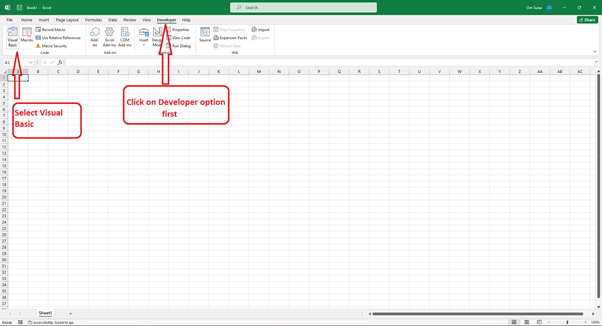
步驟 2 - 在 Visual Basic 編輯器中,單擊“插入”,然後選擇“模組”以插入一個新模組。

步驟 3 - 在模組中,貼上以下 VBA 程式碼 -
Sub LoadPipeDelimitedFiles()
   'UpdatebyExtendoffice20181010
   Dim xStrPath As String
   Dim xFileDialog As FileDialog
   Dim xFile As String
   Dim xSheetCount As Long
   Dim xWS As Worksheet
   Dim xRow As Long ' Added variable for row reference

   On Error GoTo ErrHandler
   Set xFileDialog = Application.FileDialog(msoFileDialogFolderPicker)
   xFileDialog.AllowMultiSelect = True
   xFileDialog.Title = "Select a folder [Kutools for Excel]"
   If xFileDialog.Show = -1 Then
      xStrPath = xFileDialog.SelectedItems(1)
   End If
   If xStrPath = "" Then Exit Sub

   ' Ask the user for the number of copies
   xSheetCount = InputBox("Enter the number of sheets:", "Number of Copies")
   If Not IsNumeric(xSheetCount) Or xSheetCount < 1 Then
      MsgBox "Invalid number of copies. Please enter a positive number.", vbExclamation, "Invalid Input"
      Exit Sub
   End If

   Application.ScreenUpdating = False
   Set xWS = Sheets.Add(After:=Sheets(Sheets.Count))
   xWS.Name = "Sheet 1"
   xRow = 1 ' Start with row 1

   xFile = Dir(xStrPath & "\*.txt*")
   Do While xFile <> ""
      With xWS.QueryTables.Add(Connection:="TEXT;" & xStrPath & "" & xFile, Destination:=xWS.Cells(xRow, 1)) ' Update destination range
         .Name = "a" & xSheetCount
         .FieldNames = True
         .RowNumbers = False
         .FillAdjacentFormulas = False
         .PreserveFormatting = True
         .RefreshOnFileOpen = False
         .RefreshStyle = xlInsertDeleteCells
         .SavePassword = False
         .SaveData = True
         .AdjustColumnWidth = True
         .RefreshPeriod = 0
         .TextFilePromptOnRefresh = False
         .TextFilePlatform = 437
         .TextFileStartRow = 1
         .TextFileParseType = xlDelimited
         .TextFileTextQualifier = xlTextQualifierDoubleQuote
         .TextFileConsecutiveDelimiter = False
         .TextFileTabDelimiter = False
         .TextFileSemicolonDelimiter = False
         .TextFileCommaDelimiter = False
         .TextFileSpaceDelimiter = False
         .TextFileOtherDelimiter = "|"
         .TextFileColumnDataTypes = Array(1, 1, 1)
         .TextFileTrailingMinusNumbers = True
         .Refresh BackgroundQuery:=False
      End With
      xFile = Dir
      xRow = xRow + 1 ' Increment row reference
   Loop

   ' Create copies of the sheet
   For i = 2 To xSheetCount
      xWS.Copy After:=Sheets(Sheets.Count)
      Sheets(Sheets.Count).Name = "Sheet " & i
   Next i

   Application.ScreenUpdating = True
   Exit Sub

ErrHandler:
   MsgBox "No txt files found.", , "Kutools for Excel"
End Sub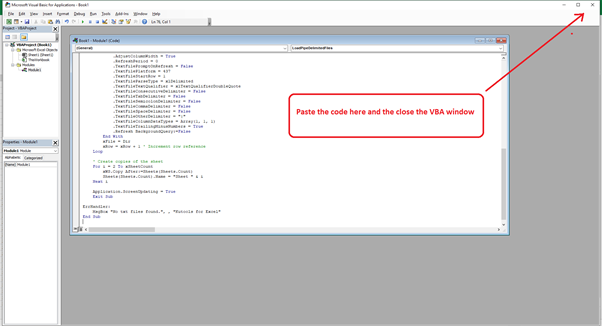
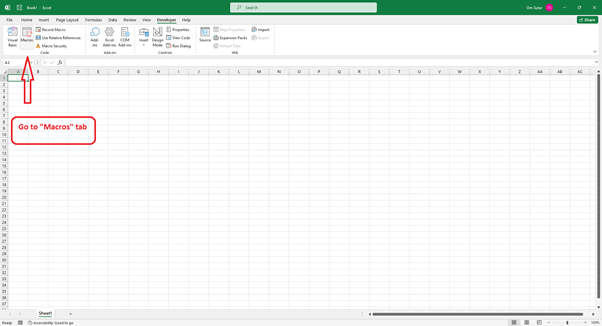
步驟 4 - 選擇“宏”選項卡。
步驟 5 - 選擇可用的宏,然後單擊“執行”。
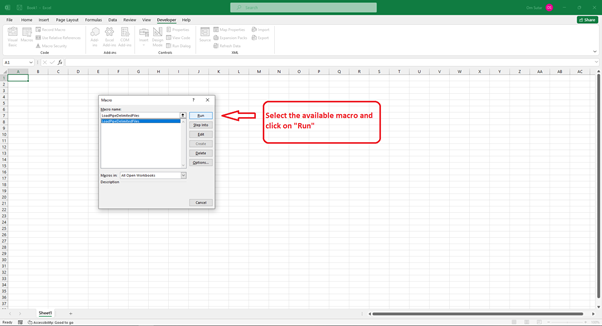
步驟 6 - 它將開啟一個視窗以選擇包含文字檔案的資料夾。
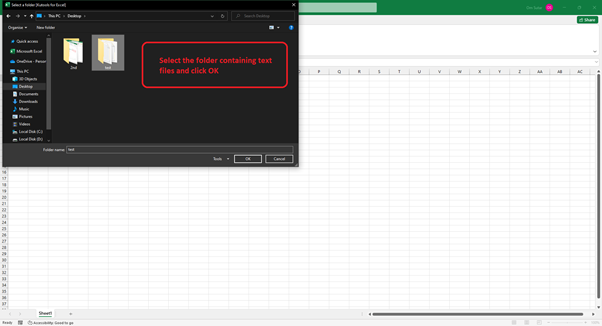
步驟 7 - 它將詢問您需要的表數。輸入所需的數字,然後單擊“確定”。

Excel 將把資料從文字檔案匯入到單獨的工作表中。
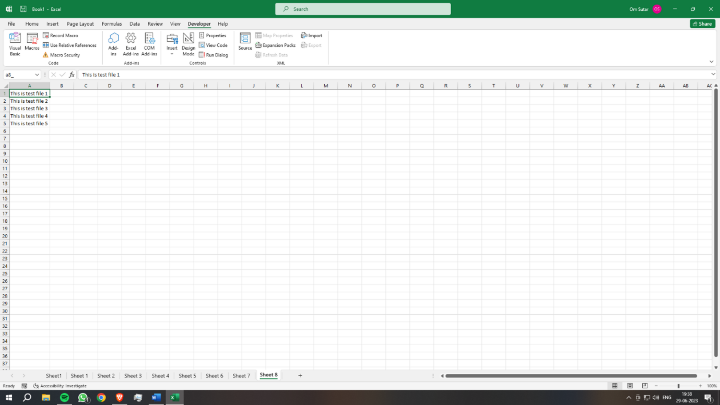
方法二:透過選擇所需的文字檔案,使用 VBA 宏匯入多個文字檔案
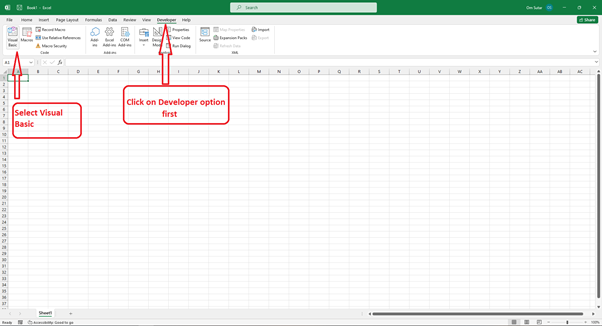
步驟 1 - 要在 Excel 中開啟 Visual Basic 編輯器,您可以按“Alt+F11”。或者,您可以在功能區中開啟“開發工具”選項卡,然後選擇“Visual Basic”選項。
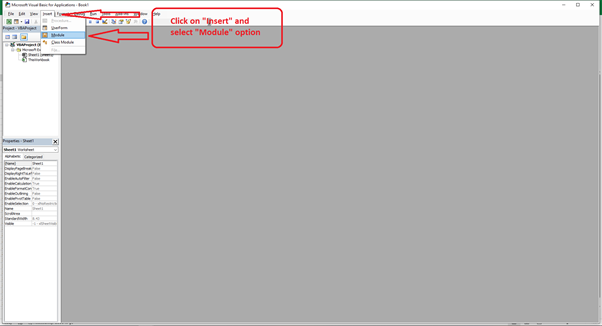
步驟 2 - 在 Visual Basic 編輯器中,單擊“插入”,然後選擇“模組”以插入一個新模組。
步驟 3 - 在模組中,貼上以下 VBA 程式碼 -
Sub LoadPipeDelimitedFiles()
   'UpdatebyExtendoffice20181010
   Dim xFileDialog As FileDialog
   Dim xFile As Variant
   Dim xSheetCount As Long
   Dim xWS As Worksheet
   Dim xRow As Long ' Added variable for row reference
   Dim i As Long ' Added variable for loop counter

   On Error GoTo ErrHandler
   Set xFileDialog = Application.FileDialog(msoFileDialogFilePicker)
   xFileDialog.AllowMultiSelect = True
   xFileDialog.Title = "Select text files [Kutools for Excel]"
   xFileDialog.Filters.Clear
   xFileDialog.Filters.Add "Text Files", "*.txt"

   If xFileDialog.Show = -1 Then
      xSheetCount = InputBox("Enter the number of sheets:", "Number of Copies")
      If Not IsNumeric(xSheetCount) Or xSheetCount < 1 Then
         MsgBox "Invalid number of copies. Please enter a positive number.", vbExclamation, "Invalid Input"
         Exit Sub
      End If

      Application.ScreenUpdating = False
      Set xWS = Sheets.Add(After:=Sheets(Sheets.Count))
      xWS.Name = "Sheet 1"
      xRow = 1 ' Start with row 1

      For Each xFile In xFileDialog.SelectedItems
         With xWS.QueryTables.Add(Connection:="TEXT;" & xFile, Destination:=xWS.Cells(xRow, 1)) ' Update destination range
            .Name = "a" & xSheetCount
            .FieldNames = True
            .RowNumbers = False
            .FillAdjacentFormulas = False
            .PreserveFormatting = True
            .RefreshOnFileOpen = False
            .RefreshStyle = xlInsertDeleteCells
            .SavePassword = False
            .SaveData = True
            .AdjustColumnWidth = True
            .RefreshPeriod = 0
            .TextFilePromptOnRefresh = False
            .TextFilePlatform = 437
            .TextFileStartRow = 1
            .TextFileParseType = xlDelimited
            .TextFileTextQualifier = xlTextQualifierDoubleQuote
            .TextFileConsecutiveDelimiter = False
            .TextFileTabDelimiter = False
            .TextFileSemicolonDelimiter = False
            .TextFileCommaDelimiter = False
            .TextFileSpaceDelimiter = False
            .TextFileOtherDelimiter = "|"
            .TextFileColumnDataTypes = Array(1, 1, 1)
            .TextFileTrailingMinusNumbers = True
            .Refresh BackgroundQuery:=False
         End With
         xRow = xRow + 1 ' Increment row reference
      Next xFile

      ' Create copies of the sheet
      For i = 2 To xSheetCount
         xWS.Copy After:=Sheets(Sheets.Count)
         Sheets(Sheets.Count).Name = "Sheet " & i
      Next i

      Application.ScreenUpdating = True
      Exit Sub
   End If

ErrHandler:
   MsgBox "No text files selected.", , "Kutools for Excel"
End Sub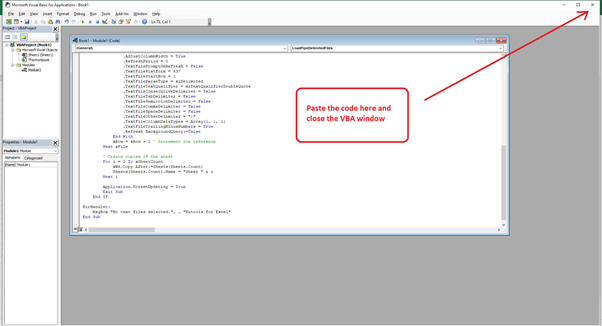
步驟 4 - 選擇“宏”選項卡。

步驟 5 - 選擇可用的宏,然後單擊“執行”。
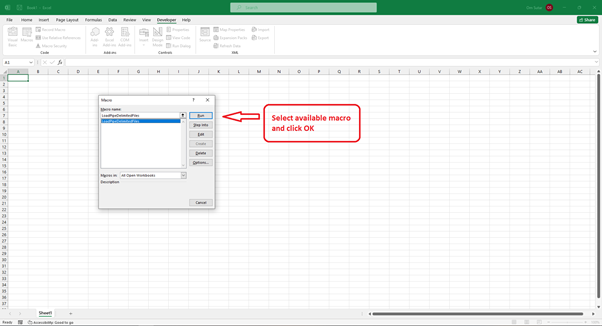
步驟 6 - 它將開啟一個選擇文字檔案的視窗。按住“Ctrl”鍵並單擊您想要的檔案來選擇多個文字檔案,然後按“確定”。

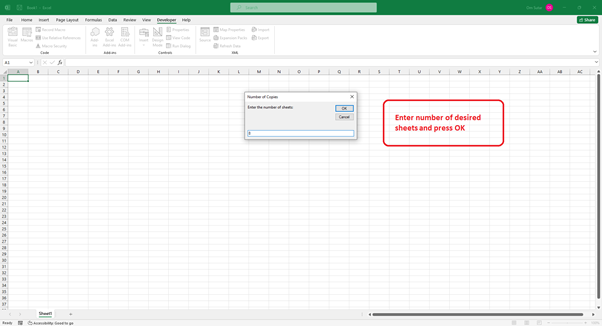
步驟 7 - 它將詢問您需要的表數。輸入所需的數字,然後單擊“確定”。
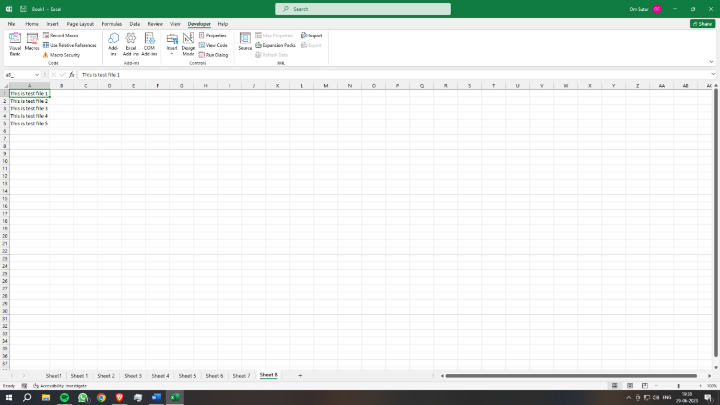
Excel 將把資料從文字檔案匯入到單獨的工作表中。
結論
將多個文字檔案匯入 Excel 的多個工作表中是一項非常有效的功能,它極大地提高了您高效管理和分析資料的能力。在本文中,我們研究了兩種成功完成此任務的方法。第一種方法使用了 Excel 的 Power Query 編輯器,允許您輕鬆地從多個文字檔案匯入和轉換資料。第二種方法涉及使用 VBA 宏來自動化匯入過程,為特定需求提供自定義選項。
將這些技術融入您的 Excel 工作流程中,以簡化文字檔案的匯入,節省時間並提高資料管理能力。Excel 多功能的匯入功能使您可以無縫地處理來自各種來源的資料,從而促進資料分析和決策過程。

1K+ 次瀏覽
