
 資料結構
資料結構 網路
網路 關係資料庫管理系統 (RDBMS)
 作業系統
作業系統 Java
Java MS Excel
 iOS
iOS HTML
HTML CSS
CSS Android
 Python
 C語言程式設計
 C++
C++ C#
C# MongoDB
 MySQL
MySQL Javascript
 PHP
PHP 物理學
物理學 化學
化學 生物學
生物學 數學
數學 英語
英語 經濟學
經濟學 心理學
心理學 社會學
社會學 服裝學
服裝學 法學
法學如何在Excel中將多個列匯出到單個文字檔案
Excel是由微軟開發的一個強大的電子表格程式。它廣泛用於組織、分析和處理各個行業和職業中的資料。要將Excel中的多個列匯出到單個文字檔案,可以使用VBA(Visual Basic for Applications)宏。
以下是如何操作的示例
步驟1
按Alt + F11鍵開啟Excel中的Visual Basic編輯器。
點選“插入”,然後選擇“模組”插入一個新的模組。
在模組視窗中,貼上以下程式碼
Sub ExportColumnsToTextFiles()
   Dim ws As Worksheet
   Dim col As Range
   Dim cell As Range
   Dim outputPath As String

   ' Set the output path where the text files will be saved
   outputPath = "E:\Assignments\3rd Assignments\How to export multiple columns
into individual text files in Excel\Output"

   ' Set the worksheet containing the columns you want to export
   Set ws = ThisWorkbook.Worksheets("Sheet1")

   ' Set the range of columns you want to export (change the range as needed)
   Set col = ws.Range("A:B")

   ' Loop through each column
   For Each cell In col.Columns
      ' Get the last row in the column with data
      Dim lastRow As Long
      lastRow = ws.Cells(ws.Rows.Count, cell.Column).End(xlUp).Row

      ' Check if the column has data
      If lastRow > 1 Then
         ' Create a new text file
         Open outputPath & cell.Column & ".txt" For Output As #1

         ' Loop through each cell in the column up to the last row and write
its value to the text file
         For Each c In ws.Range(ws.Cells(1, cell.Column), ws.Cells(lastRow,
cell.Column))
             Print #1, c.Value
          Next c

          ' Close the text file
          Close #1
      End If
   Next cell

   MsgBox "Columns exported to individual text files."
End Sub
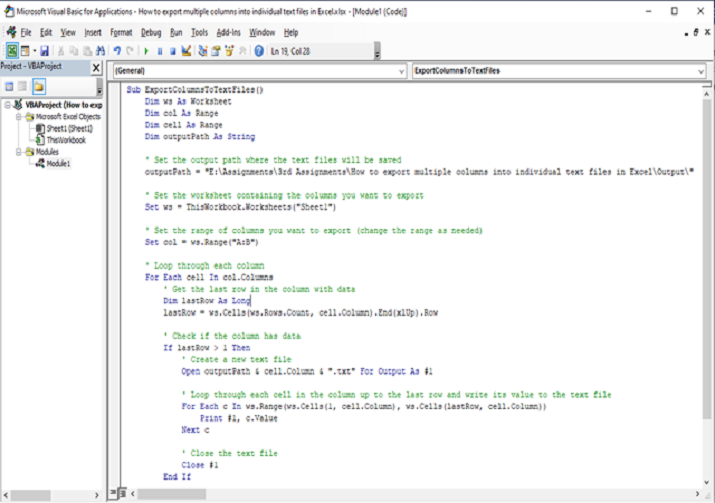
步驟2
修改`outputPath`變數以指定要儲存文字檔案的資料夾。確保包含尾部反斜槓()。
修改`Set ws = ThisWorkbook.Worksheets("Sheet1")`行以指定包含要匯出的列的工作表。將“Sheet1”替換為您的工作表名稱。
修改`Set col = ws.Range("A:B")`行以指定要匯出的列的範圍。在此示例中,選擇了A列到B列。根據需要調整範圍。
關閉Visual Basic編輯器。
步驟3
按Alt + F8鍵執行宏,選擇“ExportColumnsToTextFiles”,然後點選“執行”。
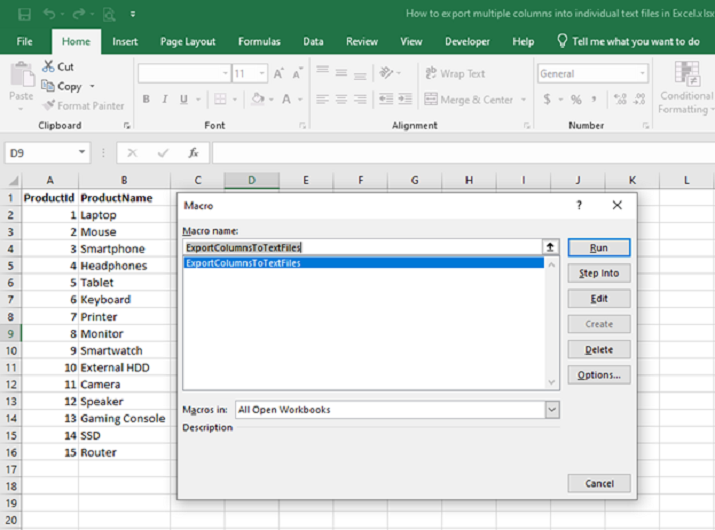
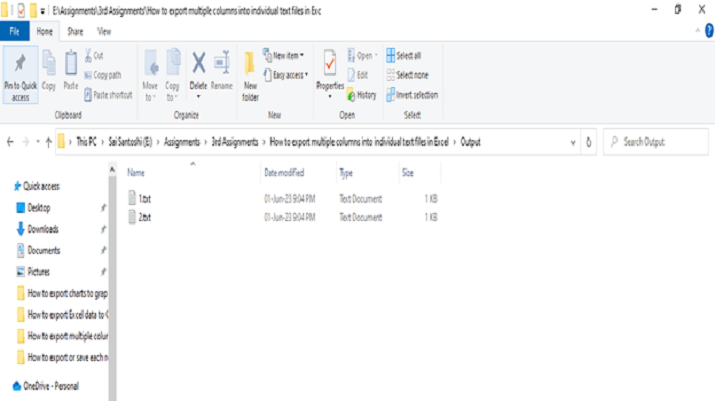
宏將把每一列匯出到一個以列號命名的單個文字檔案中。文字檔案將儲存在指定的輸出資料夾中。
結論
提供的VBA程式碼允許您將Excel中的多個列匯出到單個文字檔案。透過指定輸出路徑、工作表和列的範圍,程式碼迴圈遍歷每一列,確定包含資料的最後一行,並將該列的值(直到該行)匯出到單獨的文字檔案中。更正後的版本確保迴圈正確執行並避免連續迴圈。此解決方案能夠高效地提取列資料,方便在外部應用程式中進一步分析或使用資料。

更新於:2023年7月12日
1K+ 瀏覽量

廣告