
 資料結構
資料結構 網路
網路 關係型資料庫管理系統
 作業系統
作業系統 Java
Java MS Excel
 iOS
iOS HTML
HTML CSS
CSS Android
 Python
 C語言程式設計
 C++
C++ C#
C# MongoDB
 MySQL
MySQL Javascript
 PHP
PHP 物理學
物理學 化學
化學 生物學
生物學 數學
數學 英語
英語 經濟學
經濟學 心理學
心理學 社會學
社會學 服裝設計
服裝設計 法律研究
法律研究如何將Excel資料(選擇或工作表)匯出到文字檔案
要在 Excel 中將 Excel 資料匯出到文字檔案,您可以使用 VBA 宏。通過幾個簡單的步驟,您可以建立一個宏,將選定的範圍或整個工作表匯出到文字檔案。該宏將單元格中的資料轉換為文字格式,迴圈遍歷每個單元格並構建文字資料。然後,它會提示使用者選擇儲存文字檔案的檔名和位置。儲存後,會顯示一條訊息以確認匯出成功。使用此方法,您可以輕鬆地將 Excel 資料匯出到文字檔案,以供進一步分析或共享。
將 Excel 資料匯出到文字檔案的步驟
以下是如何操作的步驟
步驟 1
開啟您想要將 Excel 資料匯出到文字檔案的 Excel 檔案。
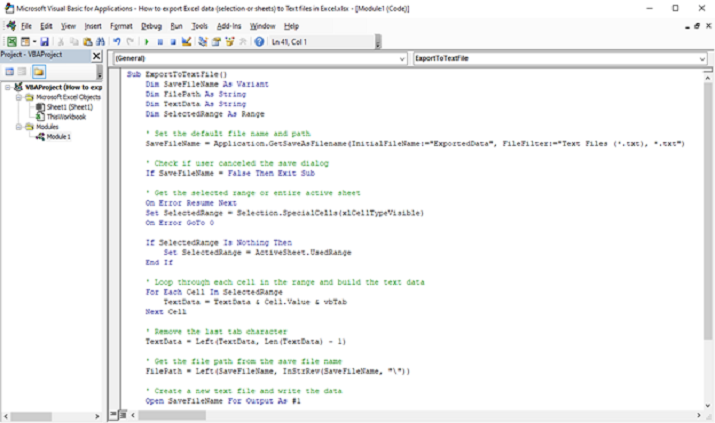
按 Alt + F11 在 Excel 中開啟 Visual Basic 編輯器。
透過單擊“插入”並選擇“模組”來插入一個新模組。
在模組視窗中,貼上以下程式碼
Sub ExportToTextFile()
    Dim SaveFileName As Variant
    Dim FilePath As String
    Dim TextData As String
    Dim SelectedRange As Range

    ' Set the default file name and path
    SaveFileName = Application.GetSaveAsFilename(InitialFileName:="ExportedData",
FileFilter:="Text Files (*.txt), *.txt")

    ' Check if user canceled the save dialog
    If SaveFileName = False Then Exit Sub

    ' Get the selected range or entire active sheet
    On Error Resume Next
    Set SelectedRange = Selection.SpecialCells(xlCellTypeVisible)
    On Error GoTo 0

    If SelectedRange Is Nothing Then
        Set SelectedRange = ActiveSheet.UsedRange
    End If

    ' Loop through each cell in the range and build the text data
    For Each Cell In SelectedRange
        TextData = TextData & Cell.Value & vbTab
    Next Cell

    ' Remove the last tab character
    TextData = Left(TextData, Len(TextData) - 1)

    ' Get the file path from the save file name
    FilePath = Left(SaveFileName, InStrRev(SaveFileName, ""))

    ' Create a new text file and write the data
    Open SaveFileName For Output As #1
    Print #1, TextData
    Close #1

    ' Show a message when the export is completed
    MsgBox "Data exported to " & SaveFileName, vbInformation
End Sub
步驟 2
儲存模組並關閉 VBA 編輯器。
現在,您可以使用宏將資料匯出到文字檔案。
選擇要匯出的單元格範圍,或確保活動工作表包含要匯出的資料。
步驟 3
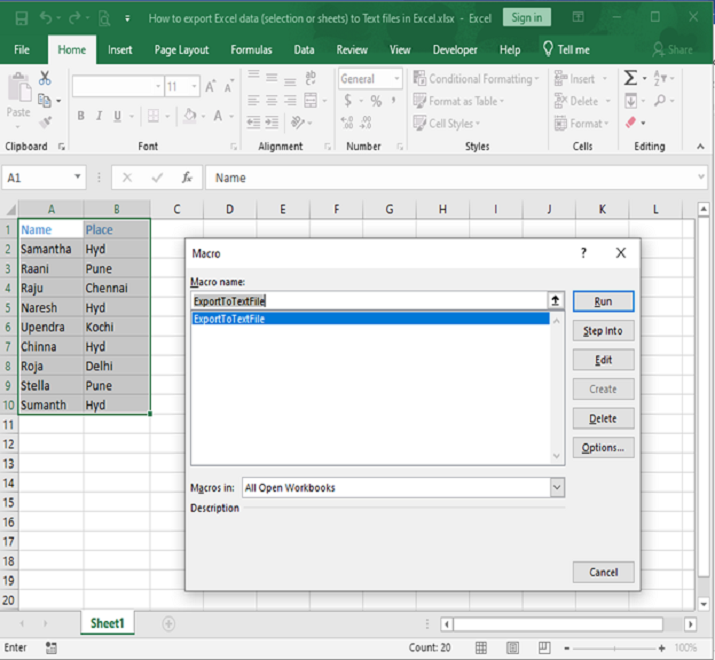
按“Alt + F8”開啟宏對話方塊。
從列表中選擇“ExportToTextFile”宏,然後單擊“執行”。
步驟 4
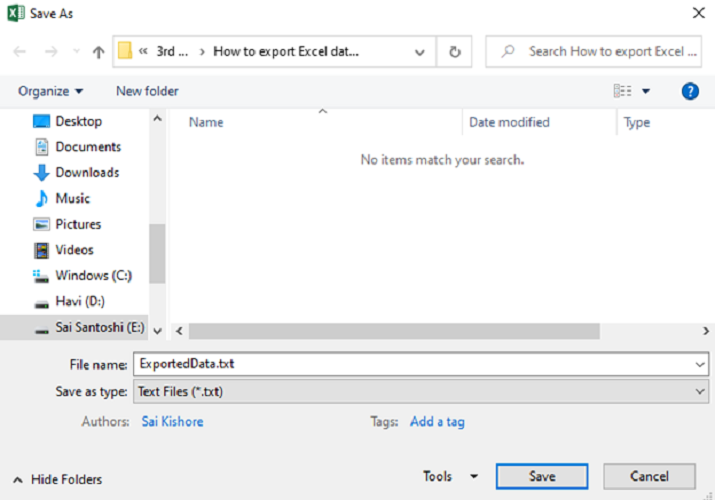
選擇一個檔名和位置來儲存文字檔案。
結論
要在 Excel 中將 Excel 資料匯出到文字檔案,您可以使用 VBA 宏。透過將提供的程式碼插入 VBA 編輯器中的模組中,您可以建立一個名為“ExportToTextFile”的宏。此宏允許您選擇一個範圍或將整個活動工作表匯出到文字檔案。執行宏後,儲存對話方塊會提示您為文字檔案選擇檔名和位置。然後迴圈遍歷所選資料並將其寫入文字檔案。最後,一個訊息框確認匯出成功。此方法提供了一種便捷的方式,可以將 Excel 資料匯出到文字檔案以供進一步使用或分析。

更新於: 2023年7月12日
3K+ 瀏覽量

廣告