
- WebdriverIO 教程
- WebdriverIO - 首頁
- WebdriverIO - 簡介
- WebdriverIO - 預備條件
- WebdriverIO - 架構
- WebdriverIO - NodeJS 入門
- WebdriverIO - NPM 安裝
- WebdriverIO - VS Code 安裝
- WebdriverIO - package.json
- WebdriverIO - Mocha 安裝
- Selenium 獨立伺服器安裝
- WebdriverIO - 配置檔案生成
- WebdriverIO - VS Code 智慧提示
- WebdriverIO - wdio.conf.js 檔案
- WebdriverIO - XPath 定位器
- WebdriverIO - CSS 定位器
- WebdriverIO - 連結文字定位器
- WebdriverIO - ID 定位器
- WebdriverIO - 標籤名定位器
- WebdriverIO - 類名定位器
- WebdriverIO - 名稱定位器
- 斷言的 Expect 語句
- WebdriverIO - 正向流程
- WebdriverIO - 通用瀏覽器命令
- WebdriverIO - 處理瀏覽器大小
- WebdriverIO - 瀏覽器導航命令
- 處理複選框和下拉選單
- WebdriverIO - 滑鼠操作
- 處理子視窗/彈出視窗
- WebdriverIO - 隱藏元素
- WebdriverIO - 框架
- WebdriverIO - 拖放
- WebdriverIO - 雙擊
- WebdriverIO - Cookie
- WebdriverIO - 處理單選按鈕
- Web元素上的 Chai 斷言
- WebdriverIO - 多個視窗/標籤頁
- WebdriverIO - 滾動操作
- WebdriverIO - 警報
- WebdriverIO - 除錯程式碼
- WebdriverIO - 擷取螢幕截圖
- WebdriverIO - JavaScript 執行器
- WebdriverIO - 等待
- WebdriverIO - 並行執行測試
- WebdriverIO - 資料驅動測試
- 從命令列引數執行測試
- 使用 Mocha 選項執行測試
- 從 Allure 生成 HTML 報告
- WebdriverIO 有用資源
- WebdriverIO - 快速指南
- WebdriverIO - 有用資源
- WebdriverIO - 討論
WebdriverIO - 處理單選按鈕
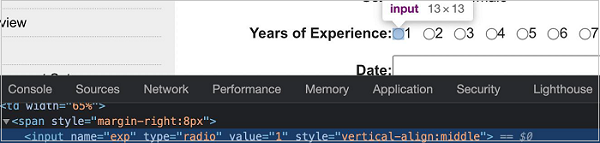
在使用 WebdriverIO 自動化測試時,我們可以處理 UI 中的單選按鈕。單選按鈕在 html 程式碼中被標識為標籤名為 input,型別為 radio。
您的電腦上將出現以下螢幕:
單選按鈕的方法
與單選按鈕一起工作的一些方法如下:
click()
它用於選擇一個單選按鈕。
語法
語法如下:
const l = $('.rad')
l.click()
isSelected()
它用於檢查型別為 radio 的元素是否被選中。它返回一個布林值(如果選中則為 true,否則為 false)。
語法
語法如下:
const l = $('.rad')
l.isSelected()
首先,請按照標題為“使用 WebdriverIO 的正向流程”一章中的步驟 1 到步驟 5 進行操作,步驟如下:
步驟 1 - 安裝 NodeJS。有關如何執行此安裝的詳細資訊,請參閱標題為“NodeJS 入門”一章。
步驟 2 - 安裝 NPM。有關如何執行此安裝的詳細資訊,請參閱標題為“NPM 安裝”一章。
步驟 3 - 安裝 VS Code。有關如何執行此安裝的詳細資訊,請參閱標題為“VS Code 安裝”一章。
步驟 4 - 建立配置檔案。有關如何執行此安裝的詳細資訊,請參閱標題為“配置檔案生成”一章。
步驟 5 - 建立一個規範檔案。有關如何執行此安裝的詳細資訊,請參閱標題為“Mocha 安裝”一章。
步驟 6 - 將以下程式碼新增到建立的 Mocha 規範檔案中。
// test suite name
describe('Tutorialspoint application', function(){
   //test case
   it('Radio Button', function(){
   // launch url
   browser.url('https://tutorialspoint.tw/selenium/selenium_automation_practice.htm')
      //identify radio button with CSS then click
      const p = $("input[value='1']")
      p.click()
      //verify if selected
      console.log(p.isSelected())
   });
});
使用以下命令執行配置檔案 - wdio.conf.js 檔案:
npx wdio run wdio.conf.js
有關如何建立配置檔案的詳細資訊,請參閱標題為“wdio.conf.js 檔案”和“配置檔案生成”的兩章。
您的電腦上將出現以下螢幕:
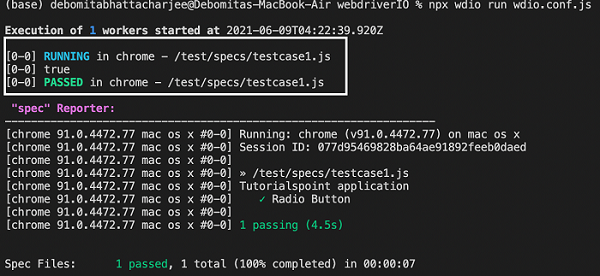
命令成功執行後,布林值將列印在控制檯中。這是由 isSelected() 函式返回的,該函式返回 true,因為單選按鈕在上一步中已被選中。
廣告