
- MicroStrategy 教程
- MicroStrategy - 首頁
- MicroStrategy - 概述
- MicroStrategy - 環境設定
- MicroStrategy - 桌面
- MicroStrategy - 架構
- MicroStrategy - 匯入資料
- MicroStrategy - OLAP 服務
- MicroStrategy 物件
- 配置物件
- MicroStrategy - 公共物件
- MicroStrategy - 架構物件
- MicroStrategy - 報表物件
- MicroStrategy 報表基礎
- MicroStrategy - 報表型別
- MicroStrategy - 切片
- MicroStrategy - 切塊
- MicroStrategy - 透視
- MicroStrategy - 下鑽
- MicroStrategy - 上卷
- MicroStrategy - 建立度量
- MicroStrategy - 巢狀度量
- MicroStrategy 高階報表
- 建立派生度量
- MicroStrategy - 度量比較
- MicroStrategy - 建立過濾器
- MicroStrategy - 高階過濾器
- 快捷方式和嵌入式過濾器
- MicroStrategy - 重新整理報表
- MicroStrategy - 智慧多維資料集
- MicroStrategy 儀表盤
- 建立儀表盤
- 格式化儀表盤
- MicroStrategy - 圖形視覺化
- MicroStrategy - 網格視覺化
- 熱力圖視覺化
- MicroStrategy - 網路視覺化
- 使用多個數據集進行視覺化
- 在儀表盤中過濾資料
- MicroStrategy - 新增 Web 內容
- MicroStrategy Office
- 條件格式化
- MicroStrategy - 自定義組
- MicroStrategy - 報表快取流程
- MicroStrategy - 資料倉庫
- MicroStrategy - 預測模型
- MicroStrategy 有用資源
- MicroStrategy - 快速指南
- MicroStrategy - 有用資源
- MicroStrategy - 討論
MicroStrategy - 資料倉庫
資料市集是資料倉庫的一種較小形式,它滿足資料分析的一些特定需求。它通常是從更大的資料倉庫中派生出來的一小部分。建立資料市集的主要目的是實現一些難以透過常規倉庫實現的分析,因為倉庫中資料的粒度級別不同或應用了一些複雜的計算。
在 MicroStrategy 中,資料市集是透過以下步驟建立的。
步驟 1
在編輯模式下開啟報表。選擇資料市集 → 配置資料市集。然後出現以下視窗。
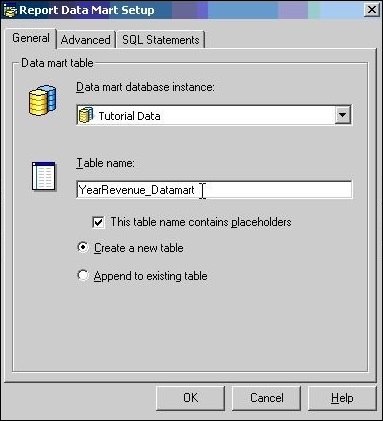
步驟 2
從資料庫例項下拉選單中選擇相應的位置。
步驟 3
如果表需要在每次執行報表時重新建立,請選擇建立新表的選項。或者,您可以選擇新增到現有表,以便將資料新增到先前執行的結果中。
成功完成以上三個步驟後,資料市集將新增到報表中。
廣告