

- Joomla 基礎教程
- Joomla - 首頁
- Joomla - 概述
- Joomla - 安裝
- Joomla - 架構
- Joomla - 控制面板
- Joomla - 工具欄
- Joomla - 選單選單
- Joomla - 內容選單
- Joomla - 元件選單
- Joomla - 擴充套件選單
- Joomla - 幫助選單
- Joomla 模組
- Joomla - 建立模組
- Joomla - 麵包屑模組
- Joomla - 資訊聚合顯示模組
- Joomla - 頁尾模組
- Joomla - 最新新聞模組
- Joomla - 搜尋模組
- Joomla - 隨機圖片模組
- Joomla - 線上使用者模組
- Joomla - 資訊釋出模組
- Joomla - 捐贈模組
- Joomla 全域性設定
- Joomla - 系統設定
- Joomla - 媒體設定
- Joomla - 語言管理器
- Joomla - 私人訊息
- Joomla - 群發郵件
- Joomla - 快取管理
- Joomla - 使用者設定
- Joomla - 除錯
- Joomla 高階功能
- Joomla - 模板管理器
- Joomla - 自定義模板
- Joomla - 新增模板
- Joomla - 建立模板
- Joomla - 自定義Logo
- Joomla - 分類管理
- Joomla - 新增內容
- Joomla - 內容排版
- Joomla - 文章元資料
- Joomla - 新增橫幅廣告
- Joomla - 新增聯絡方式
- Joomla - 新增新聞訂閱
- Joomla - 新增論壇
- Joomla - 新增網站連結
- Joomla - 外掛管理器
- Joomla - 擴充套件管理器
- Joomla - 網站備份
- Joomla - 網站SEO
- Joomla 有用資源
- Joomla - 問答
- Joomla - 快速指南
- Joomla - 有用資源
- Joomla - 討論
Joomla - 建立模板
在本章中,我們將學習如何在Joomla中建立模板。
建立模板
以下是Joomla中建立模板的簡單步驟:
步驟1 - 在你的Joomla → Templates資料夾內建立一個名為MyFirstTemplate的資料夾。在MyFirstTemplate資料夾內,再建立兩個名為images和CSS的資料夾,用於儲存所有圖片和CSS檔案。
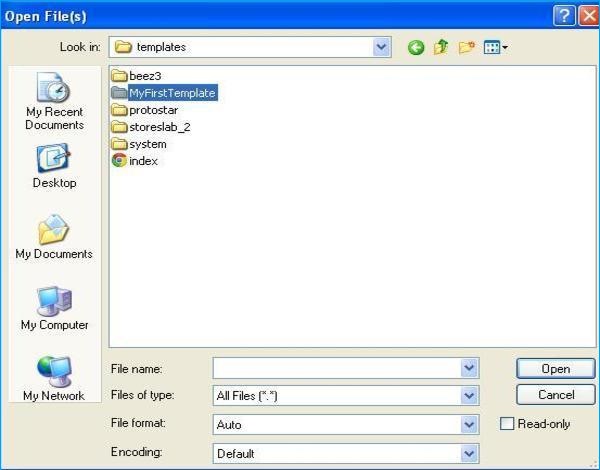
步驟2 - 在MyFirstTemplate資料夾內,建立一個名為templateDetails.xml的檔案,沒有此檔案,模板將無法在Joomla中顯示。
templateDetails.xml
<?xml version = "1.0" encoding = "utf-8"?>

<extension version = "3.0" type = "template">
   <name>Tutorials Point</name>
   <creationDate>2015-06-13</creationDate>
   <author>Tutorials Point</author>
   <authorEmail>tutorials@example.com</authorEmail>
   <authorUrl>http://www.example.com </authorUrl>
   <copyright>Jack 2015</copyright>
   <license>GNU/GPL</license>
   <version>1.0.2</version>
   <description>My First Template</description>

   <files>
      <filename>index.php</filename>
      <filename>templateDetails.xml</filename>
      <folder>images</folder>
      <folder>css</folder>
   </files>

   <positions>
      <position>breadcrumb</position>
      <position>left</position>
      <position>right</position>
      <position>top</position>
      <position>user1</position>
      <position>user2</position>
      <position>user3</position>
     <position>user4</position>
     <position>footer</position>
   </positions>

</extension>
程式碼詳情
<files> - 它包含MyFirstTemplate資料夾中可用的檔案和資料夾。
<folder> - 它包含MyFirstTemplate資料夾中所有可用的資料夾。
步驟3 - 建立一個名為index.php的檔案。這有助於執行所有Joomla頁面。
index.php
<?php defined( '_JEXEC' ) or die( 'Restricted access' );?>
<!DOCTYPE html>

<html xmlns = "http://www.w3.org/1999/xhtml" xml:lang = "<?php echo $this->language; ?>" lang = "<?php echo $this->language; ?>" >

   <head>                                         //head section
      <jdoc:include type = "head" />
      <link rel = "stylesheet" href = "<?php echo $this->baseurl ?>/templates/system/css/system.css" type = "text/css" />
      <link rel = "stylesheet" href = "<?php echo $this->baseurl ?>/templates/system/css/general.css" type = "text/css" />
      <link rel = "stylesheet" href = "<?php echo $this->baseurl ?>/templates/<?php echo $this->template; ?>/css/template.css" type="text/css" />
   </head>

   <body>                                          //body section
      <jdoc:include type = "modules" name = "top" />
      <jdoc:include type = "component" />
      <jdoc:include type = "modules" name = "bottom" />
   </body>

</html>

?>
程式碼詳情
<?php defined( '_JEXEC' ) or die( 'Restricted access' );?>
<!DOCTYPE html>
<html xmlns = "http://www.w3.org/1999/xhtml" xml:lang = "<?php echo $this->language; ?>" lang = "<?php echo $this->language; ?>" >
此程式碼用於告訴瀏覽器正在使用哪種型別的html頁面,並透過描述網站中使用的語言來開始HTML文件。
<head>                                         //head section
   <jdoc:include type = "head" />
   <link rel = "stylesheet" href = "<?php echo $this->baseurl ?>/templates/system/css/system.css" type = "text/css" />
   <link rel = "stylesheet" href = "<?php echo $this->baseurl ?>/templates/system/css/general.css" type = "text/css" />
   <link rel = "stylesheet" href = "<?php echo $this->baseurl ?>/templates/<?php echo $this->template; ?>/css/template.css" type = "text/css" />
</head>
這些行用於連結Joomla模板的各種樣式表。
<body>                                          //body section
   <jdoc:include type = "modules" name = "top" />
   <jdoc:include type = "component" />
   <jdoc:include type = "modules" name = "bottom" />
</body>
此處在body部分,jdoc用於包含Joomla系統某些部分在Joomla中的輸出。name = "top"用於將選單設定在頂部。
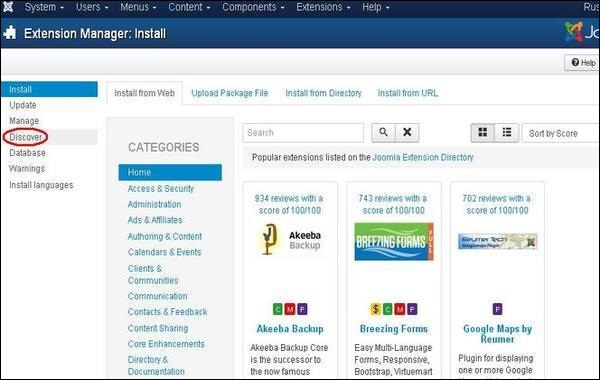
步驟4 - 建立這兩個檔案後,登入Joomla並點選擴充套件→擴充套件管理器,將會顯示如下頁面。
步驟5 - 在上述頁面中,點選發現連結,將會顯示如下頁面。
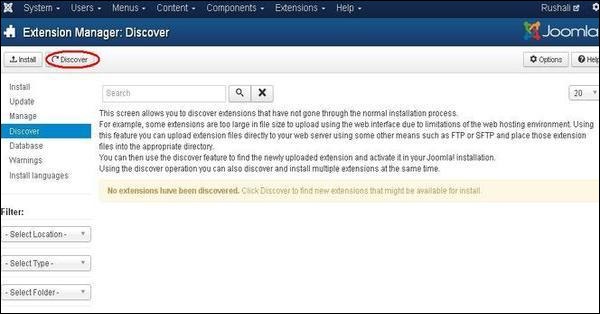
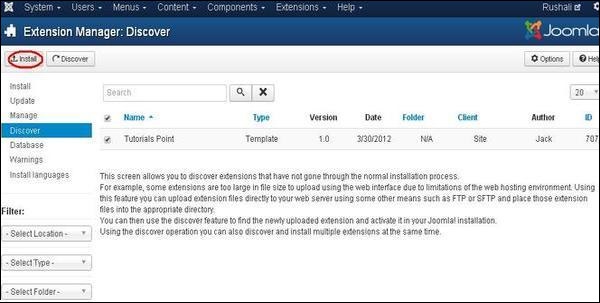
步驟6 - 接下來,點選發現按鈕來發現新建立的模板,如下所示。
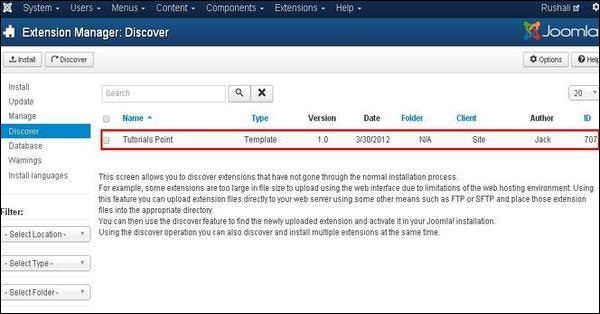
步驟7 - 點選複選框選擇模板,然後點選安裝按鈕將模板安裝到Joomla中。
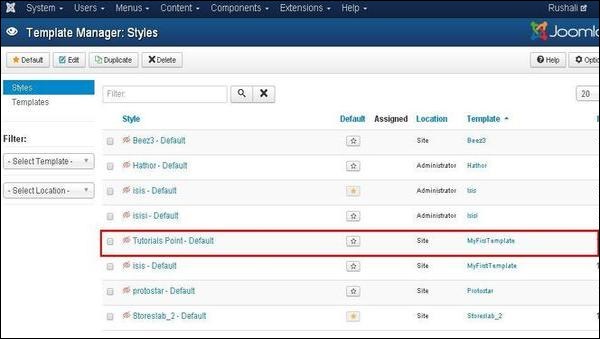
步驟8 - 安裝模板後,您可以透過點選擴充套件→模板管理器來檢視您新建立的模板。您將看到您新建立的模板已列出,如下所示。
工具欄
以下是模板管理器中的工具欄選項:
預設 - 選擇預設模板。
編輯 - 選擇要編輯的模板。
複製 - 複製所選模板的副本。
刪除 - 刪除Joomla的模板。