
 資料結構
資料結構 網路
網路 關係資料庫管理系統(RDBMS)
 作業系統
作業系統 Java
Java MS Excel
 iOS
iOS HTML
HTML CSS
CSS Android
 Python
 C語言程式設計
 C++
C++ C#
C# MongoDB
 MySQL
MySQL Javascript
 PHP
PHP 物理學
物理學 化學
化學 生物學
生物學 數學
數學 英語
英語 經濟學
經濟學 心理學
心理學 社會學
社會學 服裝學
服裝學 法學
法學如何在Python中使用OpenCV進行影像平移?
將影像位置沿特定方向移動稱為影像平移。要執行影像平移,我們首先需要了解什麼是平移矩陣以及如何使用OpenCV和NumPy定義它。
如果我們想要在(x, y)方向上進行平移,設其為(tx, ty)。tx是水平方向上的位移,ty是垂直方向上的位移。使用(tx, ty),我們可以定義平移矩陣M如下:
M = np.float32([[1,0,tx],[0,1,ty]])
平移矩陣M是一個型別為np.float32的NumPy陣列。我們將M作為引數傳遞給cv2.warpAffine()函式。請參見下面的語法:
語法
cv2.warpAffine(img, M, (w, h))
此處:
img - 要移動的影像。
M - 上面定義的平移矩陣。
(w, h) - 平移後圖像的寬度和高度。
注意 - tx的正值將影像向右移動,而tx的負值將影像向左移動。同樣,ty的正值將影像向下移動,而ty的負值將影像向上移動。
步驟
要執行影像平移,您可以按照以下步驟操作:
匯入所需的庫。在以下所有Python示例中,所需的Python庫是OpenCV和NumPy。確保您已經安裝了它們。
import cv2
import numpy as np
使用cv2.imread()函式讀取輸入影像。傳遞輸入影像的完整路徑。
img = cv2.imread('interior.jpg')
定義平移矩陣M。這裡我們取(tx, ty) = (100, 50),即向右平移100畫素,向下平移50畫素。
M = np.float32([[1,0,100],[0,1,50]])
使用上面定義的平移矩陣對輸入影像進行平移。
img = cv2.warpAffine(img,M,(w,h))
顯示平移後的影像。
cv2.imshow('Image Translation', img)
cv2.waitKey(0)
cv2.destroyAllWindows()
示例1
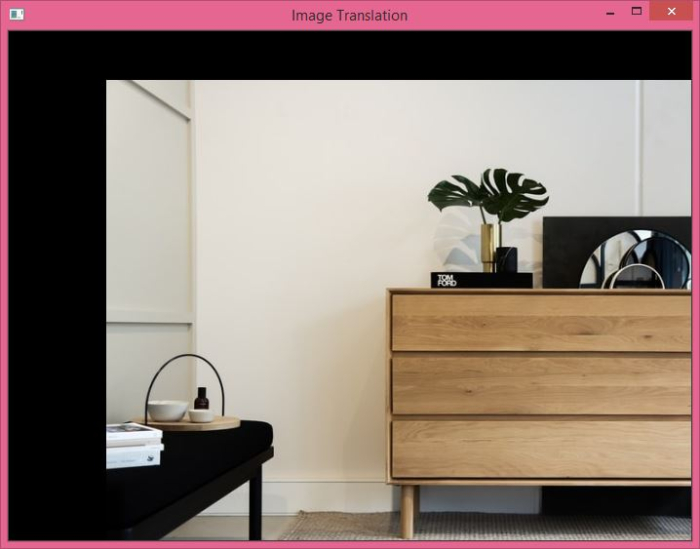
在這個程式中,我們將輸入影像在水平方向上向右平移100畫素,在垂直方向上向下平移50畫素。
# import required libraries
import cv2
import numpy as np

# read the input image
img = cv2.imread('interior.jpg')

# access the height and width of image
height,width, _ = img.shape

# define the translation matrix
M = np.float32([[1,0,100],[0,1,50]])

# perform the translation
img = cv2.warpAffine(img,M,(width,height))

# display the translated image
cv2.imshow('Image Translation', img)
cv2.waitKey(0)
cv2.destroyAllWindows()
輸出
執行上述程式後,將生成以下輸出視窗。
示例2
在這個程式中,我們執行四種不同的平移。
import cv2
import numpy as np
import matplotlib.pyplot as plt

img = cv2.imread('interior.jpg')
rows,cols,_ = img.shape

M_left = np.float32([[1,0,-50],[0,1,0]])
M_right = np.float32([[1,0,50],[0,1,0]])
M_top = np.float32([[1,0,0],[0,1,50]])
M_bottom = np.float32([[1,0,0],[0,1,-50]])

img_left = cv2.warpAffine(img,M_left,(cols,rows))
img_right = cv2.warpAffine(img,M_right,(cols,rows))
img_top = cv2.warpAffine(img,M_top,(cols,rows))
img_bottom = cv2.warpAffine(img,M_bottom,(cols,rows))

plt.subplot(221), plt.imshow(img_left), plt.title('Left')
plt.subplot(222), plt.imshow(img_right), plt.title('Right')
plt.subplot(223), plt.imshow(img_top), plt.title('Top')
plt.subplot(224), plt.imshow(img_bottom), plt.title('Bottom')
plt.show()
輸出
執行上述程式後,將生成以下輸出視窗。
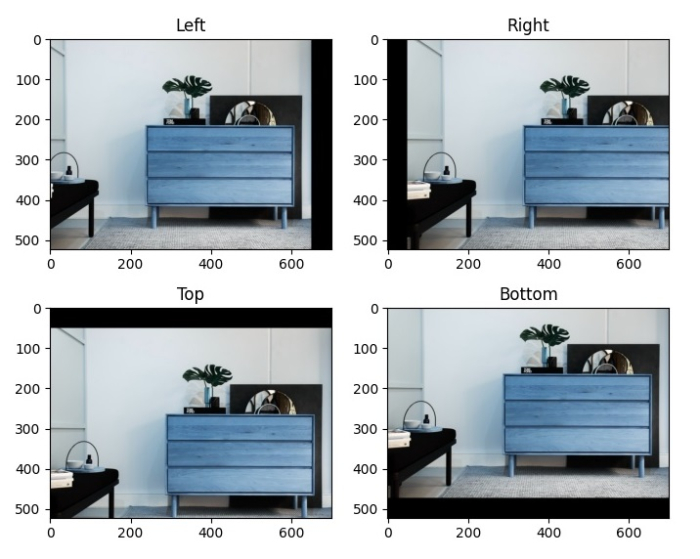
請注意,第一張影像顯示影像向左移動了50畫素,第二張影像顯示影像向右移動了50畫素,第三張影像顯示影像向上移動了50畫素,最後一張影像顯示影像向下移動了50畫素。

更新於:2022年9月27日
2K+ 次瀏覽

廣告