
 資料結構
資料結構 網路
網路 關係型資料庫管理系統
 作業系統
作業系統 Java
Java MS Excel
 iOS
iOS HTML
HTML CSS
CSS Android
 Python
 C 程式設計
 C++
C++ C#
C# MongoDB
 MySQL
MySQL Javascript
 PHP
PHP 物理
物理 化學
化學 生物
生物 數學
數學 英語
英語 經濟學
經濟學 心理學
心理學 社會學
社會學 時尚學習
時尚學習 法律學習
法律學習如何使用 JavaFX 建立錨窗格?
一旦你為應用程式建立所有必需的節點,就可以使用佈局對其進行排列。其中佈局是計算給定空間中的物件位置的過程。JavaFX 在 javafx.scene.layout 包中提供了各種佈局。
錨窗格
在此佈局中,節點被附加/錨定到窗格邊緣的點(偏移量)。
可以透過例項化 javafx.scene.layout.AnchorPane 類來建立錨窗格。有四個錨約束來指定從窗格邊緣到節點邊緣的距離,即 topAnchor、leftAnchor、bottomAnchor、rightAnchor。
可以使用 setPrefSize() 方法設定錨窗格的大小。要向此窗格新增節點,可以將它們作為建構函式的引數傳遞,或將它們新增到窗格的可觀察列表中,如下所示 −
getChildren().addAll();
示例
import javafx.application.Application;
import javafx.collections.ObservableList;
import javafx.geometry.HPos;
import javafx.geometry.Insets;
import javafx.scene.Scene;
import javafx.scene.control.Button;
import javafx.scene.control.CheckBox;
import javafx.scene.control.Label;
import javafx.scene.control.Separator;
import javafx.scene.layout.AnchorPane;
import javafx.scene.layout.VBox;
import javafx.scene.paint.Color;
import javafx.scene.text.Font;
import javafx.scene.text.FontPosture;
import javafx.scene.text.FontWeight;
import javafx.stage.Stage;
public class AnchorPaneExample extends Application {
   public void start(Stage stage) {
      //Creating the check boxes
      CheckBox checkBox1 = new CheckBox("Hindi");
      CheckBox checkBox2 = new CheckBox("Gujarathi");
      CheckBox checkBox3 = new CheckBox("Punjabi");
      CheckBox checkBox4 = new CheckBox("Telugu");
      CheckBox checkBox5 = new CheckBox("Tamil");
      CheckBox checkBox6= new CheckBox("Malayalam");
      //Creating a label
      Label label = new Label("Select known languages:");
      Font font = Font.font("verdana", FontWeight.BOLD, FontPosture.REGULAR, 12);
      label.setFont(font);
      //Creating a separator
      Separator sep = new Separator();
      sep.setMaxWidth(80);
      sep.setHalignment(HPos.CENTER);
      //Adding the check boxes and separator to the pane
      VBox vBox = new VBox(5);
      vBox.setPadding(new Insets(5, 5, 5, 210));
      vBox.getChildren().addAll(label, checkBox1, checkBox2, checkBox3, checkBox4, checkBox5, checkBox6);
      //Adding the separator after the 3rd check box
      vBox.getChildren().add(4, sep);
      //Creating the buttons
      Button next = new Button("Next");
      Button previous = new Button("previous");
      //Creating an Anchor Pane
      AnchorPane anchorPane = new AnchorPane();
      //Setting the anchor to the next and previous buttons
      AnchorPane.setRightAnchor(next, 5.0);
      AnchorPane.setLeftAnchor(previous, 5.0);
      //Retrieving the observable list of the Anchor Pane
      ObservableList list = anchorPane.getChildren();
      //Adding vBox and buttons to the anchor pane
      list.addAll(vBox, next, previous);
      //Setting the stage
      Scene scene = new Scene(anchorPane, 595, 200, Color.BEIGE);
      stage.setTitle("Anchor Pane Example");
      stage.setScene(scene);
      stage.show();
   }
   public static void main(String args[]){
      launch(args);
   }
}
輸出
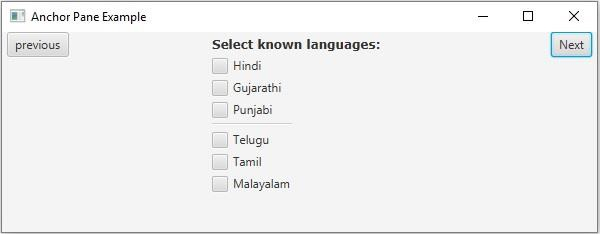

更新於: 2020-05-19
415 次觀看

廣告