
 資料結構
資料結構 網路
網路 關係資料庫管理系統 (RDBMS)
 作業系統
作業系統 Java
Java MS Excel
 iOS
iOS HTML
HTML CSS
CSS Android
 Python
 C 程式設計
 C++
C++ C#
C# MongoDB
 MySQL
MySQL Javascript
 PHP
PHP 物理
物理 化學
化學 生物
生物 數學
數學 英語
英語 經濟學
經濟學 心理學
心理學 社會學
社會學 服裝設計
服裝設計 法學
法學如何在 Python 中自動化 Excel 表格?
Excel 常用於資料儲存、分析和展示。另一方面,流行的程式語言 Python 以其易用性、適應性和多功能性而聞名。Python 提供了許多庫,可用於與 Excel 電子表格互動並實現各種任務自動化。我們可以輕鬆地利用 Python 自動化 Excel 電子表格。在本文中,我們將介紹幾種不同的方法。
方法
使用 openpyxl 庫
使用 pandas 庫
使用 xlwings 庫
方法 1:使用 openpyxl 庫
我們可以使用 Python 的 Openpyxl 包來與 Excel 檔案互動。此庫允許我們讀取、寫入和編輯 Excel 檔案。
我們可以使用以下命令安裝 openpyxl 模組:
pip install openpyxl
假設有一個 Excel 檔案,其內容如下:
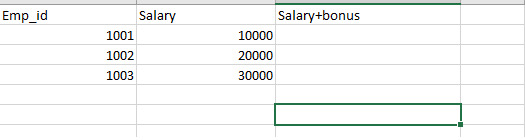
現在,我們想自動為特定員工新增一個新欄位,用於儲存獎金 + 工資。為此,我們將編寫一些基於以下演算法的程式碼。
演算法
匯入必要的模組
使用 openpyxl.load_workbook() 函式載入 Excel 工作簿 'python_worksheet.xlsx',並將其賦值給變數 'wb'。
使用 wb['Sheet1'] 選擇工作簿的第一個工作表,並將其賦值給名為 'sheet' 的變數。
迴圈遍歷工作表中的每一行(從第二行開始)。
使用 sheet.cell(row, 2) 訪問當前行的第二列單元格,並將其賦值給變數 'cell'。
使用 sheet.cell(row, 3) 訪問當前行的第三列單元格,並將其賦值給變數 'salary_bonus_cell'。
使用 int(cell.value) + 500 將 500 加到 'cell' 的值上,並將結果賦值給 'salary_bonus_cell' 的值,使用 salary_bonus_cell.value = int(cell.value) + 500。
使用 wb.save('python-spreadsheet2.xlsx') 儲存修改後的工作簿,並使用新檔名 'python-spreadsheet2.xlsx'。
步驟 1 - 匯入必要的模組
import openpyxl as xl
from openpyxl.chart import BarChart, Reference
步驟 2 - 載入工作簿並選擇工作表
wb = xl.load_workbook('python_worksheet.xlsx')
sheet = wb['Sheet1']
步驟 3 - 從第二行開始迴圈遍歷每一行,並根據需要執行計算。
for row in range(2, sheet.max_row + 1):
   cell = sheet.cell(row, 2)
	salary_bonus_cell = sheet.cell(row, 3)
	salary_bonus_cell.value = int(cell.value) + 500
步驟 4 - 使用新檔名儲存修改後的工作簿
wb.save('python-spreadsheet2.xlsx')
示例
# Importing the necessary modules
import openpyxl as xl

# Loading the workbook and selecting the sheet
wb = xl.load_workbook('python_worksheet.xlsx')
sheet = wb['Sheet1']

# Looping through each row of the sheet starting from row 2
for row in range(2, sheet.max_row + 1):
	# Accessing the cell in the second column of the current row
	cell = sheet.cell(row, 2)

	# Accessing the cell in the third column of the current row
	salary_bonus_cell = sheet.cell(row, 3)

	# Adding 500 to the value in the cell from column 2 and updating the value in column 3
	salary_bonus_cell.value = int(cell.value) + 500

# Saving the modified workbook with a new filename
wb.save('python-spreadsheet2.xlsx')
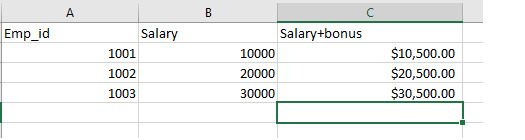
openpyxl 方法涉及使用 openpyxl 模組直接從 Excel 檔案讀取資料並寫入 Excel 檔案。我們瞭解瞭如何開啟 Excel 檔案、編輯其資料並建立新的列值。雖然此方法可用於處理單個單元格以及單元格範圍,但由於此庫的一些限制,對於比第二種方法更大的資料集,程式碼可能過於冗長且效率較低。
輸出
方法 2:使用 pandas 庫
Pandas 是一個主要用於資料分析的 Python 包。但是,它也提供了讀取和寫入 Excel 檔案的功能。下面給出了一個使用 pandas 自動化 Excel 表格的示例。
我們可以使用以下命令在 python 中安裝 pandas:
pip install pandas
假設有一個 Excel 檔案,其內容如下:
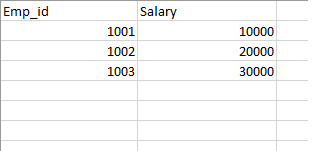
現在,我們想執行與上一個示例中描述的相同的操作,我們將遵循以下演算法:
演算法
將 pandas 庫匯入為 pd。
使用 pd.read_excel() 方法從 Excel 檔案讀取資料。
指定工作表名稱“Sheet1”以從 Excel 檔案讀取資料。
使用 pandas 中提供的各種方法根據需要操作資料。
在 DataFrame 中建立一個名為“Bonus”的新列,該列將 1000 加到“Salary”列。
使用 to_excel() 方法將更新後的資料寫回新的 Excel 檔案,並指定 index=False 以防止 pandas 將 DataFrame 的索引寫入輸出檔案。
步驟 1 - 使用語句“import pandas as pd”匯入 pandas 庫。
import pandas as pd
步驟 2 - 使用 pd.read_excel() 方法讀取輸入 Excel 檔案“python_worksheet.xlsx”,並將其儲存在名為“data”的變數中。
data = pd.read_excel('python_worksheet.xlsx')
步驟 3 - 在 pd.read_excel() 方法中將工作表名稱指定為“Sheet1”,以從輸入 Excel 檔案的 Sheet1 工作表讀取資料。
data = pd.read_excel('python_worksheet.xlsx', sheet_name='Sheet1')
步驟 4 - 透過將 1000 加到現有的“Salary”列,在“data”DataFrame 中建立一個名為“Bonus”的新列。可以使用“+”運算子執行此操作,並將結果儲存到新列中。
data['Bonus'] = data['Salary'] + 1000
步驟 5 - 使用 to_excel() 方法將更新後的資料寫回名為“python-spreadsheet2.xlsx”的新 Excel 檔案。將 DataFrame“data”作為第一個引數傳遞,並指定 index=False 以防止 DataFrame 的索引被寫入輸出檔案。
data.to_excel('python-spreadsheet2.xlsx', index=False)
步驟 6 - 執行程式碼並檢查輸出 Excel 檔案“python-spreadsheet2.xlsx”,以驗證“Bonus”列是否已新增到原始資料中。
示例
# Import the pandas library
import pandas as pd

# Read the input Excel file "python_worksheet.xlsx" into a DataFrame called "data"
# and specify the sheet name as "Sheet1"
data = pd.read_excel('python_worksheet.xlsx', sheet_name='Sheet1')

# Create a new column in the "data" DataFrame called "Bonus" by adding 1000 to the existing "Salary" column
data['Bonus'] = data['Salary'] + 1000

# Write the updated data back to a new Excel file called "python-spreadsheet2.xlsx"
# Pass the DataFrame "data" as the first argument and specify index=False to prevent the DataFrame's index from being written to the output file
data.to_excel('python-spreadsheet2.xlsx', index=False)
pandas 方法涉及使用 DataFrame 讀取和寫入 Excel 檔案中的資料。在我們的示例中,我們展示瞭如何從 Excel 檔案中獲取資料,自動化新增新列,然後將所有新資料放入另一個 Excel 檔案中。由於 pandas 提供了大量用於操作、清理和分析資料的功能,因此即使處理大型資料集,此方法也很有用。
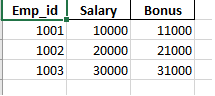
輸出
在此示例中,我們使用 python 自動化了 Excel 表格以填充“Bonus”列。
方法 3:使用 xlwings 庫
Xlwings 是一個 python 庫,它為使用者提供了一種從 Python 與 Microsoft Excel 通訊和自動化流程的方法。它使使用者能夠使用 Python 自動化 Excel 活動,例如建立和編輯 Excel 圖表和表格,以及編寫 Excel 公式和函式。
此外,我們可以使用 Python 函式和庫對 Excel 資料進行計算和分析,然後將結果寫回 Excel。
我們可以使用以下命令在 python 中安裝 **xlwings**:
pip install xlwings
假設有一個 Excel 檔案,其內容如下:
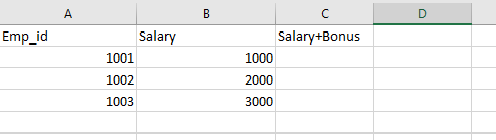
現在,我們想執行與上一個示例中描述的相同的操作,我們將遵循以下演算法:
演算法
匯入 **xlwings** 模組。
將 Excel 檔案載入到 **xlwings** Workbook 物件中。
選擇工作表並確定“Salary”列的最後一行。
將 500 加到“Salary”列中的每個值以建立一個新的“Bonus”列。
將結果寫入相應的“Bonus”單元格。
使用新檔名儲存修改後的工作簿。
關閉工作簿
步驟 1 - 匯入 **xlwings** 模組。
import xlwings as xw
步驟 2 - 將 Excel 檔案載入到 xlwings Workbook 物件中
wb = xw.Book('python_worksheet.xlsx')
步驟 3 - 選擇工作表並將 500 加到“Salary”列以建立一個新的“Bonus”列
sheet = wb.sheets['Sheet1']
last_row = sheet.range('B' + str(sheet.cells.last_cell.row)).end('up').row
sheet.range('C2:C' + str(last_row)).value = [[cell.value + 500] for cell in sheet.range('B2:B' + str(last_row))]
步驟 4 - 使用新檔名儲存修改後的工作簿
wb.save('python-spreadsheet2.xlsx')
步驟 5 - 關閉工作簿
wb.close()
示例
# Import the xlwings module
import xlwings as xw

# Load the Excel file into an xlwings Workbook object
wb = xw.Book('python_worksheet.xlsx')

# Select the Worksheet and add 500 to the 'Salary' column to create a new 'Bonus' column
sheet = wb.sheets['Sheet1']
last_row = sheet.range('B' + str(sheet.cells.last_cell.row)).end('up').row
sheet.range('C2:C' + str(last_row)).value = [[cell.value + 500] for cell in sheet.range('B2:B' + str(last_row))]

# Save the modified workbook with a new filename
wb.save('python-spreadsheet2.xlsx')

# Close the workbook
wb.close()
此方法涉及使用 **xlwings** 庫,該庫允許您透過 Python 程式碼自動化和操作 Excel。由於此庫專門用於處理 Excel 檔案,因此我們可以輕鬆地使用此方法來自動化我們的大型 Excel 任務。
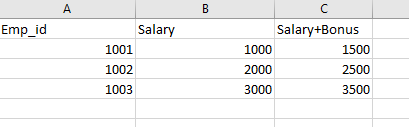
輸出
我們已成功在 Excel 表格中添加了“Salary+Bonus”列。
結論
使用 Python 自動化 Excel 表格可以成為處理大型資料集、簡化冗餘和重複性任務以及生成更大報告的有用工具。在本文中,我們介紹了三種流行的 Python 自動化 Excel 表格的方法。最終,您選擇的方法將取決於任務的要求以及資料的數量和複雜性。如果您使用正確的策略和工具,使用 Python 自動化 Excel 表格可以幫助您節省時間、減少人為錯誤並提高生產力。

2K+ 次瀏覽
