
- GWT Google 圖表教程
- GWT Google 圖表 - 主頁
- GWT Google 圖表 - 概述
- 環境設定
- 配置語法
- GWT Google 圖表 - 區域圖
- GWT Google 圖表 - 柱狀圖
- GWT Google 圖表 - 氣泡圖
- GWT Google 圖表 - 蠟燭圖
- GWT Google 圖表 - 條形圖
- GWT Google 圖表 - 組合圖
- GWT Google 圖表 - 直方圖
- GWT Google 圖表 - 折線圖
- GWT Google 圖表 - 地圖
- GWT Google 圖表 - 組織結構圖
- GWT Google 圖表 - 餅狀圖
- GWT Google 圖表 - Sankey 圖
- GWT Google 圖表 - 散點圖
- GWT Google 圖表 - 階梯區域
- GWT Google 圖表 - 表格圖表
- GWT Google 圖表 - 樹狀圖
- GWT Google 圖表資源
- GWT Google 圖表 - 快速指南
- GWT Google 圖表 - 資源
- GWT Google 圖表 - 討論
GWT Google 圖表 - 基本餅狀圖
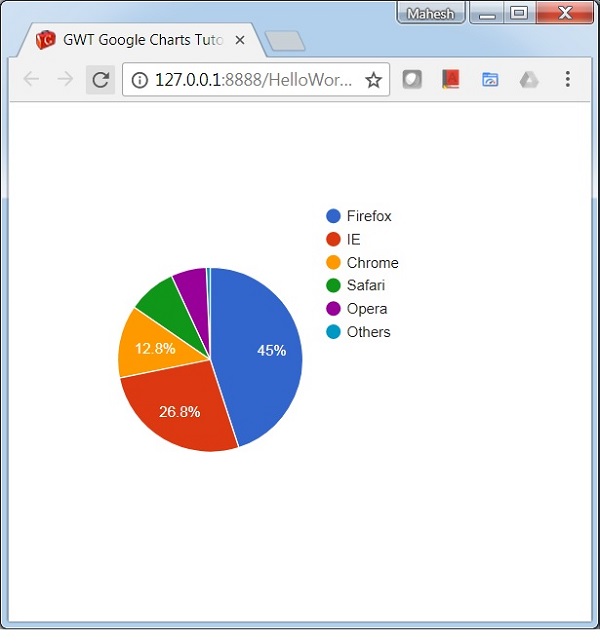
以下是基本餅狀圖的示例。
我們在 Google 圖表配置語法 章節中已經瞭解了用於繪製圖表的配置。現在,我們來看餅狀圖的示例。
配置
用 PieChart 類顯示了餅狀圖。
// Pie chart
PieChart chart = new PieChart();
示例
HelloWorld.java
package com.tutorialspoint.client;

import com.google.gwt.core.client.EntryPoint;
import com.google.gwt.user.client.ui.RootPanel;

import com.googlecode.gwt.charts.client.ChartLoader;
import com.googlecode.gwt.charts.client.ChartPackage;
import com.googlecode.gwt.charts.client.ColumnType;
import com.googlecode.gwt.charts.client.DataTable;
import com.googlecode.gwt.charts.client.corechart.PieChart;

public class HelloWorld implements EntryPoint {
   private PieChart chart;

   private void initialize() {
      ChartLoader chartLoader = new ChartLoader(ChartPackage.CORECHART);
      chartLoader.loadApi(new Runnable() {
         public void run() {
            // Create and attach the chart
            chart = new PieChart();
            RootPanel.get().add(chart);
            draw();
         }
      });
   }
   private void draw() {
      // Prepare the data
      DataTable data = DataTable.create();
      data.addColumn(ColumnType.STRING, "Browser");
      data.addColumn(ColumnType.NUMBER, "Percentage");

      data.addRow("Firefox", 45.0);
      data.addRow("IE", 26.8);
      data.addRow("Chrome", 12.8);
      data.addRow("Safari", 8.5);
      data.addRow("Opera", 6.2);
      data.addRow("Others", 0.7);

      // Draw the chart
      chart.draw(data);
      chart.setWidth("400px");
      chart.setHeight("400px");
   }
   public void onModuleLoad() {
      initialize();
   }
}
結果
驗證結果。
gwt_googlecharts_pie_charts.htm
廣告