
 資料結構
資料結構 網路
網路 RDBMS
RDBMS 作業系統
作業系統 Java
Java MS Excel
 iOS
iOS HTML
HTML CSS
CSS Android
 Python
 C語言程式設計
 C++
C++ C#
C# MongoDB
 MySQL
MySQL Javascript
 PHP
PHP 物理學
物理學 化學
化學 生物學
生物學 數學
數學 英語
英語 經濟學
經濟學 心理學
心理學 社會學
社會學 時尚研究
時尚研究 法律研究
法律研究Android,如何從點陣圖裁剪圓形區域
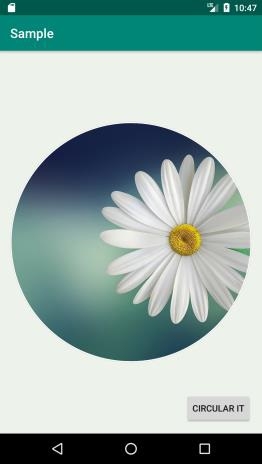
此示例演示如何在 Android 中從點陣圖裁剪圓形區域。
步驟 1 − 在 Android Studio 中建立一個新專案,轉到檔案 ⇒ 新建專案,並填寫所有必需的詳細資訊以建立新專案。
步驟 2 − 將以下程式碼新增到 res/layout/activity_main.xml。
<?xml version="1.0" encoding="utf-8"?>
<RelativeLayout xmlns:android="http://schemas.android.com/apk/res/android"
   xmlns:app="http://schemas.android.com/apk/res-auto"
   xmlns:tools="http://schemas.android.com/tools"
   android:layout_width="match_parent"
   android:layout_height="match_parent"
   tools:context=".MainActivity"
   android:id="@+id/rl"
   android:padding="16dp"
   android:background="#edf2ea">
   <ImageView
      android:id="@+id/iv"
      android:layout_width="wrap_content"
      android:layout_height="wrap_content"
      android:layout_centerInParent="true"/>
   <Button
      android:id="@+id/btn"
      android:layout_width="wrap_content"
      android:layout_height="wrap_content"
      android:text="Circular It"
      android:layout_alignParentBottom="true"
      android:layout_alignParentRight="true"/>
</RelativeLayout>
步驟 3 − 將以下程式碼新增到 src/MainActivity.java
package com.medkart.sample;
import androidx.appcompat.app.AppCompatActivity;
import android.content.Context;
import android.content.res.Resources;
import android.graphics.Bitmap;
import android.graphics.BitmapFactory;
import android.graphics.Canvas;
import android.graphics.Color;
import android.graphics.Paint;
import android.graphics.PorterDuff;
import android.graphics.PorterDuffXfermode;
import android.graphics.Rect;
import android.graphics.RectF;
import android.os.Bundle;
import android.view.View;
import android.widget.Button;
import android.widget.ImageView;
import android.widget.RelativeLayout;
public class MainActivity extends AppCompatActivity {
   private Context mContext;
   private Resources mResources;
   private RelativeLayout mRelativeLayout;
   private Button mBTN;
   private ImageView mImageView;
   private Bitmap mBitmap;
   @Override
   protected void onCreate(Bundle savedInstanceState) {
      super.onCreate(savedInstanceState);
      setContentView(R.layout.activity_main);
      // Get the application context
      mContext = getApplicationContext();
      // Get the Resources
      mResources = getResources();
      // Get the widgets reference from XML layout
      mRelativeLayout = (RelativeLayout) findViewById(R.id.rl);
      mImageView = (ImageView) findViewById(R.id.iv);
      mBTN = (Button) findViewById(R.id.btn);
      // Get the bitmap resource id
      final int bitmapResourceID =R.drawable.flower;
      // Set an image to ImageView
      mImageView.setImageBitmap(BitmapFactory.decodeResource(mResources, bitmapResourceID));
      // Set a click listener for Button widget
      mBTN.setOnClickListener(new View.OnClickListener() {
         @Override
         public void onClick(View view) {
            // Get the bitmap from drawable resources
            mBitmap = BitmapFactory.decodeResource(mResources, bitmapResourceID);
            // Create a circular bitmap
            mBitmap = getCircularBitmap(mBitmap);
            // Add a border around circular bitmap
            mBitmap = addBorderToCircularBitmap(mBitmap, 15, Color.WHITE);
            // Add a shadow around circular bitmap
            mBitmap = addShadowToCircularBitmap(mBitmap, 4, Color.LTGRAY);
            // Set the ImageView image as drawable object
            mImageView.setImageBitmap(mBitmap);
         }
      });
   }
   protected Bitmap getCircularBitmap(Bitmap srcBitmap) {
      // Calculate the circular bitmap width with border
      int squareBitmapWidth = Math.min(srcBitmap.getWidth(), srcBitmap.getHeight());
      // Initialize a new instance of Bitmap
      Bitmap dstBitmap = Bitmap.createBitmap (
         squareBitmapWidth, // Width
         squareBitmapWidth, // Height
         Bitmap.Config.ARGB_8888 // Config
      );
      Canvas canvas = new Canvas(dstBitmap);
      // Initialize a new Paint instance
      Paint paint = new Paint();
      paint.setAntiAlias(true);
      Rect rect = new Rect(0, 0, squareBitmapWidth, squareBitmapWidth);
      RectF rectF = new RectF(rect);
      canvas.drawOval(rectF, paint);
      paint.setXfermode(new PorterDuffXfermode(PorterDuff.Mode.SRC_IN));
      // Calculate the left and top of copied bitmap
      float left = (squareBitmapWidth-srcBitmap.getWidth())/2;
      float top = (squareBitmapWidth-srcBitmap.getHeight())/2;
      canvas.drawBitmap(srcBitmap, left, top, paint);
      // Free the native object associated with this bitmap.
      srcBitmap.recycle();
      // Return the circular bitmap
      return dstBitmap;
   }
   // Custom method to add a border around circular bitmap
   protected Bitmap addBorderToCircularBitmap(Bitmap srcBitmap, int borderWidth, int borderColor) {
      // Calculate the circular bitmap width with border
      int dstBitmapWidth = srcBitmap.getWidth()+borderWidth*2;
      // Initialize a new Bitmap to make it bordered circular bitmap
      Bitmap dstBitmap = Bitmap.createBitmap(dstBitmapWidth,dstBitmapWidth, Bitmap.Config.ARGB_8888);
      // Initialize a new Canvas instance
      Canvas canvas = new Canvas(dstBitmap);
      // Draw source bitmap to canvas
      canvas.drawBitmap(srcBitmap, borderWidth, borderWidth, null);
      // Initialize a new Paint instance to draw border
      Paint paint = new Paint();
      paint.setColor(borderColor);
      paint.setStyle(Paint.Style.STROKE);
      paint.setStrokeWidth(borderWidth);
      paint.setAntiAlias(true);
      canvas.drawCircle(
         canvas.getWidth() / 2, // cx
         canvas.getWidth() / 2, // cy
         canvas.getWidth()/2 - borderWidth / 2, // Radius
         paint // Paint
      );
      // Free the native object associated with this bitmap.
      srcBitmap.recycle();
      // Return the bordered circular bitmap
      return dstBitmap;
   }
   // Custom method to add a shadow around circular bitmap
   protected Bitmap addShadowToCircularBitmap(Bitmap srcBitmap, int shadowWidth, int shadowColor){
      // Calculate the circular bitmap width with shadow
      int dstBitmapWidth = srcBitmap.getWidth()+shadowWidth*2;
      Bitmap dstBitmap = Bitmap.createBitmap(dstBitmapWidth,dstBitmapWidth, Bitmap.Config.ARGB_8888);
      // Initialize a new Canvas instance
      Canvas canvas = new Canvas(dstBitmap);
      canvas.drawBitmap(srcBitmap, shadowWidth, shadowWidth, null);
      // Paint to draw circular bitmap shadow
      Paint paint = new Paint();
      paint.setColor(shadowColor);
      paint.setStyle(Paint.Style.STROKE);
      paint.setStrokeWidth(shadowWidth);
      paint.setAntiAlias(true);
      // Draw the shadow around circular bitmap
      canvas.drawCircle (
         dstBitmapWidth / 2, // cx
         dstBitmapWidth / 2, // cy
         dstBitmapWidth / 2 - shadowWidth / 2, // Radius
         paint // Paint
      );
      srcBitmap.recycle();
      return dstBitmap;
   }
}
步驟 4 − 將以下程式碼新增到 Manifests/AndroidManifest.xml
<?xml version="1.0" encoding="utf-8"?>
<manifest xmlns:android="http://schemas.android.com/apk/res/android"
   package="com.medkart.sample">
   <application
      android:allowBackup="true"
      android:icon="@mipmap/ic_launcher"
      android:label="@string/app_name"
      android:roundIcon="@mipmap/ic_launcher_round"
      android:supportsRtl="true"
      android:theme="@style/AppTheme">
      <activity android:name=".MainActivity">
         <intent-filter>
            <action android:name="android.intent.action.MAIN" />
            <category android:name="android.intent.category.LAUNCHER" />
         </intent-filter>
      </activity>
   </application>
</manifest>
讓我們嘗試執行您的應用程式。我假設您已將您的實際 Android 移動裝置連線到您的計算機。要從 Android Studio 執行應用程式,請開啟您的一個專案活動檔案,然後單擊執行  工具欄中的圖示。選擇您的移動裝置作為選項,然後檢查您的移動裝置,它將顯示您的預設螢幕 -

點選 這裡 下載專案程式碼。

更新於: 2020-07-03
994 次檢視

廣告