- Vaadin 教程
- Vaadin - 首頁
- Vaadin – 概述
- Vaadin – 環境設定
- Vaadin – 建立第一個應用程式
- Vaadin – 架構
- 使用者介面元件
- Vaadin – 核心元素
- Vaadin – 佈局元件
- Vaadin – 主題
- Vaadin 有用資源
- Vaadin - 快速指南
- Vaadin - 有用資源
- Vaadin - 討論
Vaadin - 使用者介面元件
Vaadin 用於在網頁中構建豐富的使用者介面元件。本章將介紹 Vaadin 引入的不同使用者介面元件,以維護高質量的網頁。本章的第一部分討論了基本的 Web 元件及其用途,第二部分討論了在後端繫結元件。
欄位元件
欄位是使用者可以透過 IO 操作操作的 Web 元件。Vaadin 基於 JAVA,因此在 Vaadin 中,所有 Web 元件都具有一個已實現的類以及 Vaadin 庫函式。下圖顯示了不同的欄位元件如何從名為 **AbstractField<T>** 的基類繼承。
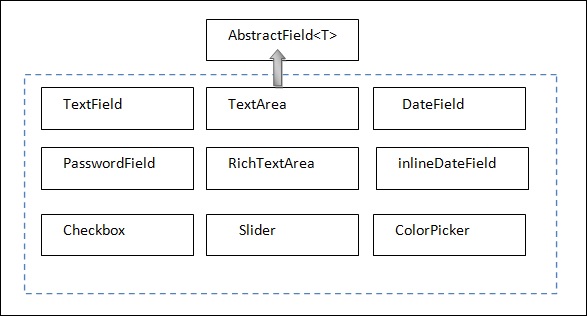
請注意,所有這些模組都類似於 UI 開發中的那些模組。在 Vaadin 中,我們有單獨的類來實現每一個。您將在接下來的章節中詳細瞭解這些內容。
標籤
標籤用於在網頁中提及任何不可編輯的文字。下面的示例顯示瞭如何在我們的應用程式中使用標籤。請注意,在給定的示例中,我們建立了一個 JAVA 類並將其命名為 **LabelExam.java** 介面,我們將覆蓋其 **init()** 方法來執行它。
package com.MyTutorials.MyFirstApp;

import javax.servlet.annotation.WebServlet;
import com.vaadin.annotations.VaadinServletConfiguration;
import com.vaadin.server.VaadinRequest;
import com.vaadin.server.VaadinServlet;
import com.vaadin.ui.HorizontalLayout;
import com.vaadin.ui.Label;
import com.vaadin.ui.UI;

//extending UI
public class LabelExam extends UI {
   @Override
   protected void init(VaadinRequest request) {
      final HorizontalLayout hLayout = new HorizontalLayout(); //creating a Layout
      Label l1 = new Label(" Welcome to the World of Vaadin Tutorials.");
      Label l2 = new Label("\n Happy Learning .." ,ContentMode.PREFORMATTED); // Content Mode tells JVM to interpret the String mentioned in the label. Hence label2 will be printed in next line because of “\n”.
      hLayout.addComponents(l1,l2); // adding labels to layout
      setContent(hLayout); // setting the layout as a content of the web page.
   }
   // Code to control URL
   @WebServlet(urlPatterns = "/*", name = "MyUIServlet", asyncSupported = true)

   @VaadinServletConfiguration(ui = LabelExam.class, productionMode = false)
   public static class MyUIServlet extends VaadinServlet {}
}
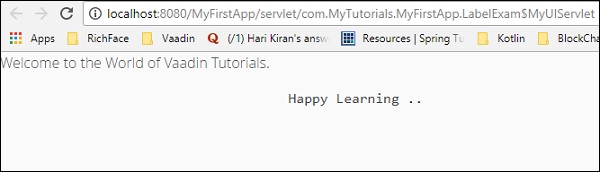
在上面的示例中,我們建立了兩個標籤,最後我們將該標籤新增到我們的佈局中。您將在接下來的章節中學習更多關於佈局的內容。**VaadinServlet** 已被實現以控制 URL。但是,在實際專案中,您無需在每個 Java 應用程式中定義 servlet,因為它將被互聯。選擇檔案並單擊 **在伺服器上執行**,上面給出的程式碼將產生如下所示的輸出。
連結
連結可用於實現到其他網站的外部連結。此類的工作方式與 HTML 的超連結標籤完全相同。在下面的示例中,我們將使用 Link 根據名為 **單擊此處** 的事件將使用者重定向到另一個網站。現在,修改 **MyUI.java** 類,如下所示。
package com.example.myapplication;

import javax.servlet.annotation.WebServlet;
import com.vaadin.annotations.Theme;
import com.vaadin.annotations.VaadinServletConfiguration;
import com.vaadin.server.ExternalResource;
import com.vaadin.server.VaadinRequest;
import com.vaadin.server.VaadinServlet;
import com.vaadin.shared.ui.ContentMode;

import com.vaadin.ui.Button;
import com.vaadin.ui.HorizontalLayout;
import com.vaadin.ui.Label;
import com.vaadin.ui.Link;
import com.vaadin.ui.TextField;
import com.vaadin.ui.UI;
import com.vaadin.ui.VerticalLayout;

@Theme("mytheme")
public class MyUI extends UI {
   @Override
   protected void init(VaadinRequest vaadinRequest) {
      final VerticalLayout layout = new VerticalLayout();

      final HorizontalLayout hLayout = new HorizontalLayout();

      Link link = new Link("Click Me",new ExternalResource("https://tutorialspoint.tw/"));
      hLayout.addComponent(link);
      setContent(hLayout);
   }
   @WebServlet(urlPatterns = "/*", name = "MyUIServlet", asyncSupported = true)
   @VaadinServletConfiguration(ui = MyUI.class, productionMode = false)
   public static class MyUIServlet extends VaadinServlet {}
}
在上面的示例中,我們建立了一個到另一個網站的外部連結。它將在瀏覽器中給我們以下輸出。
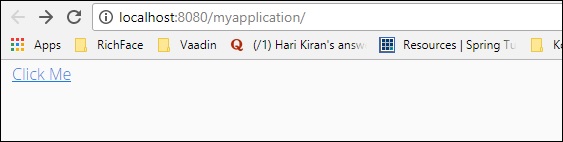
使用者單擊連結後,將被重定向到 www.tutorialspoint.com
文字欄位
本節介紹如何使用 Vaadin 內建類生成文字欄位。為此,請更新您的 MyUI.java 類,如下所示。
package com.example.myapplication;

import javax.servlet.annotation.WebServlet;
import com.vaadin.annotations.Theme;
import com.vaadin.annotations.VaadinServletConfiguration;
import com.vaadin.server.VaadinRequest;

import com.vaadin.server.VaadinServlet;
import com.vaadin.shared.ui.ContentMode;
import com.vaadin.ui.Label;
import com.vaadin.ui.TextField;
import com.vaadin.ui.UI;
import com.vaadin.ui.VerticalLayout;

@Theme("mytheme")
public class MyUI extends UI {
   @Override
   protected void init(VaadinRequest vaadinRequest) {
      final VerticalLayout layout = new VerticalLayout();
      Label l1 = new Label("Example of TextField--\n ",ContentMode.PREFORMATTED);
      TextField text = new TextField();
      text.setValue("----");
      layout.addComponents(l1,text);
      setContent(layout);
   }
   @WebServlet(urlPatterns = "/*", name = "MyUIServlet", asyncSupported = true)
   @VaadinServletConfiguration(ui = MyUI.class, productionMode = false)
   public static class MyUIServlet extends VaadinServlet {}
}
現在,重新整理您的專案並進行乾淨構建。您可以在瀏覽器中觀察到如下所示的輸出。請記住重新啟動瀏覽器以獲取其最新更改。
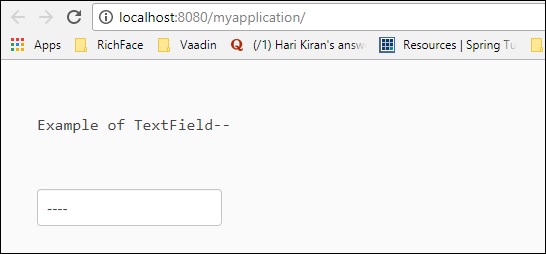
文字區域
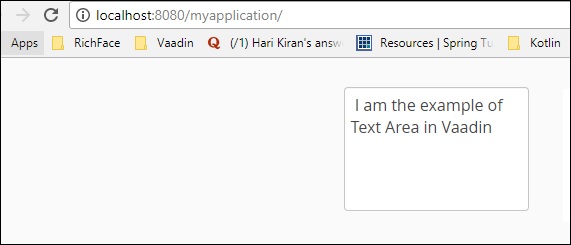
本節將向您解釋如何使用 Vaadin 預定義類在瀏覽器中建立文字區域。請觀察以下示例程式碼。
package com.example.myapplication;

import javax.servlet.annotation.WebServlet;
import com.vaadin.annotations.Theme;
import com.vaadin.annotations.VaadinServletConfiguration;
import com.vaadin.server.VaadinRequest;
import com.vaadin.server.VaadinServlet;

import com.vaadin.ui.Alignment;
import com.vaadin.ui.TextArea;
import com.vaadin.ui.UI;
import com.vaadin.ui.VerticalLayout;

@Theme("mytheme")
public class MyUI extends UI {
   @Override
   protected void init(VaadinRequest vaadinRequest) {
      final VerticalLayout layout = new VerticalLayout();
      final VerticalLayout hLayout = new VerticalLayout();
      TextArea text = new TextArea();
      text.setValue(" I am the example of Text Area in Vaadin");
      hLayout.addComponent(text);
      hLayout.setComponentAlignment(text,Alignment.BOTTOM_CENTER);
      setContent(hLayout);
   }
   @WebServlet(urlPatterns = "/*", name = "MyUIServlet", asyncSupported = true)
   @VaadinServletConfiguration(ui = MyUI.class, productionMode = false)
   public static class MyUIServlet extends VaadinServlet {}
}
以上程式碼將在瀏覽器中產生以下輸出:
日期和時間
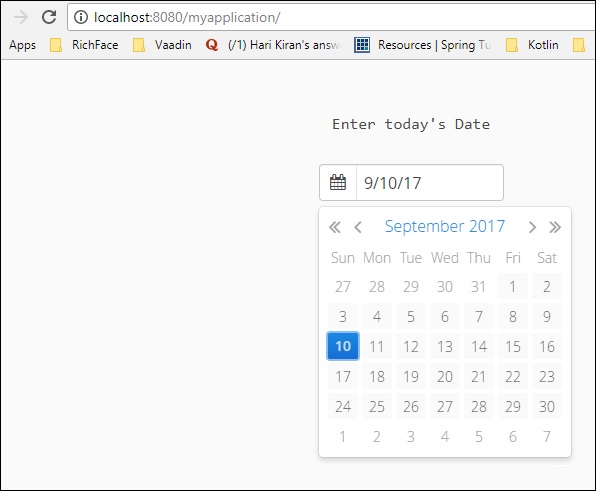
您可以使用日期選擇器在瀏覽器中填充日期和時間。觀察以下示例程式碼。在這裡,我們使用了 Vaadin 預定義的 Date 類來在瀏覽器中填充日期和時間。package com.example.myapplication;
import java.time.LocalDate;
import java.util.Locale;
import javax.servlet.annotation.WebServlet;
import com.vaadin.annotations.Theme;
import com.vaadin.annotations.VaadinServletConfiguration;
import com.vaadin.server.VaadinRequest;
import com.vaadin.server.VaadinServlet;
import com.vaadin.shared.ui.ContentMode;
import com.vaadin.ui.Alignment;
import com.vaadin.ui.DateField;
import com.vaadin.ui.Label;
import com.vaadin.ui.UI;
import com.vaadin.ui.VerticalLayout;
@Theme("mytheme")
public class MyUI extends UI {
@Override
protected void init(VaadinRequest vaadinRequest) {
final VerticalLayout layout = new VerticalLayout();
final VerticalLayout hLayout = new VerticalLayout();
Label l1 = new Label("Enter today's Date\n",ContentMode.PREFORMATTED);
DateField date = new DateField();
date.setValue(LocalDate.now());
date.setLocale(new Locale("en","IND"));
hLayout.addComponents(l1,date);
hLayout.setComponentAlignment(l1,Alignment.BOTTOM_CENTER);
hLayout.setComponentAlignment(date,Alignment.BOTTOM_CENTER);
setContent(hLayout);
}
@WebServlet(urlPatterns = "/*", name = "MyUIServlet", asyncSupported = true)
@VaadinServletConfiguration(ui = MyUI.class, productionMode = false)
public static class MyUIServlet extends VaadinServlet {
}
在上面的示例中,我們使用了 Vaadin 預定義的日期函式來在網頁中填充日期元件。此程式碼將為您提供如下截圖所示的輸出:
按鈕
以下程式碼將向您解釋如何在網頁中應用按鈕。在這裡,我們使用了一個名為 **單擊我** 的按鈕。
package com.example.myapplication;

import javax.servlet.annotation.WebServlet;
import com.vaadin.annotations.Theme;
import com.vaadin.annotations.VaadinServletConfiguration;
import com.vaadin.server.ExternalResource;
import com.vaadin.server.VaadinRequest;
import com.vaadin.server.VaadinServlet;
import com.vaadin.shared.ui.ContentMode;
import com.vaadin.ui.Alignment;
import com.vaadin.ui.Button;

import com.vaadin.ui.HorizontalLayout;
import com.vaadin.ui.Label;
import com.vaadin.ui.Link;
import com.vaadin.ui.TextArea;
import com.vaadin.ui.TextField;
import com.vaadin.ui.UI;
import com.vaadin.ui.VerticalLayout;

@Theme("mytheme")
public class MyUI extends UI {
   @Override
   protected void init(VaadinRequest vaadinRequest) {
      final VerticalLayout layout = new VerticalLayout();
      final VerticalLayout hLayout = new VerticalLayout();
      TextArea text = new TextArea();
      text.setValue("Please enter some Value");
      Button b = new Button("Click Me");
      hLayout.addComponent(text);
      hLayout.addComponent(b);
      hLayout.setComponentAlignment(text,Alignment.BOTTOM_CENTER);
      hLayout.setComponentAlignment(b,Alignment.BOTTOM_CENTER);
      setContent(hLayout);
   }
   @WebServlet(urlPatterns = "/*", name = "MyUIServlet", asyncSupported = true)

   @VaadinServletConfiguration(ui = MyUI.class, productionMode = false)
   public static class MyUIServlet extends VaadinServlet {}
}
以上程式碼將產生如下所示的輸出。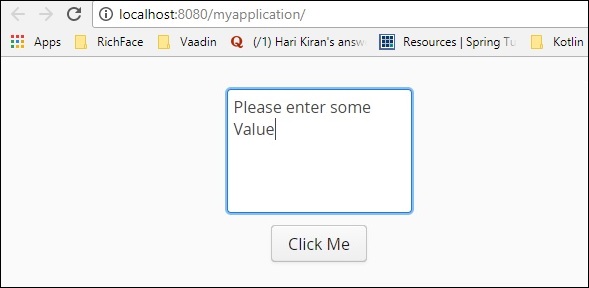
複選框
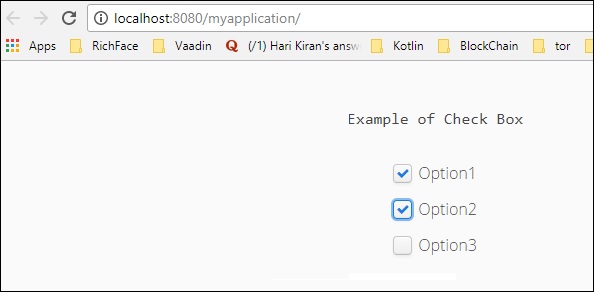
Vaadin 還提供內建類來在網頁中建立複選框。在下面的示例中,我們將使用 Vaadin 豐富的 Web 元件建立一個複選框。
package com.example.myapplication;

import java.time.LocalDate;
import java.util.Locale;
import javax.servlet.annotation.WebServlet;
import com.vaadin.annotations.Theme;
import com.vaadin.annotations.VaadinServletConfiguration;
import com.vaadin.server.VaadinRequest;
import com.vaadin.server.VaadinServlet;
import com.vaadin.shared.ui.ContentMode;
import com.vaadin.ui.Alignment;

import com.vaadin.ui.CheckBox;
import com.vaadin.ui.DateField;
import com.vaadin.ui.Label;
import com.vaadin.ui.UI;
import com.vaadin.ui.VerticalLayout;

@Theme("mytheme")
public class MyUI extends UI {
   @Override
   protected void init(VaadinRequest vaadinRequest) {
      final VerticalLayout layout = new VerticalLayout();
      final VerticalLayout hLayout = new VerticalLayout();
      Label l1 = new Label("Example of Check Box\n",ContentMode.PREFORMATTED);
      CheckBox chk1 = new CheckBox("Option1");
      CheckBox chk2 = new CheckBox("Option2");
      CheckBox chk3 = new CheckBox("Option3");
      hLayout.addComponents(l1,chk1,chk2,chk3);
      hLayout.setComponentAlignment(l1,Alignment.BOTTOM_CENTER);
      hLayout.setComponentAlignment(chk1,Alignment.BOTTOM_CENTER);
      hLayout.setComponentAlignment(chk2,Alignment.BOTTOM_CENTER);
      hLayout.setComponentAlignment(chk3,Alignment.BOTTOM_CENTER);
      setContent(hLayout);
   }
   @WebServlet(urlPatterns = "/*", name = "MyUIServlet", asyncSupported = true)
   @VaadinServletConfiguration(ui = MyUI.class, productionMode = false)
   public static class MyUIServlet extends VaadinServlet {}
}
以上程式碼將在瀏覽器中產生如下所示的輸出。您也可以為使用者建立任意數量的複選框。在後續章節中,您將學習在網頁中填充複選框的不同方法。
資料繫結
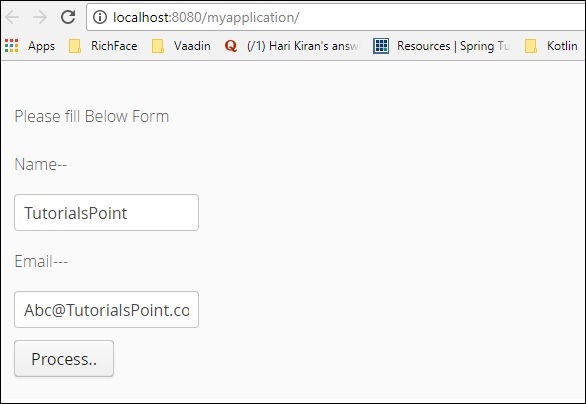
本節將向您解釋如何使用 Vaadin 作為框架將資料從前端繫結到後端。請注意,以下顯示的程式碼從前端獲取輸入以及資料欄位。讓我們建立一個 bean 類來繫結資料欄位。建立一個 Java 類並將其命名為 **Employee.java**。
package com.example.myapplication;

public class EmployeeBean {

   private String name = "";
   private String Email = " ";
   public EmployeeBean() {
      super();
      // TODO Auto-generated constructor stub
   }
   public EmployeeBean(String name, String email) {
      super();
      this.name = name;
      Email = email;
   }
   public String getName() {
      return name;
   }
   public void setName(String name) {
      System.out.println("asdassd");
      this.name = name;
   }
   public String getEmail() {
      return Email;
   }
   public void setEmail(String email) {
      Email = email;
   }
}
我們必須修改 **MyUI.java** 類才能繫結員工類的 data 欄位。觀察修改後的類的以下程式碼。
package com.example.myapplication;

import javax.servlet.annotation.WebServlet;
import com.vaadin.annotations.PropertyId;
import com.vaadin.annotations.Theme;
import com.vaadin.annotations.VaadinServletConfiguration;
import com.vaadin.data.Binder;
import com.vaadin.server.VaadinRequest;
import com.vaadin.server.VaadinServlet;
import com.vaadin.shared.ui.ContentMode;
import com.vaadin.ui.Alignment;

import com.vaadin.ui.Button;
import com.vaadin.ui.Button.ClickEvent;
import com.vaadin.ui.CheckBox;
import com.vaadin.ui.FormLayout;
import com.vaadin.ui.Label;
import com.vaadin.ui.TextField;
import com.vaadin.ui.UI;
import com.vaadin.ui.VerticalLayout;

@Theme("mytheme")
public class MyUI extends UI {
   @Override
   protected void init(VaadinRequest vaadinRequest) {
      EmployeeBean bean = new EmployeeBean("TutorialsPoint","Abc@TutorialsPoint.com");
      Binder<EmployeeBean> binder = new Binder  <EmployeeBean>();
      final FormLayout form = new FormLayout();
      Label l1 = new Label("Please fill Below Form");
      Label labelName = new Label("Name--");
      TextField name = new TextField();
      binder.bind(name,EmployeeBean::getName,EmployeeBean::setName);
      Label labelEmail = new Label("Email---");
      TextField email = new TextField();
      binder.bind(email,EmployeeBean::getEmail,EmployeeBean::setEmail);
      Button button = new Button("Process..");
      form.addComponents(l1,labelName,name,labelEmail,email,button);
      setContent(form);
      binder.setBean(bean); //auto binding using in built method
   }
   @WebServlet(urlPatterns = "/*", name = "MyUIServlet", asyncSupported = true)
   @VaadinServletConfiguration(ui = MyUI.class, productionMode = false)
   public static class MyUIServlet extends VaadinServlet {
   }
}
以上程式碼將在瀏覽器中產生以下輸出。
表格
表格是 Vaadin 最常用的功能之一。表格單元格可以包含任何型別的資料。表格元件用於以表格格式顯示所有資料,這些資料組織成行和列結構。但是,自從 Vaadin 8 釋出以來,表格功能已經絕對化,並且使用 Grid 元件修改了相同的功能。如果您仍在使用舊版本的 Vaadin,則可以自由使用如下所示格式的表格。
/* Create the table with a caption. */
Table table = new Table("This is my Table");
/* Define the names and data types of columns.
* The "default value" parameter is meaningless here. */

table.addContainerProperty("First Name", String.class, null);
table.addContainerProperty("Last Name", String.class, null);
table.addContainerProperty("Year", Integer.class, null);

/* Add a few items in the table. */
table.addItem(new Object[] {"Nicolaus","Copernicus",new Integer(1473)}, new Integer(1));
table.addItem(new Object[] {"Tycho", "Brahe", new Integer(1546)}, new Integer(2));
table.addItem(new Object[] {"Giordano","Bruno", new Integer(1548)}, new Integer(3));
table.addItem(new Object[] {"Galileo", "Galilei", new Integer(1564)}, new Integer(4));
table.addItem(new Object[] {"Johannes","Kepler", new Integer(1571)}, new Integer(5));
table.addItem(new Object[] {"Isaac", "Newton", new Integer(1643)}, new Integer(6));
在即將到來的關於 **GRID** 的章節中,您將學習更多關於 Grid 建立和使用相同的方法填充資料的內容。
樹
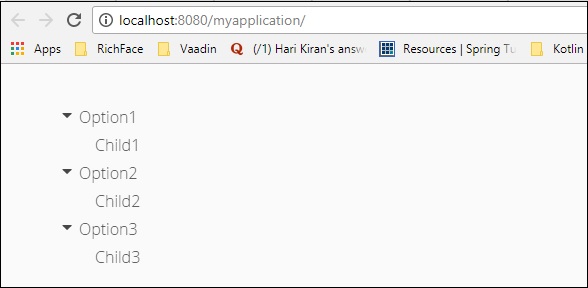
樹元件用於在網站中填充目錄結構。在本節中,您將學習如何使用 Vaadin 框架在網頁中填充樹。更新所需的 **MyUI** 類,如下所示。
package com.example.myapplication;

import javax.servlet.annotation.WebServlet;
import com.vaadin.annotations.Theme;
import com.vaadin.annotations.VaadinServletConfiguration;
import com.vaadin.data.TreeData;
import com.vaadin.server.VaadinRequest;
import com.vaadin.server.VaadinServlet;
import com.vaadin.ui.Component;
import com.vaadin.ui.Tree;
import com.vaadin.ui.UI;
import com.vaadin.ui.VerticalLayout;

@Theme("mytheme")
public class MyUI extends UI {
   @Override
   protected void init(VaadinRequest vaadinRequest) {
      VerticalLayout layout = new VerticalLayout();
      Tree<String> tree = new Tree<>();
      TreeData<String> treeData =tree.getTreeData();

      // Couple of childless root items
      treeData.addItem(null, "Option1");
      treeData.addItem("Option1", "Child1");
      treeData.addItem(null, "Option2");
      treeData.addItem("Option2", "Child2");

      // Items with hierarchy
      treeData.addItem(null, "Option3");
      treeData.addItem("Option3", "Child3");
      layout.addComponent(tree);
      setContent(layout);
   }
   @WebServlet(urlPatterns = "/*", name = "MyUIServlet", asyncSupported = true)
   @VaadinServletConfiguration(ui = MyUI.class, productionMode = false)
   public static class MyUIServlet extends VaadinServlet {}
}
以上程式碼將在瀏覽器中產生以下輸出。
選單欄
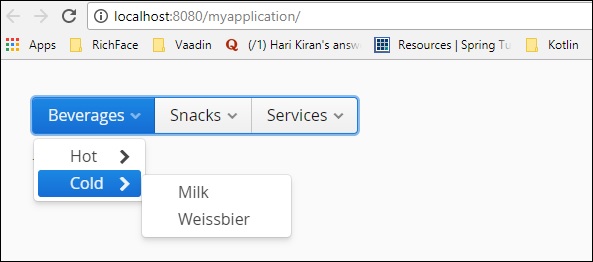
選單欄元件幫助我們在網站中建立選單。它可以是動態的,也可以是巢狀的。請在下面找到一個示例,我們使用 Vaadin 選單欄元件建立了一個巢狀選單欄。繼續修改我們的類,如下所示。
package com.example.myapplication;

import javax.servlet.annotation.WebServlet;
import com.vaadin.annotations.Theme;
import com.vaadin.annotations.VaadinServletConfiguration;
import com.vaadin.data.TreeData;
import com.vaadin.server.VaadinRequest;
import com.vaadin.server.VaadinServlet;

import com.vaadin.ui.Component;
import com.vaadin.ui.Label;
import com.vaadin.ui.MenuBar;
import com.vaadin.ui.MenuBar.MenuItem;
import com.vaadin.ui.Tree;
import com.vaadin.ui.UI;
import com.vaadin.ui.VerticalLayout;

@Theme("mytheme")
public class MyUI extends UI {
   @Override
   protected void init(VaadinRequest vaadinRequest) {
      VerticalLayout layout = new VerticalLayout();
      MenuBar barmenu = new MenuBar();
      layout.addComponent(barmenu);

      // A feedback component
      final Label selection = new Label("-");
      layout.addComponent(selection);

      // Define a common menu command for all the menu items.
      MenuBar.Command mycommand = new MenuBar.Command() {
         public void menuSelected(MenuItem selectedItem) {
            selection.setValue("Ordered a " +
            selectedItem.getText() +
            " from menu.");
         }
      };

      // Put some items in the menu hierarchically
      MenuBar.MenuItem beverages =
      barmenu.addItem("Beverages", null, null);
      MenuBar.MenuItem hot_beverages =
      beverages.addItem("Hot", null, null);
      hot_beverages.addItem("Tea", null, mycommand);
      hot_beverages.addItem("Coffee", null, mycommand);
      MenuBar.MenuItem cold_beverages =
      beverages.addItem("Cold", null, null);
      cold_beverages.addItem("Milk", null, mycommand);
      cold_beverages.addItem("Weissbier", null, mycommand);

      // Another top-level item
      MenuBar.MenuItem snacks =
      barmenu.addItem("Snacks", null, null);
      snacks.addItem("Weisswurst", null, mycommand);
      snacks.addItem("Bratwurst", null, mycommand);
      snacks.addItem("Currywurst", null, mycommand);

      // Yet another top-level item
      MenuBar.MenuItem services =
      barmenu.addItem("Services", null, null);
      services.addItem("Car Service", null, mycommand);
      setContent(layout);
   }
   @WebServlet(urlPatterns = "/*", name = "MyUIServlet", asyncSupported = true)
   @VaadinServletConfiguration(ui = MyUI.class, productionMode = false)
   public static class MyUIServlet extends VaadinServlet {}
}
在上面討論的示例中,我們建立了一個巢狀選單欄。執行以上程式碼,您可以在瀏覽器中觀察到如下所示的輸出: