- Silverlight 教程
- Silverlight - 首頁
- Silverlight - 概述
- Silverlight - 環境設定
- Silverlight - 入門
- Silverlight - XAML 概述
- Silverlight - 專案型別
- Silverlight - 固定佈局
- Silverlight - 動態佈局
- 受約束與不受約束
- Silverlight - CSS
- Silverlight - 控制元件
- Silverlight - 按鈕
- Silverlight - 內容模型
- Silverlight - ListBox
- Silverlight - 模板
- Silverlight - 視覺化狀態
- Silverlight - 資料繫結
- Silverlight - 瀏覽器整合
- Silverlight - 瀏覽器外
- Silverlight - 應用程式和資源
- Silverlight - 檔案訪問
- Silverlight - 檢視模型
- Silverlight - 輸入處理
- Silverlight - 隔離儲存
- Silverlight - 文字
- Silverlight - 動畫
- Silverlight - 影片和音訊
- Silverlight - 列印
- Silverlight 有用資源
- Silverlight - 快速指南
- Silverlight - 有用資源
- Silverlight - 討論
Silverlight - 資料繫結
資料繫結是 Silverlight 應用程式中的一種機制,它為使用部分類的 Windows 執行時應用程式提供了一種簡單易用的方式來顯示和互動資料。在此機制中,資料的管理與資料顯示方式完全分離。資料繫結允許資料在 UI 元素和使用者介面上的資料物件之間流動。當建立繫結並且資料或業務模型發生更改時,它會自動將更新反映到 UI 元素,反之亦然。還可以繫結到頁面上的其他元素,而不是標準資料來源。
資料繫結有以下兩種型別:
- 單向資料繫結
- 雙向資料繫結
單向資料繫結
在單向資料繫結中,資料從其源(即儲存資料的物件)繫結到其目標(即顯示資料的物件)。
讓我們來看一個簡單的單向資料繫結的示例。
下面是 XAML 程式碼,其中建立了兩個標籤、兩個文字框和一個按鈕,並設定了一些屬性。
<UserControl x:Class = "DataBinding.MainPage"
   xmlns = "http://schemas.microsoft.com/winfx/2006/xaml/presentation"
   xmlns:x = "http://schemas.microsoft.com/winfx/2006/xaml"
   xmlns:d = "http://schemas.microsoft.com/expression/blend/2008"
   xmlns:mc = "http://schemas.openxmlformats.org/markup-compatibility/2006"
   mc:Ignorable = "d"
   d:DesignHeight = "300" d:DesignWidth = "400">

   <Grid x:Name = "LayoutRoot" Background = "White">

      <Grid.RowDefinitions>
         <RowDefinition Height = "Auto" />
         <RowDefinition Height = "Auto" />
         <RowDefinition Height = "*" />
      </Grid.RowDefinitions>

      <Grid.ColumnDefinitions>
         <ColumnDefinition Width = "Auto" />
         <ColumnDefinition Width = "200" />
      </Grid.ColumnDefinitions>

      <TextBlock Name = "nameLabel" Margin = "2">Name:</TextBlock>
      <TextBox Name = "nameText" Grid.Column = "1" Margin = "2"
         Text = "{Binding Name, Mode=OneWay}"/>

      <TextBlock Name = "ageLabel" Margin = "2" Grid.Row = "1">Age:</TextBlock>

      <TextBox Name = "ageText" Grid.Column = "1" Grid.Row = "1" Margin="2"
         Text = "{Binding Age, Mode = OneWay}"/>

      <StackPanel Grid.Row = "2" Grid.ColumnSpan = "2">
         <Button Content = "_Show..." Click = "Button_Click" />
      </StackPanel>

   </Grid>

</UserControl>
我們觀察到以下幾點:
兩個文字框的 Text 屬性分別繫結到“Name”和“Age”,它們是如下所示的 Person 類的類變數。
在 Person 類中,我們只有兩個變數 Name 和 Age,並且它的物件在 MainPage 類中初始化。
在 XAML 程式碼中,我們繫結到屬性 Name 和 Age,但我們沒有選擇哪個屬性屬於該物件。
一種簡單的方法是在 MainPage 建構函式的 C# 程式碼中將物件分配給 DataContext,我們在其中繫結屬性,如下所示。
using System.Windows;
using System.Windows.Controls;

namespace DataBinding {

   public partial class MainPage : UserControl {
      Person person = new Person { Name = "Salman", Age = 26 };

      public MainPage() {
         InitializeComponent();
         this.DataContext = person;
      }

      private void Button_Click(object sender, RoutedEventArgs e) {
         string message = person.Name + " is " + person.Age;
         MessageBox.Show(message);
      }
   }

   public class Person {
      private string nameValue;

      public string Name {
         get { return nameValue; }
         set { nameValue = value; }
      }

      private double ageValue;

      public double Age {
         get { return ageValue; }

         set {
            if (value != ageValue) {
               ageValue = value;
            }
         }
      }
   }
}
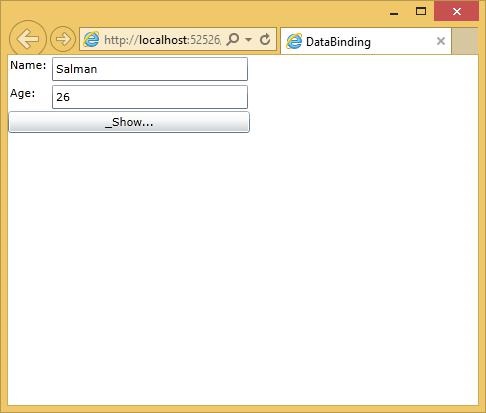
讓我們執行此應用程式,您會立即在網頁上看到我們已成功繫結到該 Person 物件的 Name 和 Age。
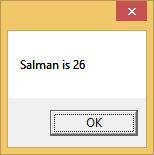
當您按下“顯示”按鈕時,它將在訊息框中顯示姓名和年齡。
讓我們在上面的對話方塊中更改 Name 和 Age。

現在,如果您單擊“顯示”按鈕,它將再次顯示相同的訊息。
這是因為 資料繫結模式在 XAML 程式碼中設定為單向。要顯示更新的訊息,您需要了解雙向資料繫結。
雙向資料繫結
在雙向繫結中,使用者能夠透過使用者介面修改資料,並將該資料更新到源中。如果源在使用者檢視檢視時發生更改,則希望檢視也更新。
讓我們來看同一個例子,但僅將 XAML 程式碼中的繫結模式從單向更改為雙向,如下所示。
<UserControl x:Class = "DataBinding.MainPage"
   xmlns = "http://schemas.microsoft.com/winfx/2006/xaml/presentation"
   xmlns:x = "http://schemas.microsoft.com/winfx/2006/xaml"
   xmlns:d = "http://schemas.microsoft.com/expression/blend/2008"
   xmlns:mc = "http://schemas.openxmlformats.org/markup-compatibility/2006"
   mc:Ignorable = "d"
   d:DesignHeight = "300" d:DesignWidth = "400">

   <Grid x:Name = "LayoutRoot" Background = "White">

      <Grid.RowDefinitions>
         <RowDefinition Height = "Auto" />
         <RowDefinition Height = "Auto" />
         <RowDefinition Height = "*" />
      </Grid.RowDefinitions>

      <Grid.ColumnDefinitions>
         <ColumnDefinition Width = "Auto" />
         <ColumnDefinition Width = "200" />
      </Grid.ColumnDefinitions>

      <TextBlock Name = "nameLabel" Margin = "2">_Name:</TextBlock>

      <TextBox Name = "nameText" Grid.Column = "1" Margin = "2"
         Text = "{Binding Name, Mode=TwoWay}"/>

      <TextBlock Name = "ageLabel" Margin = "2" Grid.Row = "1">_Age:</TextBlock>

      <TextBox Name = "ageText" Grid.Column = "1" Grid.Row = "1" Margin = "2"
         Text = "{Binding Age, Mode = TwoWay}"/>

      <StackPanel Grid.Row = "2" Grid.ColumnSpan = "2">
         <Button Content = "_Show..." Click = "Button_Click" />
      </StackPanel>

   </Grid>

</UserControl>
讓我們再次執行此應用程式,您會看到相同的輸出。
讓我們在上面的對話方塊中更改 Name 和 Age。
現在,如果您單擊“顯示”按鈕,它將顯示更新的訊息。