
 資料結構
資料結構 網路
網路 RDBMS
RDBMS 作業系統
作業系統 Java
Java MS Excel
 iOS
iOS HTML
HTML CSS
CSS Android
 Python
 C 程式設計
 C++
C++ C#
C# MongoDB
 MySQL
MySQL Javascript
 PHP
PHP 物理學
物理學 化學
化學 生物學
生物學 數學
數學 英語
英語 經濟學
經濟學 心理學
心理學 社會研究
社會研究 時尚研究
時尚研究 法律研究
法律研究使用 Tkinter 製作石頭剪刀布遊戲
Tkinter 是一個基於 Python 的庫,用於建立和開發桌面使用者介面和應用程式。使用 Tkinter 庫及其軟體包,我們將建立一個石頭剪刀布遊戲應用程式。這款遊戲可以透過手勢在兩個人之間進行。獲勝的條件是:
如果玩家 A 出布而玩家 B 出剪刀,則剪刀獲勝。
如果玩家 A 出布,而玩家 B 出石頭,則布獲勝。
類似地:
如果玩家 A 出石頭,而玩家 B 出剪刀,則石頭獲勝。
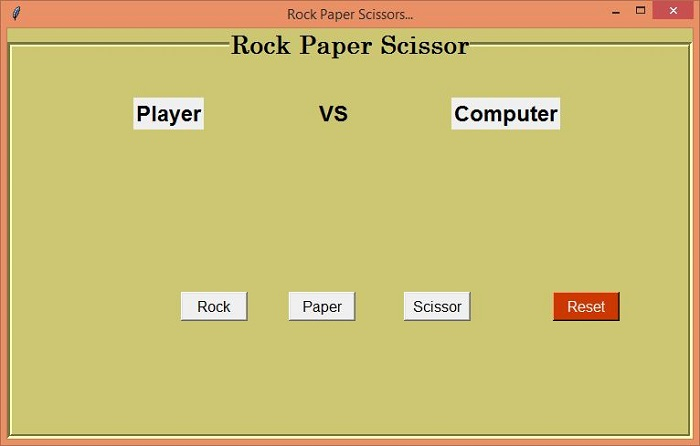
按照這些遊戲條件,我們首先將建立遊戲使用者介面的 GUI。使用者可以將裝置作為對手玩遊戲。我們的 GUI 應用程式將具有以下功能:
該應用程式將有一個跟隨使用者和對手的標題。
為了表示石頭、布和剪刀的手勢,我們將為每個手勢建立三個按鈕。
遊戲一旦開始,它將在應用程式視窗上顯示最終的獲勝者。
重置按鈕用於重置遊戲。
示例
#import required libraries
from tkinter import *
from tkinter import ttk
import random

#Create an instance of tkinter frame
win= Tk()

#Set the geometry of the window
win.geometry("750x450")

#Set the title of the window
win.title("Rock Paper Scissors...")

#Default value for Computer
computer_options = {
   "0":"Rock",
   "1":"Paper",
   "2":"Scissor"
}

#Disable all the Buttons after first Match
def button_disable():
   b1.config(state= "disabled")
   b2.config(state= "disabled")
   b3.config(state= "disabled")

#Define function for Rock
def isrock():
   value = computer_options[str(random.randint(0,2))]
   if value == "Rock":
      match_result = "Match Draw"
   elif value=="Scissor":
      match_result = "Wohoo! You Won"
   else:
      match_result = "Computer Win"
   label.config(text = match_result)
   l1.config(text = "Rock")
   l3.config(text =value)
   button_disable()

#Function for Paper
def ispaper():
   value = computer_options[str(random.randint(0, 2))]
   if value == "Paper":
      match_result = "Match Draw"
   elif value=="Scissor":
      match_result = "Computer Win"
   else:
      match_result = "Amazingg..You won"
   label.config(text = match_result)
   l1.config(text = "Paper")
   l3.config(text = value)
   button_disable()

#Function for Scissor
def isscissor():
   value = computer_options[str(random.randint(0,2))]
   if value == "Rock":
      match_result = "Computer Win"
   elif value == "Scissor":
      match_result = "Match Draw"
   else:
      match_result = "You Win... :D"
   label.config(text = match_result)
   l1.config(text = "Scissor")
   l3.config(text = value)
   button_disable()

#Reset the Game
def reset():
   b1.config(state= "active")
   b2.config(state= "active")
   b3.config(state= "active")
   l1.config(text = "Player")
   l3.config(text = "Computer")
   label.config(text = "")

#Create a LabelFrame
labelframe= LabelFrame(win, text= "Rock Paper Scissor", font= ('Century 20 bold'),labelanchor= "n",bd=5,bg= "khaki3",width= 600, height= 450, cursor= "target")
labelframe.pack(expand= True, fill= BOTH)

#Label for Player
l1= Label(labelframe, text="Player", font= ('Helvetica 18 bold'))
l1.place(relx= .18, rely= .1)

#Label for VS
l2= Label(labelframe, text="VS", font= ('Helvetica 18 bold'), bg="khaki3")
l2.place(relx= .45, rely= .1)

#Label for Computer
l3= Label(labelframe, text="Computer", font= ('Helvetica 18 bold'))
l3.place(relx= .65, rely= .1)

#Create a label to display the Conditions
label= Label(labelframe, text="", font=('Coveat', 25,'bold'), bg= "khaki3")
label.pack(pady=150)

#Create Button Set for Rock, Paper and Scissor
b1= Button(labelframe, text= "Rock", font= 10, width= 7, command= isrock)
b1.place(relx=.25, rely= .62)
b2= Button(labelframe, text= "Paper", font= 10, width= 7 ,command= ispaper)
b2.place(relx= .41,rely= .62)
b3= Button(labelframe, text= "Scissor", font= 10, width= 7, command= isscissor)
b3.place(relx= .58, rely= .62)

#Button to reset the Game
reset= Button(labelframe, text= "Reset",bg= "OrangeRed3", fg= "white",width= 7, font= 10, command= reset)
reset.place(relx= .8, rely= .62)
win.mainloop()
輸出
執行以上程式碼將顯示遊戲的 GUI。我們現在可以透過單擊“石頭”、“布”或“剪刀”任意一個按鈕來玩遊戲。

更新於: 2021 年 5 月 3 日
3K+ 瀏覽量

廣告