
- 檔案系統模組
- PhantomJS - 屬性
- PhantomJS - 方法
- 系統模組
- PhantomJS - 屬性
- Web 伺服器模組
- PhantomJS - 屬性
- PhantomJS - 方法
- 其它
- 命令列介面
- PhantomJS - 螢幕捕獲
- PhantomJS - 頁面自動化
- PhantomJS - 網路監視
- PhantomJS - 測試
- PhantomJS - REPL
- PhantomJS - 示例
- PhantomJS 有用資源
- PhantomJS - 快速指南
- PhantomJS - 有用資源
- PhantomJS - 討論
PhantomJS - render()
Render 可幫助採用影像緩衝區並按指定格式儲存。支援的格式包括 PDF、PNG、JPEG、BMP、PPM、GIF(支援取決於所用的 QT 編譯)。
質量
它支援 0 到 100 之間的整數。主要用於 JPEG 和 PNG 格式。對於 JPEG,它以百分比使用。級別 0 將生成非常小且質量很差的檔案,而 100 將生成高質量的檔案。預設值為 75。對於 PNG,它將其設為壓縮級別,其中 0 為小檔案,100 為大檔案。
你可以將 clipRect、viewportSize、paperSize 與 render 方法結合使用,以根據需要以各種格式渲染影像緩衝區。
語法
其語法如下 -
wpage.render(filename, {format: PDF|PNG|JPEG|BMP|PPM|GIF, quality: '100'});
示例:圖片
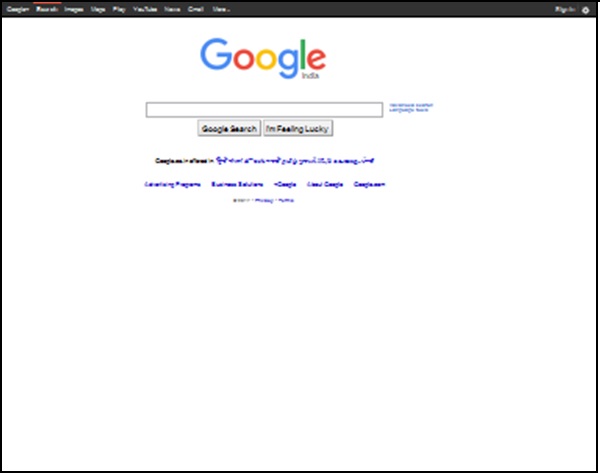
我們舉個例子來說明如何使用 render() 方法。
var wpage = require('webpage').create();
wpage.viewportSize = { width: 1920, height: 1080 };

wpage.open("http://www.google.com", function start(status) {
   wpage.render('image.jpeg', {format: 'jpeg', quality: '100'});
   phantom.exit();
});
以上程式將生成以下 output。
示例:PDF
我們考慮另一個示例。
var wpage = require('webpage').create();
var url = "https://jquery.com/download/";
var output = "display.pdf";

wpage.paperSize = {
   width: '600px',
   height: '1500px',
   margin: {
      'top':'50px',
      'left':'50px',
      'rigth':'50px'
   },
   orientation:'portrait',

   header: {
      height: "1cm",
      contents: phantom.callback(function(pageNumber, nPages) {
         return "<h5>Header <b>" + pageNumber + " / " + nPages + "</b></h5>";
      })
   },
   footer: {
      height: "1cm",
      contents: phantom.callback(function(pageNumber, nPages) {
         return <h5>Footer <b>" + pageNumber + " / " + nPages + "</b></h5>";
      })
   }
}
wpage.open(url, function (status) {
   if (status !== 'success') {
      console.log('Page is not opening');
      phantom.exit();
   } else {
      wpage.render(output);
      phantom.exit();
   }
});
以上程式將生成以下 output。
Saves as display.pdf with header and footer.
phantomjs_webpage_module_methods.htm
廣告