
- 檔案系統模組
- PhantomJS - 屬性
- PhantomJS - 方法
- 系統模組
- PhantomJS - 屬性
- Web 伺服器模組
- PhantomJS - 屬性
- PhantomJS - 方法
- 其他
- 命令列介面
- PhantomJS - 螢幕截圖
- PhantomJS - 網頁自動化
- PhantomJS - 網路監控
- PhantomJS - 測試
- PhantomJS - REPL
- PhantomJS - 示例
- PhantomJS 有用資源
- PhantomJS - 快速指南
- PhantomJS - 有用資源
- PhantomJS - 討論
PhantomJS - 螢幕截圖
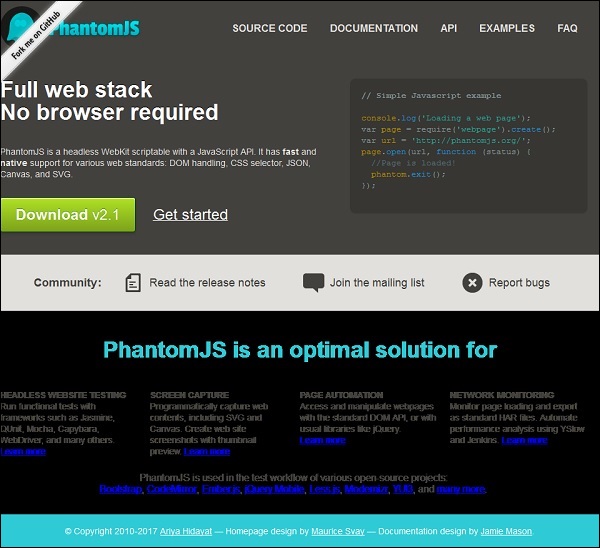
PhantomJS 在擷取網頁截圖和將網頁轉換為 PDF 方面非常有用。我們在此提供了一個簡單的示例,來演示其工作原理。
示例
var page = require('webpage').create();
page.open('http://phantom.org/',function(status){
   page.render('phantom.png');
   phantom.exit();
});
執行上述程式,輸出將儲存為 phantom.png。
將網頁轉換為 PDF
PhantomJS 還支援將網頁轉換為 PDF,並新增頁首和頁尾。請檢視以下示例,瞭解其工作原理。
var wpage = require('webpage').create();
var url = "https://en.wikipedia.org/wiki/Main_Page";
var output = "test.pdf";

wpage.paperSize = {
   width: screen.width+'px',
   height: '1500px',

   margin: {
      'top':'50px',
      'left':'50px',
      'rigtht':'50px'
   },
   orientation:'portrait',
   header: {
      height: "1cm",
      contents: phantom.callback(function(pageNumber, nPages) {
         return "<h5>Header <b>" + pageNumber + " / " + nPages + "</b></h5>";
      })
   },
   footer: {
      height: "1cm",
      contents: phantom.callback(function(pageNumber, nPages) {
         return "<h5>Footer <b>" + pageNumber + " / " + nPages + "</b></h5>";
      })
   }
}
wpage.open(url, function (status) {
   if (status !== 'success') {
      console.log('Page is not opening');
      phantom.exit();
   } else {
      wpage.render(output);
      phantom.exit();
   }
});
上述程式生成以下輸出。
The above will convert the page into pdf and will be saved in test.pdf
將畫布轉換為影像
Phantomjs 可以輕鬆地將畫布轉換為影像。請檢視以下示例,瞭解其工作原理。
var page = require('webpage').create();
page.content = '<html><body><canvas id="surface" width="400" height="400"></canvas></body></html>';

page.evaluate(function() {
   var context,e1;
   el = document.getElementById('surface');

   context = el.getContext('2d');
   context.font = "30px Comic Sans MS";
   context.fillStyle = "red";
   context.textAlign = "center";
   context.fillText("Welcome to PhantomJS ", 200, 200);

   document.body.style.backgroundColor = 'white';
   document.body.style.margin = '0px';
});
page.render('canvas.png');
phantom.exit();
上述程式生成以下輸出。

廣告