
 資料結構
資料結構 網路
網路 關係型資料庫管理系統
 作業系統
作業系統 Java
Java MS Excel
 iOS
iOS HTML
HTML CSS
CSS Android
 Python
 C 程式設計
 C++
C++ C#
C# MongoDB
 MySQL
MySQL Javascript
 PHP
PHP 物理學
物理學 化學
化學 生物學
生物學 數學
數學 英語
英語 經濟學
經濟學 心理學
心理學 社會學
社會學 服裝設計
服裝設計 法律研究
法律研究如何在 Python 中建立 Microsoft Word 段落並插入影像?
簡介...
作為一名資料工程專家,我經常收到測試人員在 Microsoft Word 中的測試結果。唉!他們把很多資訊都放在 Word 文件裡,從捕獲螢幕截圖到非常大的段落。
前幾天,測試團隊讓我幫忙編寫一個程式,用於插入工具生成的文字和影像(透過自動螢幕截圖獲取,本文未涉及)。
與其他文件不同,MS Word 文件沒有頁面的概念,因為它不幸地以段落為工作單位。因此,我們需要使用分隔符和節來正確劃分文件。
如何操作...
1. 繼續安裝 python-docx。
import docx

# create a new couments
WordDocx = docx.Document()

# My paragraph.
Paragraph = WordDocx.add_paragraph('1. Hello World, Some Sample Text Here...')
run = Paragraph.add_run()

# paragraph with a line break
run.add_break(docx.text.run.WD_BREAK.LINE)

# Add more
Paragraph.add_run('2. I have just written my 2nd line and I can write more..')

# Finally savind the document.
WordDocx.save('My_Amazing_WordDoc.docx')
2. 現在讓我們檢查內容是否一切正常。好吧,你是程式設計師,所以我們會以程式設計方式進行操作。
doc = docx.Document('My_Amazing_WordDoc.docx')
print(f"output \n *** Document has {len(doc.paragraphs)} - paragraphs")
for paragraph_number, paragraph in enumerate(doc.paragraphs):
if paragraph.text:
print(f"\n {paragraph.text}")
輸出
*** Document has 1 - paragraphs

1. Hello World, Some Sample Text Here...
2. I have just written my 2nd line and I can write more..
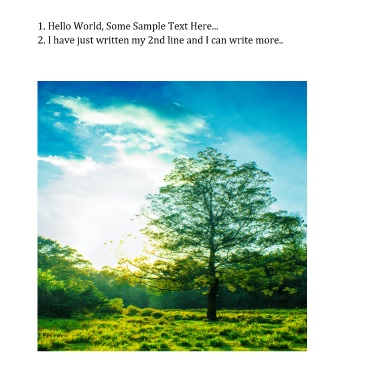
3. 現在我們將向文件中新增一個影像。因此,首先我們需要查詢一個影像。我從 unsplash.com 下載了一個影像,它沒有任何版權問題。請確保您從網際網路上下載的任何內容都需謹慎使用。
Unsplash 提供了我們可以用於任何目的的免費版權影像,感謝他們的工作。
好的,我下載了一個影像,並將其命名為 Tree.img,它將新增到我們的文件中。
import requests
from docx.shared import Cm

# Download the image from Github
response = requests.get("https://raw.githubusercontent.com/sasankac/TestDataSet/master/Tree.jpg")
image = open("Tree.jpg", "wb")
image.write(response.content)
image.close()

# add the image
image_to_add = doc.add_picture("Tree.jpg")
print(f"output \n *** MY Image has width = {image_to_add.width} and Height as - {image_to_add.height}")
輸出
*** MY Image has width = 43891200 and Height as - 65836800
4. 我們需要正確縮放影像,因為我的影像太大。我們可以使用 width 和 height 引數。
image_to_add.width = Cm(10)
image_to_add.height = Cm(10)
print(f" *** My New dimensions Image has width = {image_to_add.width} and Height as - {image_to_add.height}")

# finally save the document
doc.save('report.docx')
*** My New dimensions Image has width = 3600000 and Height as - 3600000
5. 開啟文件,您將看到已新增的影像和文字。
6. 將所有內容整合在一起。
示例
import requests
from docx.shared import Cm

# Download the image from Github
response = requests.get("https://raw.githubusercontent.com/sasankac/TestDataSet/master/Tree.jpg")
image = open("Tree.jpg", "wb")
image.write(response.content)
image.close()

# add the image
image_to_add = doc.add_picture("Tree.jpg")
print(f"output \n *** MY Image has width = {image_to_add.width} and Height as - {image_to_add.height}")

image_to_add.width = Cm(10)
image_to_add.height = Cm(10)
print(f" *** My New dimensions Image has width = {image_to_add.width} and Height as - {image_to_add.height}")

# finally save the document
doc.save('report.docx')
輸出
*** MY Image has width = 43891200 and Height as - 65836800
*** My New dimensions Image has width = 3600000 and Height as - 3600000

更新時間: 2020年11月10日
390 次檢視

廣告