
 資料結構
資料結構 網路
網路 關係資料庫管理系統
 作業系統
作業系統 Java
Java MS Excel
 iOS
iOS HTML
HTML CSS
CSS Android
 Python
 C語言程式設計
 C++
C++ C#
C# MongoDB
 MySQL
MySQL Javascript
 PHP
PHP 物理學
物理學 化學
化學 生物學
生物學 數學
數學 英語
英語 經濟學
經濟學 心理學
心理學 社會學
社會學 服裝設計
服裝設計 法律研究
法律研究使用Python的OpenCV繪製矩形並提取物件
OpenCV 是一個 Python 中的開源計算機視覺庫。它提供了許多函式來執行各種影像和影片處理操作。該庫使用 Numpy 模組將所有影片幀和影像表示為 ndarray 型別。它需要 numpy 庫,我們需要確保 numpy 模組也安裝在我們的 python 直譯器中。
在這篇文章中,我們將瞭解使用 python OpenCV 繪製矩形並提取物件的不同方法。
繪製矩形
為了在影像上繪製矩形,Python OpenCV 模組提供了一個名為 cv2.rectangle() 的方法。此方法將在影像上繪製矩形。以下是語法 -
cv.rectangle(img, pt1, pt2, color[, thickness[, lineType[, shift]]] )
引數
img:要繪製矩形的源影像。
pt1:一個元組,包含矩形一個頂點的 x 和 y 座標(矩形的左上角)。
pt2:一個元組,包含矩形另一個相對頂點的 x 和 y 座標(矩形的右下角)。
color:指定矩形的顏色。
thickness:這是一個可選引數。它指定矩形的線寬。預設線寬為 1。
x1,y1----------|
|		   |
| 		   |
| ------------x2,y2
因此,pt1 和 pt2 的座標分別為 (x1,y1) 和 (x2,y2)。
使用預定義尺寸
在這種方法中,我們將使用預定義的座標在影像上繪製矩形。這意味著我們將手動定義 pt1 和 pt2 的值。
示例
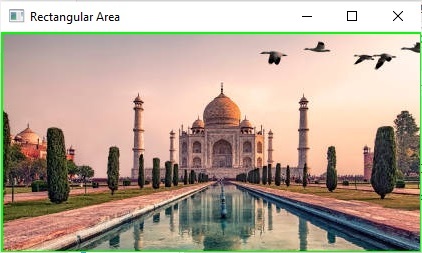
在本例中,我們將使用影像座標從矩形中繪製和提取物件。
import cv2
import numpy as np

# Load the image
img = cv2.imread("Images/Tajmahal.jpg")

# Define the dimensions and position of the rectangle using two points
top_left = (80, 80)
bottom_right = (500, 300)

# defining the colour and thickness of the rectangle
thickness = 2
color = (0, 255, 0) # Green color
shape = cv2.rectangle(img, top_left, bottom_right, color, thickness)

# Extracting objects from the rectangular area
rect_area = img[top_left[0]:bottom_right[1], top_left[1]:bottom_right[0]]

# Display the image with the drawn rectangle
cv2.imshow("Image with Rectangle", img)

# Display the extracted rectangular area
cv2.imshow("Rectangular Area", rect_area)

cv2.waitKey(0)
cv2.destroyAllWindows()
輸出

裁剪後的影像
使用滑鼠事件標誌
為了在影像上繪製矩形,這裡我們將使用以下滑鼠事件 -
cv2.EVENT_RBUTTONDOWN:表示右鍵被按下。
cv2.EVENT_LBUTTONUP:表示左鍵被釋放
此外,我們將使用 setMouseCallback() 函式為指定的視窗設定滑鼠事件處理程式
setMouseCallback() 函式
該函式用於指定哪個函式必須為特定視窗呼叫。換句話說,該函式為指定的視窗建立了一個滑鼠事件處理程式。
語法
cv2.setMouseCallback(winname, onMouse, userdata)
引數
Winname:特定視窗的名稱。
OnMouse:滑鼠事件的回撥函式。
Userdata:傳遞給回撥函式的可選引數。
此方法可以使用命令列介面執行。因此,這裡我們將使用 argparse 模組,因為它提供了一個方便的介面來處理命令列引數。
最初,我們將為 namedWindow() 方法設定一個滑鼠回撥函式,以讀取使用者繪製的矩形座標。並透過使用滑鼠點選事件,我們將識別 x 和 y 座標,然後使用 cv2.rectangle() 函式繪製矩形。
注意 - 要執行此程式碼,我們需要儲存程式檔案並將輸入影像儲存在同一位置,然後在命令提示符中執行以下命令。
Python program_file_name.py --image source_image_name.jpg
示例
讓我們舉一個繪製矩形以提取物件的例子。
import cv2
import argparse

point = []
crop = False

def shape_selection(event, x, y, flags, param):
   # grab references to the global variables
   global point, crop

   # Record the starting(x, y) coordinates when the left mouse button was clicked
   if event == cv2.EVENT_LBUTTONDOWN:
      point = [(x, y)]

   # check to see if the left mouse button was released
   elif event == cv2.EVENT_LBUTTONUP:
      # record the ending (x, y) coordinates
      point.append((x, y))

      # draw a rectangle
      cv2.rectangle(image, point[0], point[1], (0, 255, 0), 2)
      cv2.imshow("image", image)

# construct the argument parser and parse the arguments
ap = argparse.ArgumentParser()
ap.add_argument("-i", "--image", required = True, help ="Images/Dog.jpg")
args = vars(ap.parse_args())

# load the image
image = cv2.imread(args["image"])
clone = image.copy()
cv2.namedWindow("image")
# setting the mouse callback function
cv2.setMouseCallback("image", shape_selection)

# keep looping until the 'q' key is pressed
while True:
    # display the image and wait for a keypress
    cv2.imshow("image", image)
    key = cv2.waitKey(1) & 0xFF

    # press 'r' to reset window
    if key == ord("r"):
        image = clone.copy()

    # if the 'c' key is pressed, break from the loop
    elif key == ord("c"):
        break

if len(point) == 2:
    crop_img = clone[point[0][1]:point[1][1], point[0][0]:point[1][0]]
    cv2.imshow("crop_img", crop_img)
    cv2.waitKey(0)

    # close all open windows
cv2.destroyAllWindows()
開啟命令提示符並使用以下命令執行上述程式 -
python test.py --image image5.jpg
這將生成一個視窗,顯示輸入影像,您可以在其中選擇所需的物體,如下所示 -
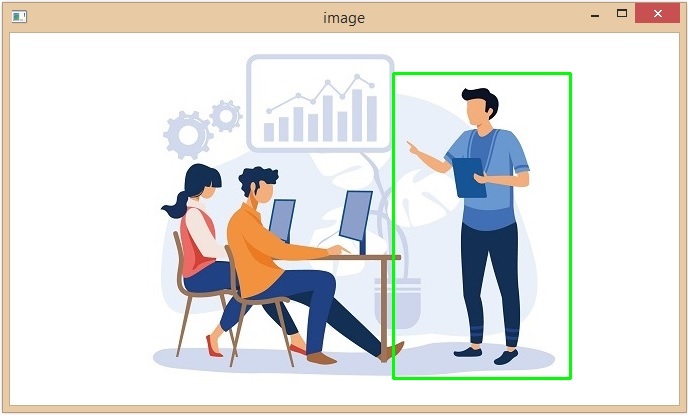
注意 - 選擇所需的影像區域後,按鍵盤上的 C 鍵進行裁剪。
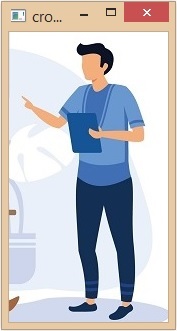
我們已成功繪製矩形並從影像中提取了所選物件。

834 次瀏覽
