
 資料結構
資料結構 網路
網路 關係型資料庫管理系統
 作業系統
作業系統 Java
Java MS Excel
 iOS
iOS HTML
HTML CSS
CSS Android
 Python
 C 程式設計
 C++
C++ C#
C# MongoDB
 MySQL
MySQL Javascript
 PHP
PHP 物理學
物理學 化學
化學 生物學
生物學 數學
數學 英語
英語 經濟學
經濟學 心理學
心理學 社會學
社會學 服裝設計
服裝設計 法律研究
法律研究使用 Tkinter 將影像轉換為 PDF
Python 是一種指令碼語言,因此它在許多方面有助於建立檔案轉換器,例如 CSV 到 PDF、PDF 到 DOC,反之亦然。藉助某些庫,我們還可以建立一個將影像轉換為 PDF 的應用程式。要建立這樣的應用程式,我們在 Python 中使用 **img2pdf** 模組。它有助於解析影像二進位制檔案並將其轉換為 PDF。
我們將按照以下步驟建立應用程式:
首先,確保系統已安裝 **img2pdf** 的必要條件。在終端中鍵入 **pip install img2pdf** 以安裝該包。在筆記本中匯入 **img2pdf**。
匯入 **filedialog** 以開啟一個對話方塊,要求使用者在目錄中選擇多個影像。
透過鍵入 from **tkinter import *** 匯入 **tkinter** 庫。
使用 Tkinter 庫建立基本結構,例如用於開啟檔案對話方塊的按鈕小部件、用於顯示訊息的標籤小部件。
定義一個函式來開啟對話方塊,該對話方塊要求使用者在目錄中選擇多個影像。
定義一個函式,用於以二進位制方式開啟檔案並使用 **convert** 方法將其轉換為 PDF。
示例
# Import required Libraries
from tkinter import *
from tkinter import filedialog
import img2pdf
from tkinter import ttk
# Create an instance of tkinter frame
win = Tk()
#set the geometry
win.geometry('750x250')
win.title("Image to PDF")
def select_file():
   global images
   images = filedialog.askopenfilenames(initialdir = "",title = "Select Images")
   Label(win, text=images).pack()
#Convert Image to PDF
def image_to_pdf():
   for image in enumerate(images):
      with open(f"{image}.pdf", "wb") as file:
         file.write(img2pdf.convert(images))
         Label(frame,text=file).pack()
# Add Labels and Buttons
Label(win, text = "Image to PDF Convertor",font = "Caveat 25 bold").pack(pady = 30)
ttk.Button(win, text = "Select Images",command = select_file).pack(ipadx = 10)
frame = Frame(win)
frame.pack()
ttk.Button(frame, text = "Convert and Save",command = image_to_pdf).pack(side = LEFT, pady=20,ipadx = 10)
win.mainloop()
輸出
執行以上程式碼將顯示應用程式視窗,該視窗將把影像轉換為 PDF 檔案。
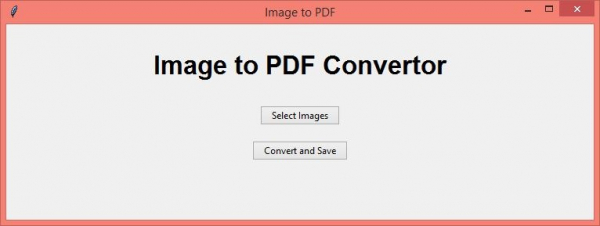
現在,從本地目錄中選擇一個影像檔案,然後單擊“轉換並儲存”按鈕將其轉換為 PDF 並儲存。

更新於: 2021 年 4 月 21 日
514 次瀏覽

廣告