
- ASP.NET Core 教程
- ASP.NET Core - 首頁
- ASP.NET Core - 概述
- ASP.NET Core - 環境設定
- ASP.NET Core - 新建專案
- ASP.NET Core - 專案佈局
- ASP.NET Core - Project.Json
- ASP.NET Core - 配置
- ASP.NET Core - 中介軟體
- ASP.NET Core - 異常
- ASP.NET Core - 靜態檔案
- ASP.NET Core - 設定 MVC
- ASP.NET Core - MVC 設計模式
- ASP.NET Core - 路由
- ASP.NET Core - 屬性路由
- ASP.NET Core - 操作結果
- ASP.NET Core - 檢視
- 設定 Entity Framework
- ASP.NET Core - DBContext
- ASP.NET Core - Razor 佈局檢視
- ASP.NET Core - Razor 檢視啟動
- ASP.NET Core - Razor 檢視匯入
- ASP.NET Core - Razor 標籤助手
- ASP.NET Core - Razor 編輯表單
- ASP.NET Core - 身份概述
- ASP.NET Core - 授權屬性
- 身份配置
- ASP.NET Core - 身份遷移
- ASP.NET Core - 使用者註冊
- ASP.NET Core - 建立使用者
- ASP.NET Core - 登入和登出
- ASP.NET Core 有用資源
- ASP.NET Core - 快速指南
- ASP.NET Core - 有用資源
- ASP.NET Core - 討論
ASP.NET Core - Razor 編輯表單
在本章中,我們將繼續討論標籤助手。我們還將在應用程式中新增一個新功能,並使其能夠編輯現有員工的詳細資訊。我們將首先在每個員工旁邊新增一個連結,該連結將轉到 HomeController 上的 Edit 操作。
@model HomePageViewModel
@{
   ViewBag.Title = "Home";
}
<h1>Welcome!</h1>

<table>
   @foreach (var employee in Model.Employees) {
      <tr>
         <td>@employee.Name</td>

         <td>
            <a asp-controller = "Home" asp-action = "Details"
               asp-routeid = "@employee.Id">Details</a>

            <a asp-controller = "Home" asp-action = "Edit"
               asp-routeid = "@employee.Id">Edit</a>

         </td>
      </tr>
   }
</table>
我們還沒有 Edit 操作,但我們需要一個可以編輯的員工 ID。因此,讓我們首先透過右鍵單擊 **Views → Home** 資料夾並選擇 **新增 → 新建項** 來建立一個新的檢視。
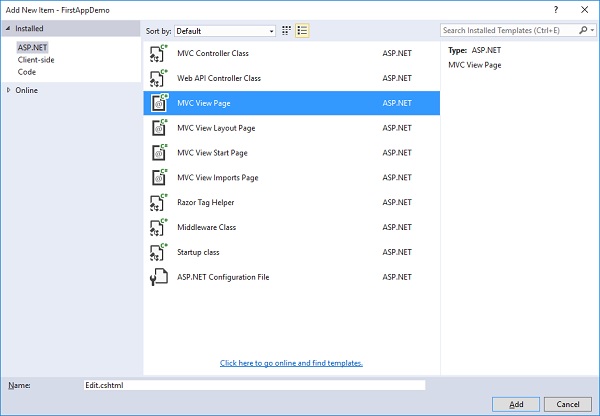
在中間窗格中,選擇 MVC 檢視頁面;將頁面命名為 Edit.cshtml。現在,單擊“新增”按鈕。
在 **Edit.cshtml** 檔案中新增以下程式碼。
@model Employee
@{
   ViewBag.Title = $"Edit {Model.Name}";
}
<h1>Edit @Model.Name</h1>

<form asp-action="Edit" method="post">
   <div>
      <label asp-for = "Name"></label>
      <input asp-for = "Name" />
      <span asp-validation-for = "Name"></span>
   </div>

   <div>
      <input type = "submit" value = "Save" />
   </div>
</form>
對於此頁面的標題,我們可以說我們想要編輯,然後提供員工姓名。
Edit 前面的美元符號將允許執行時用該屬性中的值(如員工姓名)替換 Model.Name。
在表單標籤內,我們可以使用像 asp-action 和 asp-controller 這樣的標籤助手。這樣,當用戶提交此表單時,它將直接轉到特定的控制器操作。
在這種情況下,我們希望轉到同一控制器的 Edit 操作,並且我們希望明確說明此表單上的方法應該使用 HttpPost。
表單的預設方法是 GET,我們不希望使用 GET 操作來編輯員工。
在標籤標籤中,我們使用了 asp-for 標籤助手,它表示這是模型 Name 屬性的標籤。此標籤助手可以設定 Html.For 屬性以具有正確的值,並設定此標籤的內部文字,以便它實際顯示我們想要的內容,例如員工姓名。
讓我們轉到 HomeController 類並新增 **Edit** 操作,該操作返回一個檢視,該檢視為使用者提供一個編輯員工的表單,然後我們將需要第二個 Edit 操作來響應 HttpPost,如下所示。
[HttpGet]
public IActionResult Edit(int id) {
   var context = new FirstAppDemoDbContext();
   SQLEmployeeData sqlData = new SQLEmployeeData(context);
   var model = sqlData.Get(id);

   if (model == null) {
      return RedirectToAction("Index");
   }
   return View(model);
}
首先,我們需要一個響應 GET 請求的 edit 操作。它將獲取員工 ID。此處的程式碼將類似於我們在 Details 操作中擁有的程式碼。我們將首先提取使用者想要編輯的員工的資料。我們還需要確保員工確實存在。如果不存在,我們將把使用者重定向回 Index 檢視。但當員工存在時,我們將呈現 Edit 檢視。
我們還需要響應表單將傳送的 HttpPost。
讓我們在 HomeController.cs 檔案中新增一個新類,如下面的程式所示。
public class EmployeeEditViewModel {
   [Required, MaxLength(80)]
   public string Name { get; set; }
}
在將響應 HttpPost 的 Edit 操作中,將使用 EmployeeEditViewModel,而不是員工本身,因為我們只想捕獲 Edit.cshtml 檔案中表單中的專案。
以下是 Edit 操作的實現。
[HttpPost]
public IActionResult Edit(int id, EmployeeEditViewModel input) {
   var context = new FirstAppDemoDbContext();
   SQLEmployeeData sqlData = new SQLEmployeeData(context);
   var employee = sqlData.Get(id);

   if (employee != null && ModelState.IsValid) {
      employee.Name = input.Name;
      context.SaveChanges();
      return RedirectToAction("Details", new { id = employee.Id });
   }
   return View(employee);
}
根據我們的路由規則,編輯表單應始終從 URL 中包含 ID 的 URL 傳遞,例如 ** /home/edit/1**。
表單將始終釋出回同一 URL,/home/edit/1。
MVC 框架將能夠從 URL 中提取該 ID 並將其作為引數傳遞。
我們始終需要檢查 ModelState 是否有效,並確保此員工在資料庫中並且在對資料庫執行更新操作之前不為空。
如果上述條件都不成立,我們將返回一個檢視並允許使用者重試。儘管在具有併發使用者的實際應用程式中,如果員工為空,則可能是因為員工詳細資訊被其他人刪除了。
如果該員工不存在,請告訴使用者該員工不存在。
否則,檢查 ModelState。如果 ModelState 無效,則返回一個檢視。這允許修復編輯並使 ModelState 有效。
將名稱從 Input 檢視模型複製到從資料庫檢索到的員工,並儲存更改。SaveChagnes() 方法將把所有這些更改重新整理到資料庫。
以下是 HomeController 的完整實現。
using Microsoft.AspNet.Mvc;

using FirstAppDemo.ViewModels;
using FirstAppDemo.Services;
using FirstAppDemo.Entities;
using FirstAppDemo.Models;

using System.Collections.Generic;
using System.Linq;
using System.ComponentModel.DataAnnotations;

namespace FirstAppDemo.Controllers {
   public class HomeController : Controller {
      public ViewResult Index() {
         var model = new HomePageViewModel();
         using (var context = new FirstAppDemoDbContext()) {
            SQLEmployeeData sqlData = new SQLEmployeeData(context);
            model.Employees = sqlData.GetAll();
         }
         return View(model);
      }
      public IActionResult Details(int id) {
         var context = new FirstAppDemoDbContext();
         SQLEmployeeData sqlData = new SQLEmployeeData(context);
         var model = sqlData.Get(id)

         if (model == null) {
            return RedirectToAction("Index");
         }
         return View(model);
      }
      [HttpGet]
      public IActionResult Edit(int id) {
         var context = new FirstAppDemoDbContext();
         SQLEmployeeData sqlData = new SQLEmployeeData(context);
         var model = sqlData.Get(id);

         if (model == null) {
            return RedirectToAction("Index");
         }
         return View(model);
      }
      [HttpPost]
      public IActionResult Edit(int id, EmployeeEditViewModel input) {
         var context = new FirstAppDemoDbContext();
         SQLEmployeeData sqlData = new SQLEmployeeData(context);
         var employee = sqlData.Get(id);

         if (employee != null && ModelState.IsValid) {
            employee.Name = input.Name;
            context.SaveChanges();
            return RedirectToAction("Details", new { id = employee.Id });
         }
         return View(employee);
      }
   }
   public class SQLEmployeeData {
      private FirstAppDemoDbContext _context { get; set; }
      public SQLEmployeeData(FirstAppDemoDbContext context) {
         _context = context;
      }
      public void Add(Employee emp) {
         _context.Add(emp);
         _context.SaveChanges();
      }
      public Employee Get(int ID) {
         return _context.Employees.FirstOrDefault(e => e.Id == ID);
      }
      public IEnumerable<Employee> GetAll() {
         return _context.Employees.ToList<Employee>();
      }
   }
   public class HomePageViewModel {
      public IEnumerable<Employee> Employees { get; set; }
   }
   public class EmployeeEditViewModel {
      [Required, MaxLength(80)]
      public string Name { get; set; }
   }
}
讓我們編譯程式並執行應用程式。
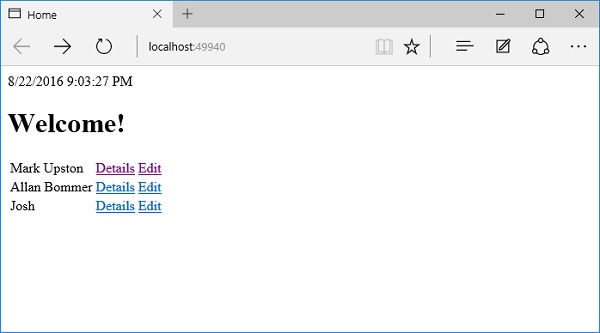
我們現在有一個可用的“編輯”連結;讓我們透過單擊“編輯”連結來編輯 Josh 的詳細資訊。
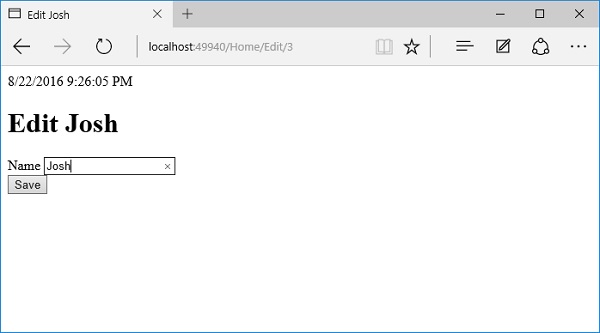
讓我們將姓名更改為 Josh Groban。
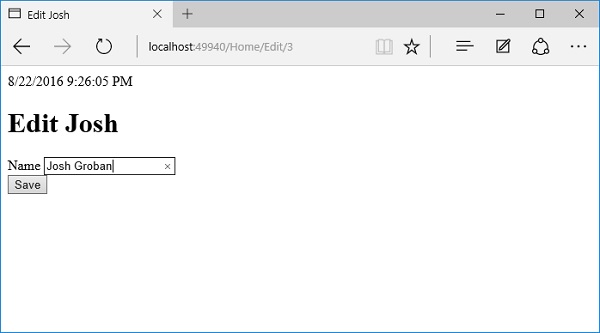
單擊“儲存”按鈕。
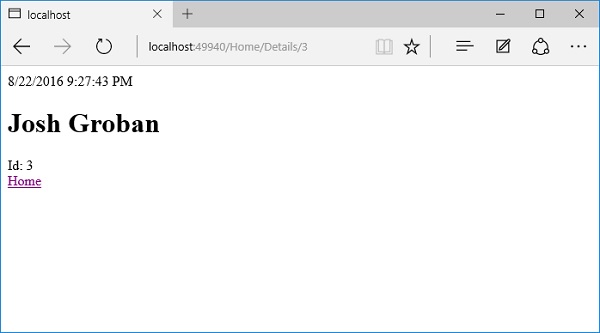
您可以看到名稱已更改為 Josh Groban,如上面的螢幕截圖所示。現在讓我們單擊“主頁”連結。
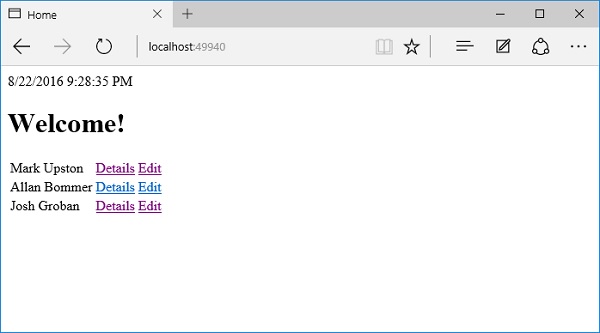
在主頁上,您現在將看到更新後的名稱。