
- VB.Net 基礎教程
- VB.Net - 首頁
- VB.Net - 概述
- VB.Net - 環境搭建
- VB.Net - 程式結構
- VB.Net - 基本語法
- VB.Net - 資料型別
- VB.Net - 變數
- VB.Net - 常量
- VB.Net - 修飾符
- VB.Net - 語句
- VB.Net - 指令
- VB.Net - 運算子
- VB.Net - 決策制定
- VB.Net - 迴圈
- VB.Net - 字串
- VB.Net - 日期與時間
- VB.Net - 陣列
- VB.Net - 集合
- VB.Net - 函式
- VB.Net - 子程式
- VB.Net - 類與物件
- VB.Net - 異常處理
- VB.Net - 檔案處理
- VB.Net - 基本控制元件
- VB.Net - 對話方塊
- VB.Net - 高階窗體
- VB.Net - 事件處理
- VB.Net 高階教程
- VB.Net - 正則表示式
- VB.Net - 資料庫訪問
- VB.Net - Excel 表格
- VB.Net - 傳送郵件
- VB.Net - XML 處理
- VB.Net - Web程式設計
- VB.Net 有用資源
- VB.Net - 快速指南
- VB.Net - 有用資源
- VB.Net - 討論
VB.Net - Excel 表格
VB.Net 支援 Microsoft Excel 2010 的 COM 物件模型與您的應用程式之間的互操作性。
要在您的應用程式中使用此互操作性,您需要在 Windows 窗體應用程式中匯入名稱空間Microsoft.Office.Interop.Excel。
從 VB.Net 建立 Excel 應用程式
讓我們從在 Microsoft Visual Studio 中按照以下步驟建立一個 Windows 窗體應用程式開始:檔案 → 新建專案 → Windows 窗體應用程式
最後,選擇“確定”,Microsoft Visual Studio 將建立您的專案並顯示以下Form1。
在窗體中插入一個 Button 控制元件 Button1。
將對 Microsoft Excel 物件庫的引用新增到您的專案。為此 -
從專案選單中選擇“新增引用”。
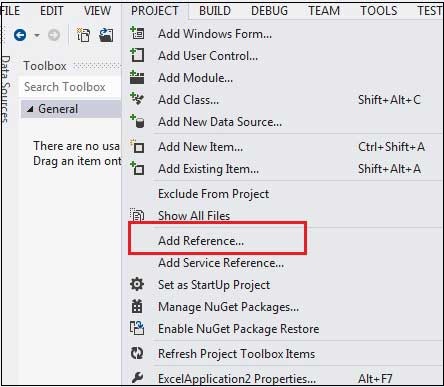
在 COM 選項卡上,找到 Microsoft Excel 物件庫,然後單擊“選擇”。

單擊“確定”。
雙擊程式碼視窗並填充 Button1 的 Click 事件,如下所示。
'  Add the following code snippet on top of Form1.vb
Imports Excel = Microsoft.Office.Interop.Excel
Public Class Form1
   Private Sub Button1_Click(sender As Object, e As EventArgs) Handles Button1.Click
      Dim appXL As Excel.Application
      Dim wbXl As Excel.Workbook
      Dim shXL As Excel.Worksheet
      Dim raXL As Excel.Range

      ' Start Excel and get Application object.
      appXL = CreateObject("Excel.Application")
      appXL.Visible = True

      ' Add a new workbook.
      wbXl = appXL.Workbooks.Add
      shXL = wbXl.ActiveSheet

      ' Add table headers going cell by cell.
      shXL.Cells(1, 1).Value = "First Name"
      shXL.Cells(1, 2).Value = "Last Name"
      shXL.Cells(1, 3).Value = "Full Name"
      shXL.Cells(1, 4).Value = "Specialization"

      ' Format A1:D1 as bold, vertical alignment = center.
      With shXL.Range("A1", "D1")
         .Font.Bold = True
         .VerticalAlignment = Excel.XlVAlign.xlVAlignCenter
      End With

      ' Create an array to set multiple values at once.
      Dim students(5, 2) As String
      students(0, 0) = "Zara"
      students(0, 1) = "Ali"
      students(1, 0) = "Nuha"
      students(1, 1) = "Ali"
      students(2, 0) = "Arilia"
      students(2, 1) = "RamKumar"
      students(3, 0) = "Rita"
      students(3, 1) = "Jones"
      students(4, 0) = "Umme"
      students(4, 1) = "Ayman"

      ' Fill A2:B6 with an array of values (First and Last Names).
      shXL.Range("A2", "B6").Value = students

      ' Fill C2:C6 with a relative formula (=A2 & " " & B2).
      raXL = shXL.Range("C2", "C6")
      raXL.Formula = "=A2 & "" "" & B2"

      ' Fill D2:D6 values.
      With shXL
         .Cells(2, 4).Value = "Biology"
         .Cells(3, 4).Value = "Mathmematics"
         .Cells(4, 4).Value = "Physics"
         .Cells(5, 4).Value = "Mathmematics"
         .Cells(6, 4).Value = "Arabic"
      End With

      ' AutoFit columns A:D.
      raXL = shXL.Range("A1", "D1")
      raXL.EntireColumn.AutoFit()

      ' Make sure Excel is visible and give the user control
      ' of Excel's lifetime.
      appXL.Visible = True
      appXL.UserControl = True

      ' Release object references.
      raXL = Nothing
      shXL = Nothing
      wbXl = Nothing
      appXL.Quit()
      appXL = Nothing
      Exit Sub
Err_Handler:
      MsgBox(Err.Description, vbCritical, "Error: " & Err.Number)
   End Sub
End Class
當使用 Microsoft Visual Studio 工具欄中提供的啟動按鈕執行和執行上述程式碼時,它將顯示以下視窗 -
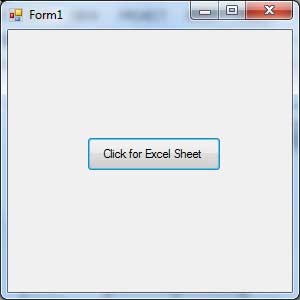
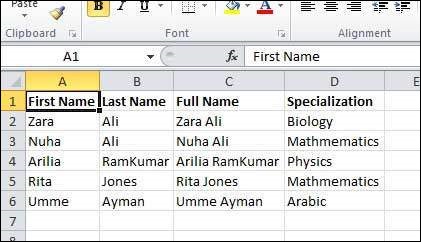
單擊按鈕將顯示以下 Excel 表格。系統將提示您儲存工作簿。
廣告