
- PySimpleGUI 教程
- PySimpleGUI - 首頁
- PySimpleGUI - 簡介
- PySimpleGUI - 環境搭建
- PySimpleGUI - Hello World
- PySimpleGUI - 彈出視窗
- PySimpleGUI - 視窗類
- PySimpleGUI - 元素類
- PySimpleGUI - 事件
- PySimpleGUI - 選單欄
- PySimpleGUI - Matplotlib 整合
- PySimpleGUI - 使用 PIL
- PySimpleGUI - 偵錯程式
- PySimpleGUI - 設定
- PySimpleGUI 有用資源
- PySimpleGUI - 快速指南
- PySimpleGUI - 有用資源
- PySimpleGUI - 討論
PySimpleGUI - 標籤元素
有時,應用程式的GUI設計過於龐大,無法容納在一個視窗中,即使我們嘗試將所有元素排列在主視窗的佈局中,也會顯得非常笨拙。使用標籤元素使設計變得非常方便、有效且易於使用者導航。標籤元素也是一個容器元素,例如框架或列。
首先將元素劃分成邏輯相關的組,並將它們放入單獨的佈局中。每個佈局都用於構建標籤元素。這些標籤元素根據以下語法放入標籤組中:
# l1 is the layout for tab1
# l2 is the layout for tab2
tab1=PySimpleGUI.Tab("title1", l1)
tab2=PySimpleGUI.Tab("title2", l2)
Tg = PySimpleGUI.TabGroup([[tab1, tab2]])
# This titlegroup object may be further used
# in the row of the main layout.
標籤組和標籤元素的優點是,一次只能看到組中所有標籤中的一個標籤。當您單擊一個標籤的標題時,它會變得可見,而其他所有標籤都會隱藏。這樣,整個可用區域都可以用來顯示單個標籤中的元素。這使得GUI設計非常簡潔有效。
請記住,標籤元素永遠不會直接放置在主佈局中。它們始終包含在標籤組中。
要構建標籤元素,請使用以下語法:
PySimpleGUI.Tab(title, layout, title_color)
這裡,title 引數是顯示在標籤上的字串。layout 指的是要顯示在頂部的元素的巢狀列表,title_color 是用於顯示標題的顏色。
在下面的示例中,一個典型的登錄檔單設計為帶有兩個標籤的標籤組,一個名為“基本資訊”,另一個名為“聯絡方式”。在標籤組下方,放置了帶有“確定”和“取消”的兩個按鈕。
import PySimpleGUI as psg
psg.set_options(font=("Arial Bold",14))
l1=psg.Text("Enter Name")
lt1=psg.Text("Address")
t1=psg.Input("", key='-NM-')
a11=psg.Input(key='-a11-')
a12=psg.Input(key='-a12-')
a13=psg.Input(key='-a13-')
tab1=[[l1,t1],[lt1],[a11], [a12], [a13]]
lt2=psg.Text("EmailID:")
lt3=psg.Text("Mob No:")
a21=psg.Input("", key='-ID-')
a22=psg.Input("", key='-MOB-')
tab2=[[lt2, a21], [lt3, a22]]
layout = [[psg.TabGroup([
   [psg.Tab('Basic Info', tab1),
   psg.Tab('Contact Details', tab2)]])],
   [psg.OK(), psg.Cancel()]
]
window = psg.Window('Tab Group Example', layout)
while True:
   event, values = window.read()
   print (event, values)
   if event in (psg.WIN_CLOSED, 'Exit'):
      break
window.close()
執行上面的程式碼。將顯示帶有兩個標籤的主視窗,預設情況下顯示第一個標籤。
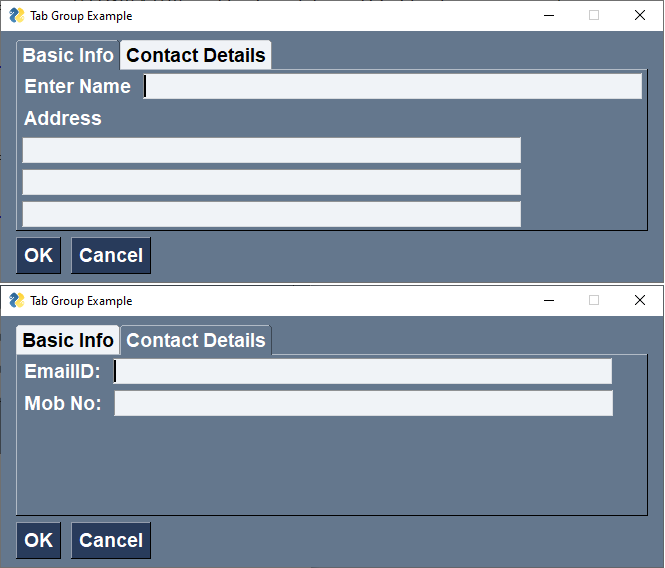
單擊第二個標籤的標題,將顯示用於輸入電子郵件ID和手機號碼的兩個輸入控制元件。
pysimplegui_element_class.htm
廣告