
- PySimpleGUI 教程
- PySimpleGUI - 主頁
- PySimpleGUI - 簡介
- PySimpleGUI - 環境設定
- PySimpleGUI - Hello World
- PySimpleGUI - 彈出視窗
- PySimpleGUI - 視窗類
- PySimpleGUI - 元素類
- PySimpleGUI - 事件
- PySimpleGUI - 選單欄
- PySimpleGUI - 整合 Matplotlib
- PySimpleGUI - 使用 PIL
- PySimpleGUI - 偵錯程式
- PySimpleGUI - 設定
- PySimpleGUI 有用資源
- PySimpleGUI - 快速指南
- PySimpleGUI - 有用資源
- PySimpleGUI - 討論
PySimpleGUI - 進度條元素
有時,某個計算機操作可能會非常耗時,需要很長時間才能完成。因此,使用者可能會失去耐心。因此,讓他知道應用程式的進度狀態非常重要。ProgressBar 元素對到目前為止已完成程序量的視覺指示。這是一個垂直或水平的有色條,透過對比色逐漸著色以顯示程序正在進行中。
除了從 Element 類繼承的那些常見引數之外,ProgressBar 建構函式還具有以下引數 -
PySimpleGUI.ProgressBar(max_value, orientation, size, bar_color)
max_value 引數是必需的,用於校準條的寬度或高度。Orientation 為水平或垂直。size 為(字元長,畫素寬)如果為水平,如果是垂直則為(字元高,畫素寬)。bar_color 是構成進度條的兩個顏色的元組。
update() 方法修改 ProgressBar 物件的一個或多個以下屬性 -
current_count - 設定當前值
max - 更改最大值
bar_color - 構成進度條的兩種顏色。第一種顏色顯示進度。第二種顏色是背景。
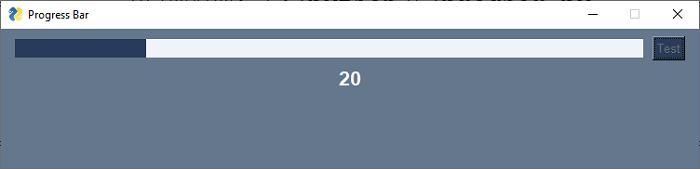
下面演示了 ProgressBar 控制元件的簡單用法。視窗的佈局由一個進度條和一個測試按鈕組成。單擊它時,從 1 到 100 的 for 迴圈開始
import PySimpleGUI as psg
import time
layout = [
   [psg.ProgressBar(100, orientation='h', expand_x=True, size=(20, 20),  key='-PBAR-'), psg.Button('Test')],
   [psg.Text('', key='-OUT-', enable_events=True, font=('Arial Bold', 16), justification='center', expand_x=True)]
]
window = psg.Window('Progress Bar', layout, size=(715, 150))
while True:
   event, values = window.read()
   print(event, values)
   if event == 'Test':
      window['Test'].update(disabled=True)
      for i in range(100):
         window['-PBAR-'].update(current_count=i + 1)
         window['-OUT-'].update(str(i + 1))
         time.sleep(1)
         window['Test'].update(disabled=False)
   if event == 'Cancel':
      window['-PBAR-'].update(max=100)
   if event == psg.WIN_CLOSED or event == 'Exit':
      break
window.close()
它將生成以下輸出視窗 -
pysimplegui_element_class.htm
廣告