
- PySimpleGUI 教程
- PySimpleGUI - 主頁
- PySimpleGUI - 簡介
- PySimpleGUI - 環境設定
- PySimpleGUI - Hello World
- PySimpleGUI - 彈出視窗
- PySimpleGUI - 視窗類
- PySimpleGUI - 元素類
- PySimpleGUI - 事件
- PySimpleGUI - 選單欄
- PySimpleGUI - Matplotlib 整合
- PySimpleGUI - 使用 PIL
- PySimpleGUI - 偵錯程式
- PySimpleGUI - 設定
- PySimpleGUI 實用資源
- PySimpleGUI - 簡明指南
- PySimpleGUI - 實用資源
- PySimpleGUI - 討論
PySimpleGUI - 影像元素
PySimpleGUI 庫包含一個 Image 元素,它能夠顯示 PNG、GIF、PPM/PGM 格式的影像。Image() 函式需要一個必需引數,即影像檔案的路徑。
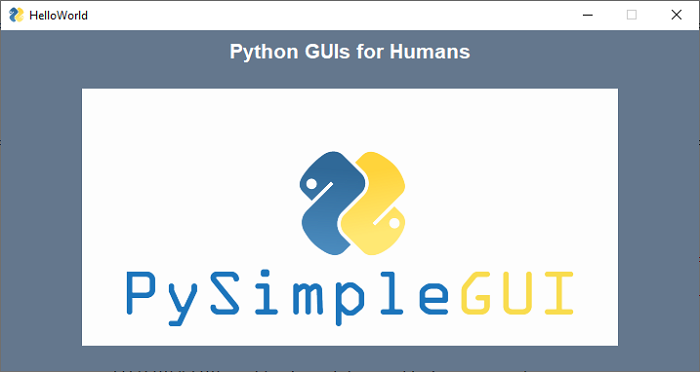
以下程式碼在應用程式視窗上顯示 PySimpleGUI 徽標。
import PySimpleGUI as psg
layout = [[psg.Text(text='Python GUIs for Humans',
   font=('Arial Bold', 16),
   size=20, expand_x=True,
   justification='center')],
   [psg.Image('PySimpleGUI_Logo.png',
   expand_x=True, expand_y=True )]
]
window = psg.Window('HelloWorld', layout, size=(715,350), keep_on_top=True)
while True:
   event, values = window.read()
   print(event, values)
   if event in (None, 'Exit'):
      break
window.close()
它將生成以下輸出視窗 −
使用 Graph 元素
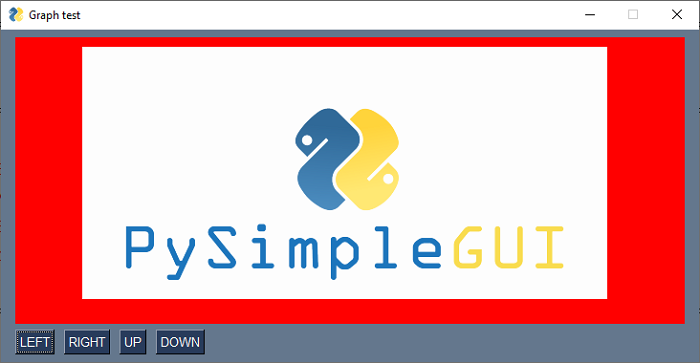
你還可以使用 Graph 容器元素上的 draw_image() 方法在該元素上顯示影像,如下所示 −
import PySimpleGUI as psg
graph = psg.Graph(canvas_size=(700, 300),
   graph_bottom_left=(0, 0),
   graph_top_right=(700, 300),
   background_color='red',
   enable_events=True,
   drag_submits=True, key='graph')
layout = [
   [graph],
   [psg.Button('LEFT'), psg.Button('RIGHT'),
   psg.Button('UP'), psg.Button('DOWN')]
]
window = psg.Window('Graph test', layout, finalize=True)
x1, y1 = 350, 150
id = graph.draw_image(filename="PySimpleGUI_Logo.png", location=(0, 300))
while True:
   event, values = window.read()
   if event == psg.WIN_CLOSED:
      break
   if event == 'RIGHT':
      graph.MoveFigure(id, 10, 0)
   if event == 'LEFT':
      graph.MoveFigure(id, -10, 0)
   if event == 'UP':
      graph.MoveFigure(id, 0, 10)
   if event == 'DOWN':
      graph.MoveFigure(id, 0, -10)
   if event == "graph+UP":
      x2, y2 = values['graph']
      graph.MoveFigure(id, x2 - x1, y2 - y1)
      x1, y1 = x2, y2
window.close()
它將生成以下輸出視窗 −
pysimplegui_element_class.htm
廣告