
 資料結構
資料結構 網路
網路 RDBMS
RDBMS 作業系統
作業系統 Java
Java MS Excel
 iOS
iOS HTML
HTML CSS
CSS Android
 Python
 C 程式設計
 C++
C++ C#
C# MongoDB
 MySQL
MySQL Javascript
 PHP
PHP 物理學
物理學 化學
化學 生物學
生物學 數學
數學 英語
英語 經濟學
經濟學 心理學
心理學 社會學
社會學 時尚研究
時尚研究 法律研究
法律研究使用 Matplotlib 為不同的類別級別繪製不同的顏色
我們可以繪製一個圖表,其中學生人數將繪製在 X 軸上,學生獲得的分數將繪製在 Y 軸上。此外,我們可以為學生獲得的不同分數設定顏色。
步驟
列出學生人數。
列出學生獲得的分數。
為了表示每個散點圖點的顏色,我們可以列出顏色。
使用 Panda,我們可以列出一個表示資料幀的 Axes。
使用子圖方法建立 fig 和 ax 變數,預設 nrows 和 ncols 為 1。
使用 plt.xlabel() 方法設定“學生數量”標籤。
使用 plt.ylabel() 方法設定“獲得的分數”標籤。
要建立一個散點圖點,請使用一個數據幀,即在步驟 4 中建立的點,即學生數量、分數和顏色。
要顯示圖形,請使用 plt.show() 方法。
示例
from matplotlib import pyplot as plt
import pandas as pd

no_of_students = [1, 2, 3, 5, 7, 8, 9, 10, 30, 50]
marks_obtained_by_student = [100, 95, 91, 90, 89, 76, 55, 10, 3, 19]
color_coding = ['red', 'blue', 'yellow', 'green', 'red', 'blue', 'yellow', 'green', 'yellow', 'green']

df = pd.DataFrame(dict(students_count=no_of_students,
marks=marks_obtained_by_student, color=color_coding))

fig, ax = plt.subplots()

plt.xlabel('Students count')
plt.ylabel('Obtained marks')

ax.scatter(df['students_count'], df['marks'], c=df['color'])

plt.show()
輸出
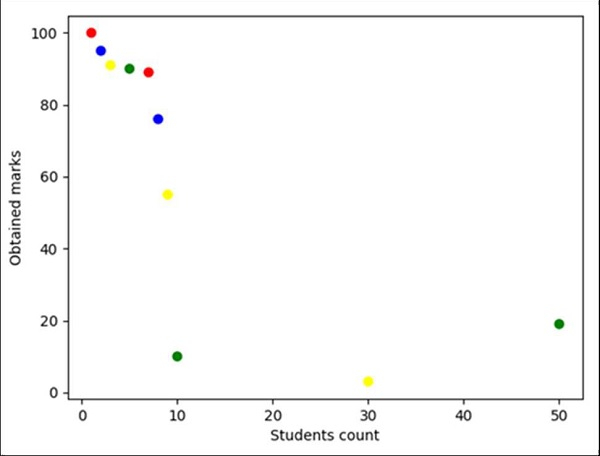

更新於: 15-Mar-2021
1K+ 次瀏覽

廣告