
- JavaMail API 教程
- JavaMail - 首頁
- JavaMail API - 概述
- JavaMail - 環境設定
- JavaMail - 核心類
- JavaMail - 傳送郵件
- JavaMail - 檢查郵件
- JavaMail - 獲取郵件
- JavaMail - 身份驗證
- JavaMail - 回覆郵件
- JavaMail - 轉發郵件
- JavaMail - 刪除郵件
- JavaMail - Gmail SMTP伺服器
- JavaMail - 資料夾管理
- JavaMail - 配額管理
- JavaMail - 退信
- JavaMail API 協議
- JavaMail - SMTP伺服器
- JavaMail - IMAP伺服器
- JavaMail - POP3伺服器
- JavaMail API 有用資源
- JavaMail - 快速指南
- JavaMail - 有用資源
- JavaMail - 討論
JavaMail API - 傳送包含內嵌圖片的郵件
這是一個從您的計算機發送包含內嵌圖片的 HTML 郵件的示例。我們在這裡使用了 JangoSMTP 伺服器來發送郵件到我們的目標郵箱地址。設定方法在環境設定章節中解釋。
要傳送包含內嵌圖片的郵件,請按照以下步驟操作:
獲取會話
建立一個預設的 MimeMessage 物件,並在郵件中設定發件人、收件人和主題。
建立一個 MimeMultipart 物件。
在我們的示例中,郵件將包含 HTML 部分和一個圖片。所以首先建立 HTML 內容,並將其設定為多部件物件:
// first part (the html)
BodyPart messageBodyPart = new MimeBodyPart();
String htmlText = "<H1>Hello</H1><img src=\"cid:image\">";
messageBodyPart.setContent(htmlText, "text/html");
// add it
multipart.addBodyPart(messageBodyPart);
接下來,透過建立 Datahandler 新增圖片,如下所示:
// second part (the image)
messageBodyPart = new MimeBodyPart();
DataSource fds = new FileDataSource(
 "/home/manisha/javamail-mini-logo.png");

messageBodyPart.setDataHandler(new DataHandler(fds));
messageBodyPart.setHeader("Content-ID", "<image>");
接下來,按如下方式設定郵件中的多部件:
message.setContent(multipart);
使用 Transport 物件傳送郵件。
建立 Java 類
建立一個名為SendInlineImagesInEmail的 Java 類檔案,其內容如下:
package com.tutorialspoint;

import java.util.Properties;
import javax.activation.DataHandler;
import javax.activation.DataSource;
import javax.activation.FileDataSource;
import javax.mail.BodyPart;
import javax.mail.Message;
import javax.mail.MessagingException;
import javax.mail.PasswordAuthentication;
import javax.mail.Session;
import javax.mail.Transport;
import javax.mail.internet.InternetAddress;
import javax.mail.internet.MimeBodyPart;
import javax.mail.internet.MimeMessage;
import javax.mail.internet.MimeMultipart;

public class SendInlineImagesInEmail {
   public static void main(String[] args) {
      // Recipient's email ID needs to be mentioned.
      String to = "destinationemail@gmail.com";

      // Sender's email ID needs to be mentioned
      String from = "fromemail@gmail.com";
      final String username = "manishaspatil";//change accordingly
      final String password = "******";//change accordingly

      // Assuming you are sending email through relay.jangosmtp.net
      String host = "relay.jangosmtp.net";

      Properties props = new Properties();
      props.put("mail.smtp.auth", "true");
      props.put("mail.smtp.starttls.enable", "true");
      props.put("mail.smtp.host", host);
      props.put("mail.smtp.port", "25");

      Session session = Session.getInstance(props,
         new javax.mail.Authenticator() {
            protected PasswordAuthentication getPasswordAuthentication() {
               return new PasswordAuthentication(username, password);
            }
         });

      try {

         // Create a default MimeMessage object.
         Message message = new MimeMessage(session);

         // Set From: header field of the header.
         message.setFrom(new InternetAddress(from));

         // Set To: header field of the header.
         message.setRecipients(Message.RecipientType.TO,
            InternetAddress.parse(to));

         // Set Subject: header field
         message.setSubject("Testing Subject");

         // This mail has 2 part, the BODY and the embedded image
         MimeMultipart multipart = new MimeMultipart("related");

         // first part (the html)
         BodyPart messageBodyPart = new MimeBodyPart();
         String htmlText = "<H1>Hello</H1><img src=\"cid:image\">";
         messageBodyPart.setContent(htmlText, "text/html");
         // add it
         multipart.addBodyPart(messageBodyPart);

         // second part (the image)
         messageBodyPart = new MimeBodyPart();
         DataSource fds = new FileDataSource(
            "/home/manisha/javamail-mini-logo.png");

         messageBodyPart.setDataHandler(new DataHandler(fds));
         messageBodyPart.setHeader("Content-ID", "<image>");

         // add image to the multipart
         multipart.addBodyPart(messageBodyPart);

         // put everything together
         message.setContent(multipart);
         // Send message
         Transport.send(message);

         System.out.println("Sent message successfully....");

      } catch (MessagingException e) {
         throw new RuntimeException(e);
      }
   }
}
由於我們使用的是主機提供商 JangoSMTP 提供的 SMTP 伺服器,我們需要驗證使用者名稱和密碼。javax.mail.PasswordAuthentication 類用於驗證密碼。
編譯和執行
現在我們的類已準備就緒,讓我們編譯上面的類。我已經將 SendInlineImagesInEmail.java 類儲存到目錄:/home/manisha/JavaMailAPIExercise。我們需要在類路徑中包含 javax.mail.jar 和 activation.jar。從命令提示符執行以下命令來編譯類(兩個 jar 檔案都位於 /home/manisha/ 目錄下):
javac -cp /home/manisha/activation.jar:/home/manisha/javax.mail.jar: SendInlineImagesInEmail.java
現在類已編譯,執行以下命令執行:
java -cp /home/manisha/activation.jar:/home/manisha/javax.mail.jar: SendInlineImagesInEmail
驗證輸出
您應該在命令控制檯中看到以下訊息:
Sent message successfully....
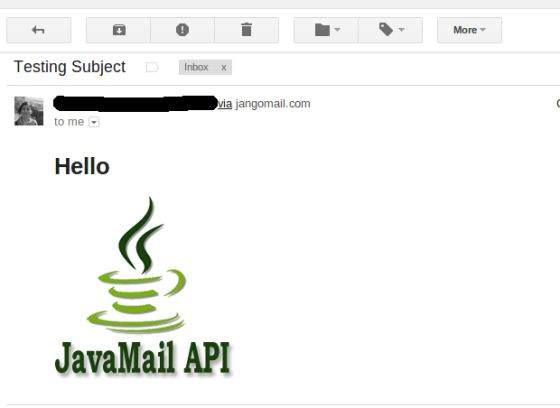
由於我透過 JangoSMTP 向我的 Gmail 地址傳送郵件,因此我的 Gmail 帳戶收件箱中將收到以下郵件:
javamail_api_sending_emails.htm
廣告