- HTML Canvas 教程
- HTML Canvas - 首頁
- HTML Canvas - 簡介
- 環境設定
- HTML Canvas - 第一個應用
- HTML Canvas - 繪製二維圖形
- HTML Canvas - 路徑元素
- 使用路徑元素繪製二維圖形
- HTML Canvas - 顏色
- HTML Canvas - 新增樣式
- HTML Canvas - 新增文字
- HTML Canvas - 新增影像
- HTML Canvas - 畫布時鐘
- HTML Canvas - 變換
- 合成和裁剪
- HTML Canvas - 基本動畫
- 高階動畫
- HTML Canvas API 函式
- HTML Canvas - 元素
- HTML Canvas - 矩形
- HTML Canvas - 直線
- HTML Canvas - 路徑
- HTML Canvas - 文字
- HTML Canvas - 顏色和樣式
- HTML Canvas - 影像
- HTML Canvas - 陰影和變換
- HTML Canvas 有用資源
- HTML Canvas - 快速指南
- HTML Canvas - 有用資源
- HTML Canvas - 討論
HTML Canvas - 基本動畫
canvas 元素完全使用 JavaScript 來繪製形狀並向其新增樣式。相同的 JavaScript 可用於在 Canvas 元素上製作非常吸引人的動畫。由於動畫是動態的,因此 Canvas 元素內的物件需要一些時間才能渲染。
控制動畫
Canvas 元素形狀通常使用方法或自定義函式構建。因此,除非它們在 canvas 元素上正確渲染,否則我們無法向其新增動畫。由於動畫會改變畫布的性質,因此計劃更新必須是一個強制性操作。有一些動畫方法用於控制 Canvas 元素上動畫的功能。下面描述了每種方法
| 序號 | 方法和描述 |
|---|---|
| 1 | setInterval(callback_function, time) 此方法用於在每個時間段內重複給定的任務。它接受一個包含所需任務的函式和以毫秒為單位的時間作為其引數。 |
| 2 | setTimeout(callback_function, time) 當需要在一定時間內執行一次任務時,使用此方法。它接受可執行函式和以毫秒為單位的時間作為其引數。 |
| 3 | requestAnimationFrame(callback_function) 此方法更新瀏覽器以在下一個動畫或更新之前執行動畫請求。 |
這些動畫方法通常用於 Canvas 元素中開發 2D 遊戲和互動式 UI 設計。
新增基本動畫的步驟
要向 Canvas 元素新增動畫,需要遵循以下步驟
步驟 1 - 清除整個 Canvas 元素 - 要向 Canvas 元素新增任何動畫,內部不能有任何不填充整個畫布空間的圖形。這可以透過呼叫 clearRect() 方法來實現。
步驟 2 - 儲存預設 Canvas 狀態 - 由於我們應用各種樣式並新增不同的設定,例如變換、切片等,我們必須儲存主畫布狀態以確保我們可以在需要時回滾到主狀態。使用 save() 函式來實現此目的。
步驟 3 - 繪製帶有附加動畫的形狀 - 我們使用可用的不同動畫渲染繪製的形狀。這是將動畫應用於 Canvas 元素的第一步。
步驟 4 - 在需要時恢復 Canvas 元素 - 由於我們已經使用 save() 方法儲存了畫布狀態,因此我們可以使用 restore() 函式在繪製新幀之前恢復它們。
示例 1
以下程式演示了clearRect()方法的工作原理以及如何使用它來執行動畫。
<!DOCTYPE html>
<html lang="en">
   <head>
      <title>Animations</title>
      <style>
         #button {
            position: absolute;
            top: 350px;
            left: 150px;
         }
      </style>
   </head>
   <body onload="animation();">
      <canvas id="canvas" width="600" height="400" style="border: 1px solid black;"></canvas>
      <script>
         function animation() {
            var canvas = document.getElementById("canvas");
            var context = canvas.getContext("2d");
            context.fillStyle = 'purple';
            context.fillRect(75, 75, 300, 150);
            context.font = '25px Verdana';
            context.fillText('To remove text and rect, press the button', 10, 300);
            document.getElementById('clear').addEventListener('click', function() {
               context.clearRect(0, 0, canvas.width, canvas.height);
            }, false);
         }
      </script>
      <div id="button">
         <input type="button" id="clear" value="Clear the whole Canvas element">
      </div>
   </body>
</html>
輸出
上面程式返回的輸出如下所示
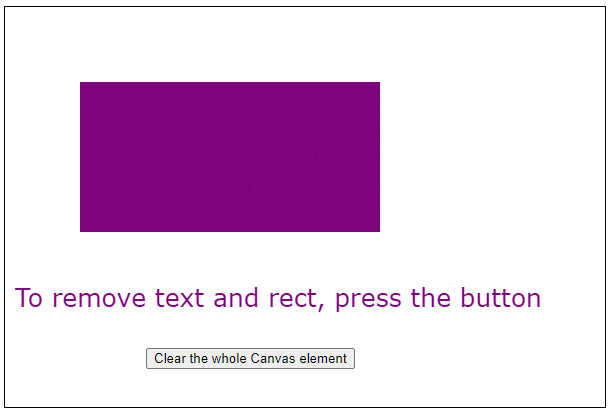
如果按下按鈕,畫布將更改為下面顯示的影像
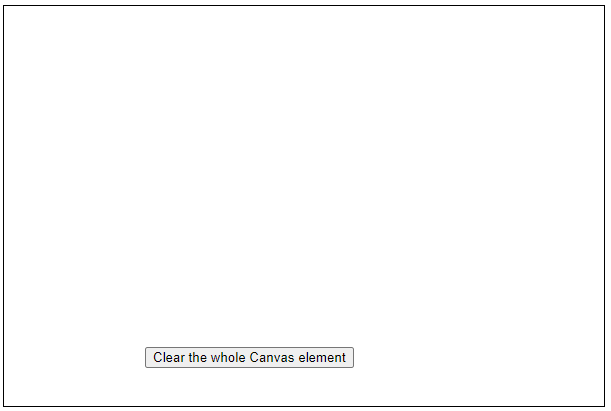
要再次檢視文字和形狀,請重新整理頁面。
示例 2
以下程式碼顯示瞭如何對 Canvas 元素執行簡單的動畫。
<!DOCTYPE html>
<html lang="en">
   <head>
      <title>Animations</title>
      <style>
         body {
            margin: 10px;
            padding: 10px;
         }
      </style>
   </head>
   <body onload="animate();">
      <canvas id="canvas" width="600" height="200" style="border: 1px solid black;"></canvas>
      <script>
         function animate() {
            window.requestAnimFrame = (function(callback) {
               return window.requestAnimationFrame || window.webkitRequestAnimationFrame || window.mozRequestAnimationFrame || window.oRequestAnimationFrame || window.msRequestAnimationFrame || function(callback) {
                  window.setTimeout(callback, 1000);
               };
            })();

            function drawShapes(square, context) {
               context.beginPath();
               context.rect(square.x, square.y, square.width, square.height);
               context.fillStyle = 'green';
               context.fill();
               context.lineWidth = square.borderWidth;
               context.strokeStyle = 'black';
               context.stroke();
               context.closePath();
               context.font = '50px Verdana';
               context.fillStyle = 'white';
               context.fillText('Hi', square.x + 15, square.height + 40);
            }

            function animation(square, canvas, context, startTime) {
               // updating the time and speed of movement parameters
               var time = (new Date()).getTime() - startTime;
               var speed = 100;
               var X = speed * time / 1000;
               if (X < canvas.width - square.width - square.borderWidth / 2) {
                  square.x = X;
               }
               // clearing the Canvas element space
               context.clearRect(0, 0, canvas.width, canvas.height);
               drawShapes(square, context);
               // requesting new frame for animation
               requestAnimFrame(function() {
                  animation(square, canvas, context, startTime);
               });
            }
            var canvas = document.getElementById('canvas');
            var context = canvas.getContext('2d');
            var square = {
               x: 0,
               y: 75,
               width: 100,
               height: 100,
               borderWidth: 3
            };
            drawShapes(square, context);
            // buffer time before starting animation
            setTimeout(function() {
               var startTime = (new Date()).getTime();
               animation(square, canvas, context, startTime);
            }, 1000);
         }
      </script>
   </body>
</html>
輸出
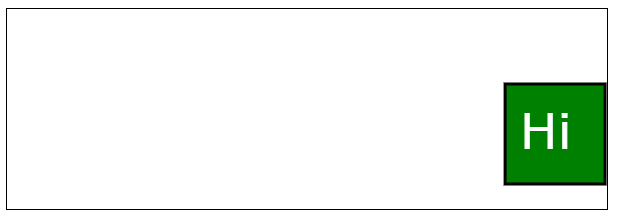
上面程式碼返回的動畫輸出為
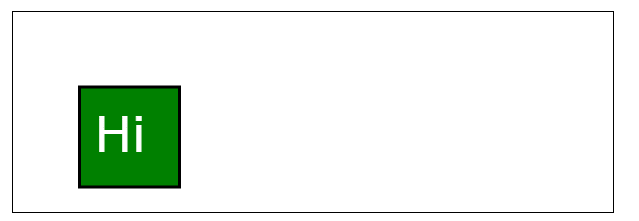
動畫結束後,正方形的位置將更改如下所示
示例 3
以下程式碼演示了在 Canvas 元素幀中對 TutorialsPoint 徽標進行簡單的迴圈。
<!DOCTYPE html>
<html lang="en">
   <head>
      <title>Animations</title>
      <style>
         body {
            margin: 10px;
            padding: 10px;
         }
      </style>
   </head>
   <body onload="animate()">
      <canvas id="context" width="350" height="120" style="border: 1px solid black;background-color: brown;"></canvas>
      <script>
         function animate() {
            var image = new Image();
            image.src = 'https://tutorialspoint.tw/themes/home/tp-diamond-logo-white.png';
            var X = 600;
            var Y = 150;
            var velocity = 30;
            var scale = 1.05;
            var y = -4.5;
            var disx = 0.75;
            var imgwidth;
            var imgheight;
            var x = 0;
            var RemoveX;
            var RemoveY;
            var context;
            image.onload = function() {
               imgwidth = image.width * scale;
               imgheight = image.height * scale;
               if (imgwidth > X) {
                  x = X - imgwidth;
               }
               if (imgwidth > X) {
                  RemoveX = imgwidth;
               } else {
                  RemoveX = X;
               }
               if (imgheight > Y) {
                  RemoveY = imgheight;
               } else {
                  RemoveY = Y;
               }
               var canvas = document.getElementById('context')
               context = canvas.getContext('2d');
               return setInterval(draw, velocity);
            }

            function draw() {
               context.clearRect(0, 0, RemoveX, RemoveY);
               if (imgwidth <= X) {
                  if (x > X) {
                     x = -imgwidth + x;
                  }
                  if (x > 0) {
                     context.drawImage(image, -imgwidth + x, y, imgwidth, imgheight);
                  }
                  if (x - imgwidth > 0) {
                     context.drawImage(image, -imgwidth * 2 + x, y, imgwidth, imgheight);
                  }
               } else {
                  if (x > (X)) {
                     x = X - imgwidth;
                  }
                  if (x > (X - imgwidth)) {
                     context.drawImage(image, x - imgwidth + 1, y, imgwidth, imgheight);
                  }
               }
               context.drawImage(image, x, y, imgwidth, imgheight);
               x += disx;
            }
         }
      </script>
   </body>
</html>
輸出
程式碼返回的迴圈輸出如下所示