
 資料結構
資料結構 網路
網路 關係資料庫管理系統 (RDBMS)
 作業系統
作業系統 Java
Java MS Excel
 iOS
iOS HTML
HTML CSS
CSS Android
 Python
 C語言程式設計
 C++
C++ C#
C# MongoDB
 MySQL
MySQL Javascript
 PHP
PHP 物理學
物理學 化學
化學 生物學
生物學 數學
數學 英語
英語 經濟學
經濟學 心理學
心理學 社會學
社會學 時尚研究
時尚研究 法學研究
法學研究如何在Tkinter中設定Text控制元件的最大字元寬度?
圖形使用者介面 (GUI) 在現代軟體應用中扮演著至關重要的角色,為使用者提供互動式和視覺上吸引人的體驗。Tkinter 是 Python 的標準 GUI 工具包,簡化了建立 GUI 應用程式的過程。GUI 開發中的一個常見任務是控制文字顯示區域的寬度,例如 Tkinter 中 Text 控制元件提供的區域。
在 Tkinter 中,Text 控制元件是一個用於顯示和編輯文字的多功能工具。但是,管理此控制元件的寬度可能很棘手,尤其是在您想要設定最大寬度以控制應用程式佈局時。在本文中,我們將探討設定 Text 控制元件最大寬度的各種方法,使您可以根據應用程式的需求定製文字的顯示。
什麼是 Tkinter Text 控制元件?
在深入探討設定最大寬度之前,讓我們簡要了解一下 Tkinter 的“Text”控制元件。“Text”控制元件是一個多功能元件,允許開發者在 Tkinter 應用程式中顯示和操作文字。它支援諸如格式化、自動換行和滾動等功能,使其適用於簡單的文字顯示和複雜的文字編輯。
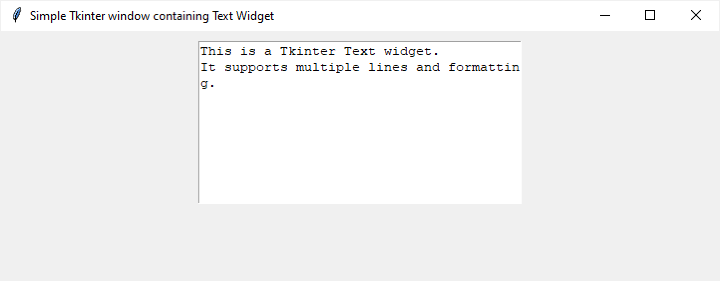
下面是一個包含“Text”控制元件的基本 Tkinter 視窗示例:
示例
import tkinter as tk
# Create the main window
root = tk.Tk()
root.title("Simple Tkinter window containing Text Widget")
# Set window dimensions
root.geometry("720x250")

# Create a Text widget
text_widget = tk.Text(root, height=10, width=40)
text_widget.pack(padx=10, pady=10)

# Insert some text
text_widget.insert(tk.END, "This is a Tkinter Text widget.\nIt supports multiple lines and formatting.")

# Run the Tkinter event loop
root.mainloop()
在上面的示例中,我們建立了一個包含 Text 控制元件的基本 Tkinter 視窗。height 和 width 引數決定了控制元件的初始尺寸。
輸出
設定最大寬度的方法
方法 1:建立時設定固定寬度
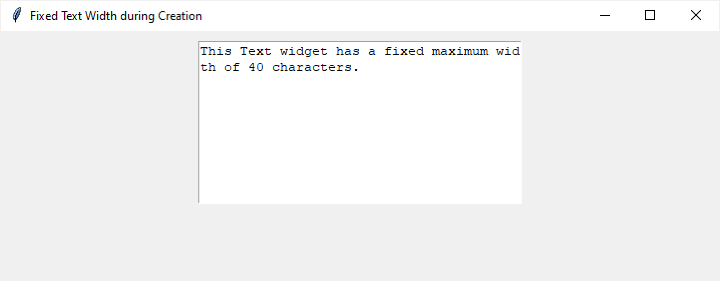
設定最大寬度最直接的方法是在建立 Text 控制元件時提供 width 引數。這將設定初始寬度,並且控制元件不會超出此大小。
示例
import tkinter as tk
# Create the main window
root = tk.Tk()
root.title("Fixed Text Width during Creation")
# Set window dimensions
root.geometry("720x250")
# Set the maximum width to 40 characters
max_width = 40

# Create a Text widget with the specified width
text_widget = tk.Text(root, height=10, width=max_width)
text_widget.pack(padx=10, pady=10)

# Insert some text
text_widget.insert(tk.END, "This Text widget has a fixed maximum width of 40 characters.")

# Run the Tkinter event loop
root.mainloop()
此方法適用於您在建立控制元件時就知道最大寬度的情況。讓我們看看上面程式碼片段的輸出:
輸出
方法 2:動態調整寬度
在某些情況下,您可能需要根據使用者輸入或其他因素動態調整 Text 控制元件的寬度。為此,我們可以使用`
示例
import tkinter as tk
def set_max_width(event):
   current_width = text_widget.winfo_width()
   if current_width > max_width:
      text_widget.config(width=max_width)

# Create the main window
root = tk.Tk()
root.title("Dynamically Adjusting Maximum Text Width")
# Set window dimensions
root.geometry("720x250")

# Set the initial maximum width
max_width = 30

# Create a Text widget with an initial width
text_widget = tk.Text(root, height=10, width=max_width)
text_widget.pack(padx=10, pady=10)

# Insert some text
text_widget.insert(tk.END, "This Text widget dynamically adjusts its maximum width.")

# Bind the <Configure> event to the set_max_width function
text_widget.bind("<Configure>", set_max_width)

# Run the Tkinter event loop
root.mainloop()
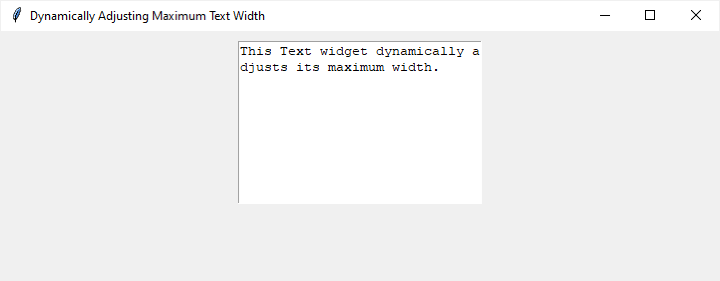
在這個示例中,`
讓我們看看上面程式碼片段的輸出:
輸出
方法 3:使用者定義的最大寬度
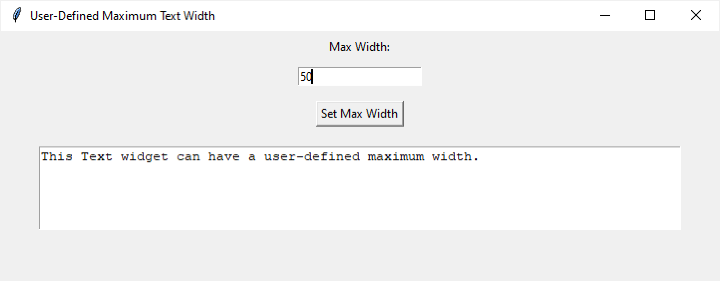
對於更互動式的方法,您可以允許使用者透過 Entry 控制元件輸入最大寬度並相應地更新 Text 控制元件。
示例
import tkinter as tk

def set_max_width():
   try:
      max_width = int(max_width_entry.get())
      text_widget.config(width=max_width)
   except ValueError:
      result_label.config(text="Invalid input. Please enter a valid integer.")

# Create the main window
root = tk.Tk()
root.title("User-Defined Maximum Text Width")
# Set window dimensions
root.geometry("720x250")

# Entry for entering the maximum width
max_width_label = tk.Label(root, text="Max Width:")
max_width_label.pack(pady=5)
max_width_entry = tk.Entry(root)
max_width_entry.pack(pady=5)

# Button to set the maximum width
set_width_button = tk.Button(root, text="Set Max Width", command=set_max_width)
set_width_button.pack(pady=10)

# Text widget with some initial text
initial_text = "This Text widget can have a user-defined maximum width."
text_widget = tk.Text(root, height=5, wrap=tk.WORD)
text_widget.insert(tk.END, initial_text)
text_widget.pack(pady=10)

# Label to display result or error messages
result_label = tk.Label(root, text="")
result_label.pack(pady=5)

# Run the Tkinter event loop
root.mainloop()
此示例包含一個 Entry 控制元件,供使用者輸入所需的 maximum width。單擊“設定最大寬度”按鈕將呼叫 `set_max_width` 函式,該函式嘗試根據使用者輸入設定 Text 控制元件的寬度。
輸出
結論
控制 Tkinter 中 Text 控制元件的最大寬度對於設計簡潔易用的介面至關重要。無論您選擇在建立時設定固定寬度,根據事件動態調整它,還是讓使用者定義最大寬度,瞭解這些技術都能讓您建立靈活且響應迅速的 GUI 應用程式。
在您的 Tkinter 專案中嘗試這些方法,並根據應用程式的具體要求定製文字的顯示。掌握管理 Text 控制元件寬度的方法無疑將有助於您成功完成 GUI 開發工作。

937 次瀏覽
