
 資料結構
資料結構 網路
網路 RDBMS
RDBMS 作業系統
作業系統 Java
Java MS Excel
 iOS
iOS HTML
HTML CSS
CSS Android
 Python
 C 程式設計
 C++
C++ C#
C# MongoDB
 MySQL
MySQL Javascript
 PHP
PHP 物理
物理 化學
化學 生物
生物 數學
數學 英語
英語 經濟學
經濟學 心理學
心理學 社會科學
社會科學 時尚研究
時尚研究 法律研究
法律研究如何在 Tkinter Listbox 中保持選定的高亮顯示?
讓我們考慮一個特定系統的場景,我們需要從目錄中持續選擇多個檔案,並在複製到剪貼簿後將其全部貼上到另一個目錄中。可以透過使用exportselection屬性來選擇 ListBox 中的多個內容。它允許一個 Listbox 在從另一個 ListBox 中選擇一個專案時保持選中的狀態。為了配置一個 Listbox 以保持選擇狀態的穩定,我們可以將exportselection = False設。
示例
#Import tkinter library
from tkinter import *
#Create an instance of Tkinter frame or window
win= Tk()
#Set the geometry of tkinter frame
win.geometry("750x350")
listboxA=Listbox(win, exportselection=False) #Create listboxA
listboxA.pack(padx=10,pady=10,fill=BOTH,expand=True)
listboxB=Listbox(win,exportselection=False) #Create ListboxB
listboxB.pack(padx=10,pady=10,fill=BOTH,expand=True)
listboxA.insert(1, "Python")
listboxA.insert(2, "Java")
listboxA.insert(3, "C++")
listboxA.insert(4, "Rust")
listboxA.insert(5, "GoLang")
listboxB.insert(1, "C#")
listboxB.insert(2, "JavaScript")
listboxB.insert(3, "R")
listboxB.insert(4, "Php")
win.mainloop()
輸出
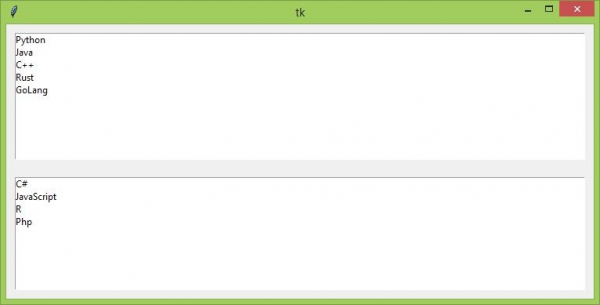
執行以上程式碼將會顯示一個包含兩個listbox 的視窗。在進行選擇時,我們可以從兩個 listbox 中選擇多個條目。

更新於: 2021 年 4 月 22 日
1K+ 瀏覽

廣告