
 資料結構
資料結構 網路
網路 關係型資料庫管理系統
 作業系統
作業系統 Java
Java MS Excel
 iOS
iOS HTML
HTML CSS
CSS Android
 Python
 C 程式設計
 C++
C++ C#
C# MongoDB
 MySQL
MySQL Javascript
 PHP
PHP 物理學
物理學 化學
化學 生物學
生物學 數學
數學 英語
英語 經濟學
經濟學 心理學
心理學 社會學
社會學 服裝設計
服裝設計 法律研究
法律研究如何使用 JavaFX 建立條形圖?
條形圖以一系列資料點 (x, y) 作為輸入值,並建立表示其值的條形。通常,這些圖表用於表示類別的值。根據類別的軸,條形圖的條形可以是垂直的或水平的。在 JavaFX 中,您可以透過例項化 **javafx.scene.chart.BarChart** 類來建立條形圖。
在例項化此類時,您必須傳遞 Axis 類的兩個物件,分別表示 x 軸和 y 軸(作為建構函式的引數)。由於 Axis 類是抽象類,因此您需要傳遞其具體子類的物件,例如 NumberAxis(用於數值)或 CategoryAxis(用於字串值)。
建立軸後,您可以使用 **setLabel()** 方法為其設定標籤。
設定資料
**XYChart.Series** 表示資料項的系列。您可以透過例項化此類來建立條形的一系列點。此類包含一個可觀察列表,其中包含系列中的所有點。
**XYChart.Data** 表示 x-y 平面中的特定資料點。要建立點,您需要透過傳遞該點的 x 和 y 值來例項化此類。
因此,要建立條形資料 -
透過例項化 **XYChart.Data** 類建立所需數量的點。
透過例項化 **XYChart.Series** 類建立系列。
使用 **getData()** 方法獲取 XYChart.Series 類的可觀察列表。
使用 **add()** 或 **addAll()** 方法將建立的資料點新增到列表中。
將建立的資料系列新增到區域圖中,如下所示 -
barChart.getData().add(series);
示例
import javafx.application.Application;
import javafx.geometry.Side;
import javafx.scene.Scene;
import javafx.scene.chart.BarChart;
import javafx.scene.chart.CategoryAxis;
import javafx.stage.Stage;
import javafx.scene.chart.NumberAxis;
import javafx.scene.chart.XYChart;
import javafx.scene.layout.StackPane;
public class BarChartExample extends Application {
   public void start(Stage stage) {
      //Creating X and Y axes
      CategoryAxis xAxis = new CategoryAxis();
      NumberAxis yAxis = new NumberAxis();
      //Adding labels for the axes
      yAxis.setLabel("Region");
      xAxis.setLabel("Population (in millions)");
      //Creating a Bar chart
      BarChart barChart = new BarChart<>(xAxis, yAxis);
      //Preparing data for the bar chart
      XYChart.Series series1 = new XYChart.Series();
      series1.setName("Africa");
      series1.getData().add(new XYChart.Data("1800", 107));
      series1.getData().add(new XYChart.Data("1900", 133));
      series1.getData().add(new XYChart.Data("2008", 973));
      XYChart.Series series2 = new XYChart.Series();
      series2.setName("America");
      series2.getData().add(new XYChart.Data("1800", 31));
      series2.getData().add(new XYChart.Data("1900", 156));
      series2.getData().add(new XYChart.Data("2008", 914));
      XYChart.Series series3 = new XYChart.Series();
      series3.setName("Asia");
      series3.getData().add(new XYChart.Data("1800", 635));
      series3.getData().add(new XYChart.Data("1900", 947));
      series3.getData().add(new XYChart.Data("2008", 4054));
      XYChart.Series series4 = new XYChart.Series();
      series4.setName("Europe");
      series4.getData().add(new XYChart.Data("1800", 203));
      series4.getData().add(new XYChart.Data("1900", 408));
      series4.getData().add(new XYChart.Data("2008", 732));
      XYChart.Series series5 = new XYChart.Series();
      series5.setName("Oceania");
      series5.getData().add(new XYChart.Data("1800", 2));
      series5.getData().add(new XYChart.Data("1900", 6));
      series5.getData().add(new XYChart.Data("2008", 34));
      //Setting the data to bar chart
      barChart.getData().addAll(series1, series2, series3, series4, series5);
      //Setting the legend on the top
      barChart.setLegendSide(Side.RIGHT);
      //Creating a stack pane to hold the chart
      StackPane pane = new StackPane(barChart);
      //Setting the Scene
      Scene scene = new Scene(pane, 595, 300);
      stage.setTitle("Bar Chart");
      stage.setScene(scene);
      stage.show();
   }
   public static void main(String args[]){
      launch(args);
   }
}
輸出
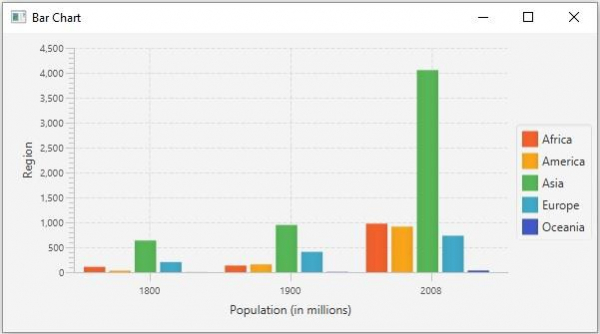

更新時間: 2020-05-19
485 次瀏覽

廣告