
 資料結構
資料結構 網路
網路 關係資料庫管理系統
 作業系統
作業系統 Java
Java MS Excel
 iOS
iOS HTML
HTML CSS
CSS Android
 Python
 C 程式設計
 C++
C++ C#
C# MongoDB
 MySQL
MySQL Javascript
 PHP
PHP 物理學
物理學 化學
化學 生物學
生物學 數學
數學 英語
英語 經濟學
經濟學 心理學
心理學 社會學
社會學 時尚研究
時尚研究 法律研究
法律研究如何在 Python Plotly 中更改 Dash 圖表的大小?
Plotly 支援兩個不同的庫:“Dash 應用中的 Plotly 圖表”和“Plotly Express 中的 Plotly 圖表物件”。Dash 是一個 Python 框架,用於建立互動式的基於 Web 的儀表板應用程式。dash 庫為基於 Web 的儀表板應用程式添加了所有必需的庫。
匯入dash核心元件和 html 元件。新增 plotly.express 方法以生成圖形。使用Dcc.Graph()方法設定高度和寬度座標的樣式。
在本教程中,我們將演示如何在單個瀏覽器頁面上向 Plotly Dash 應用程式新增多個圖形。請按照以下步驟在單個頁面上生成 Dash 應用程式。
步驟 1
匯入 Dash 庫。
import dash
步驟 2
匯入 Dash 核心元件,dcc 和 html
from dash import dcc, html
步驟 3
使用以下模組匯入 dash 依賴項:
from dash.dependencies import Input, Output
步驟 4
匯入plotly.express模組並將其別名為px
import plotly.express as px
步驟 5
使用 Pandas 模組生成資料集。讓我們使用以下方法生成資料集:
# import pandas module
import pandas as pd

df_bar = pd.DataFrame({
   "Season": ["Summer", "Winter", "Autumn", "Spring"],
   "Rating": [3,2,1,4]
})
步驟 6
使用以下座標生成條形圖,並將其儲存在fig變數中。
fig = px.bar(df_bar, x="Season", y="Rating", barmode="group")
步驟 7
建立main函式以使用以下命令執行應用程式伺服器:
app = dash.Dash(__name__)
if __name__ == '__main__':
   app.run_server(debug=True)
步驟 8
為 div 部分中的html子元素生成應用程式佈局。定義如下:
app.layout = html.Div(children=[

   # elements from the top of the page
   html.Div([html.H1(children='Dash app1'),
   html.Div(children='''Dash: First graph.'''),
   dcc.Graph(id='graph1',figure=fig),]),

   # New Div for all elements in the new 'row' of the page
   html.Div([
      html.H1(children='Dash app2'),
      html.Div(children='''Dash: Second graph.'''),
      dcc.Graph(id='graph2', figure=fig),
   ]),
])
示例
以下是更改 Plotly 中 Dash 圖表大小的完整程式碼:
import dash
from dash import dcc, html
import pandas as pd
import plotly.express as px

app = dash.Dash(__name__)
df_bar = pd.DataFrame({
   "Season": ["Summer", "Winter", "Autumn", "Spring"],
   "Rating": [3, 2, 1, 4]
})

fig = px.bar(df_bar, x="Season", y="Rating", barmode="group")

# app layout for html div and set height and width
app.layout = html.Div(children=[

   # All elements from the top of the page
   html.Div([
      html.H1(children='Dash app1'),
      html.Div(children='''
         Dash: First graph.
      '''),

      dcc.Graph(
         id='graph1',
         figure=fig,
         style={'width': '60vw', 'height': '70vh'}
      ),
   ])
])

if __name__ == '__main__':
   app.run_server(debug=True)
輸出
它將在控制檯上顯示以下輸出。
Dash is running on http://127.0.0.1:8050/
 * Serving Flask app 'main'
 * Debug mode: on
單擊 URL,它將在瀏覽器上顯示以下輸出:
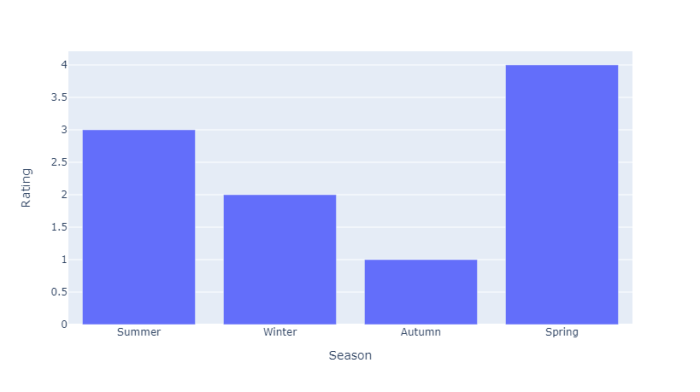
觀察我們如何在“dcc.Graph()”中使用“style”屬性來更改 Dash 圖表的大小。

更新於: 2022-10-07
3K+ 瀏覽量

廣告