
 資料結構
資料結構 網路
網路 關係資料庫管理系統 (RDBMS)
 作業系統
作業系統 Java
Java MS Excel
 iOS
iOS HTML
HTML CSS
CSS Android
 Python
 C 語言程式設計
 C++
C++ C#
C# MongoDB
 MySQL
MySQL Javascript
 PHP
PHP 物理學
物理學 化學
化學 生物學
生物學 數學
數學 英語
英語 經濟學
經濟學 心理學
心理學 社會學
社會學 服裝學
服裝學 法學
法學如何在 Seaborn 中將圖形樣式更改為 Darkgrid?
Seaborn 提供多種內建圖形樣式,我們可以從中選擇來增強繪圖的視覺效果。這些樣式會影響各種元素,例如顏色、網格線、背景和字型。要在 Seaborn 中設定圖形樣式,我們可以使用 **`sns.set_style()`** 函式。以下是 Seaborn 庫中可用的圖形樣式。
**Darkgrid** - 此樣式具有深灰色背景和網格線,有助於將注意力集中在資料點上。
**Whitegrid** - 此樣式類似於“**darkgrid**”,但具有白色背景,使其適合具有較淺顏色方案的繪圖。
**Dark** - 此樣式具有深色背景,沒有網格線,使繪圖看起來簡潔明瞭。
**White** - 此樣式類似於“**dark**”,但具有白色背景,對於具有較淺顏色的繪圖非常有用。
**Ticks** - 此樣式刪除背景網格,僅顯示軸上的刻度標記。
在本文中,我們將瞭解如何在 seaborn 中將圖形樣式更改為 Dark Grid。要在 Seaborn 中將圖形樣式更改為“**darkgrid**”,我們可以按照以下步驟操作。
安裝 Seaborn
我們應該確保已在 Python 環境中安裝 Seaborn。我們可以在 Python 工作環境中使用 **pip** 命令安裝它。
pip install seaborn
匯入必要的庫
在我們的 Python 指令碼或 Jupyter Notebook 中,接下來我們必須匯入所需的庫,例如 Seaborn 和 Matplotlib.pyplot。
import seaborn as sns
import matplotlib.pyplot as plt
設定圖形樣式
使用 **`sns.set_style()`** 函式將圖形樣式設定為“**darkgrid**”。此函式修改 Matplotlib 的預設樣式。
sns.set_style("darkgrid")
這行程式碼將圖形樣式設定為“**darkgrid**”。
繪製資料
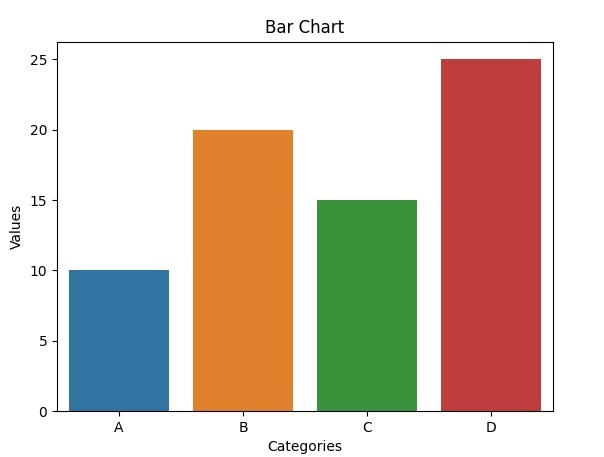
現在我們可以使用 Seaborn 和 Matplotlib 建立和自定義我們的繪圖。這是一個繪製條形圖的簡單示例。
示例
在此示例中,**`sns.barplot()`** 使用 Seaborn 建立條形圖。以下幾行使用 Matplotlib 設定 x 軸標籤、y 軸標籤和標題。最後,**`plt.show()`** 顯示繪圖。
import seaborn as sns
import matplotlib.pyplot as plt

x = ["A", "B", "C", "D"]
y = [10, 20, 15, 25]
# Create a bar plot
sns.barplot(x=x, y=y)
# Set labels and title
plt.xlabel("Categories")
plt.ylabel("Values")
plt.title("Bar Chart")
# Display the plot
plt.show()
輸出
自定義
我們可以使用各種 Seaborn 函式和 Matplotlib 選項進一步自定義我們的繪圖。例如,我們可以調整調色盤、字型大小、網格線等。有關更多自定義選項,請參閱 Seaborn 文件。
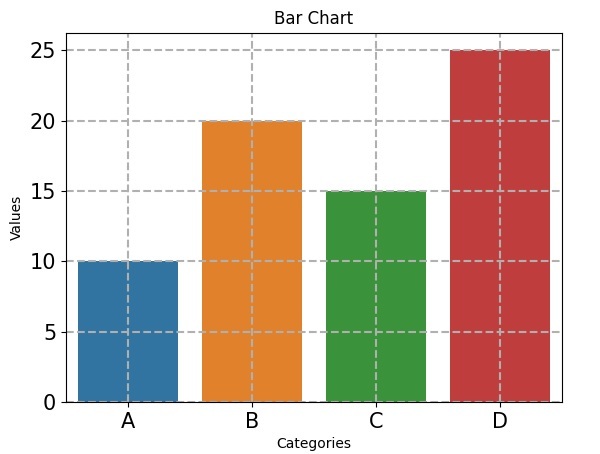
以下幾行程式碼演示了一些額外的自定義,其中 **`sns.set_palette()`** 將調色盤更改為“**husl**”。**`plt.xticks()`** 和 **`plt.yticks()`** 分別設定 x 軸和 y 軸刻度的字型大小。**`plt.grid()`** 使用虛線樣式和 0.5 的線寬向繪圖新增網格線。
示例
import seaborn as sns
import matplotlib.pyplot as plt

x = ["A", "B", "C", "D"]
y = [10, 20, 15, 25]
# Create a bar plot
sns.barplot(x=x, y=y)
sns.set_palette("husl")  # Change the color palette
plt.xticks(fontsize=15)  # Set x-axis tick font size
plt.yticks(fontsize=15)  # Set y-axis tick font size
plt.grid(True, linestyle="--", linewidth=1.5)  # Add grid lines
# Set labels and title
plt.xlabel("Categories")
plt.ylabel("Values")
plt.title("Bar Chart")
# Display the plot
plt.show()
輸出

瀏覽量:382
