
- GWT Highcharts 教程
- GWT Highcharts - 主頁
- GWT Highcharts - 概述
- 環境設定
- 配置語法
- GWT Highcharts - 折線圖
- GWT Highcharts - 面積圖
- GWT Highcharts - 條形圖
- GWT Highcharts - 柱形圖
- GWT Highcharts - 餅圖
- GWT Highcharts - 散點圖
- GWT Highcharts - 動態圖表
- GWT Highcharts - 組合圖
- GWT Highcharts - 3D 圖表
- GWT Highcharts - 地圖圖表
- GWT Highcharts 有用資源
- GWT Highcharts - 快速指南
- GWT Highcharts - 有用資源
- GWT Highcharts - 討論
GWT Highcharts - 基本餅圖
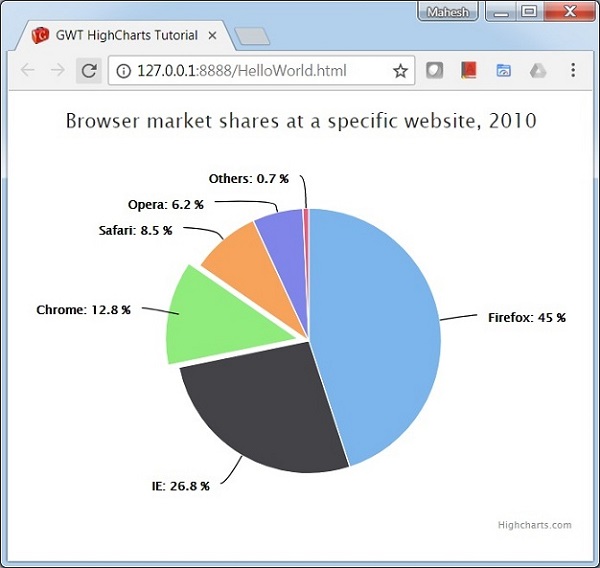
下面是一個餅圖示例。
我們在 Highcharts 配置語法 章節中已經看到過用於繪製圖表中的配置。現在讓我們看一個基本的餅圖示例。我們還將瞭解其他配置。我們在圖表中更改了 type 屬性。
圖表
將圖表型別配置為基於“pie”。chart.type 決定了圖表的型別。此處,預設值為“line”。
chart.setType(Type.PIE);
示例
HelloWorld.java
package com.tutorialspoint.client;

import org.moxieapps.gwt.highcharts.client.Chart;
import org.moxieapps.gwt.highcharts.client.Legend;
import org.moxieapps.gwt.highcharts.client.Point;
import org.moxieapps.gwt.highcharts.client.Series.Type;
import org.moxieapps.gwt.highcharts.client.Style;

import org.moxieapps.gwt.highcharts.client.ToolTip;
import org.moxieapps.gwt.highcharts.client.ToolTipData;
import org.moxieapps.gwt.highcharts.client.ToolTipFormatter;

import org.moxieapps.gwt.highcharts.client.labels.DataLabels;
import org.moxieapps.gwt.highcharts.client.labels.DataLabelsData;
import org.moxieapps.gwt.highcharts.client.labels.DataLabelsFormatter;
import org.moxieapps.gwt.highcharts.client.labels.PieDataLabels;
import org.moxieapps.gwt.highcharts.client.labels.Labels.Align;
import org.moxieapps.gwt.highcharts.client.labels.XAxisLabels;

import org.moxieapps.gwt.highcharts.client.plotOptions.ColumnRangePlotOptions;
import org.moxieapps.gwt.highcharts.client.plotOptions.PiePlotOptions;
import org.moxieapps.gwt.highcharts.client.plotOptions.PlotOptions.Cursor;

import com.google.gwt.core.client.EntryPoint;
import com.google.gwt.i18n.client.NumberFormat;
import com.google.gwt.user.client.ui.RootPanel;

public class HelloWorld implements EntryPoint {
   public void onModuleLoad() {
      final Chart chart = new Chart()
         .setType(Type.PIE)
         .setChartTitleText("Browser market shares at a specific website, 2010")
         .setPlotBackgroundColor((String)null)
         .setPlotBorderWidth(null)
         .setPlotShadow(false)
         .setPiePlotOptions(new PiePlotOptions()
            .setAllowPointSelect(true)
            .setCursor(Cursor.POINTER)
            .setPieDataLabels(new PieDataLabels()
               .setConnectorColor("#000000")
               .setEnabled(true)
               .setColor("#000000")
               .setFormatter(new DataLabelsFormatter() {
                  @Override
                  public String format(DataLabelsData dataLabelsData) {
                     return "<b>" + dataLabelsData.getPointName() + "</b>: " + dataLabelsData.getYAsDouble() + " %";
                  }
               })
            )
         )
         .setLegend(new Legend()
            .setLayout(Legend.Layout.VERTICAL)
            .setAlign(Legend.Align.RIGHT)
            .setVerticalAlign(Legend.VerticalAlign.TOP)
            .setX(-100)
            .setY(100)
            .setFloating(true)
            .setBorderWidth(1)
            .setBackgroundColor("#FFFFFF")
            .setShadow(true)
         )
         .setToolTip(new ToolTip()
            .setFormatter(new ToolTipFormatter() {
               @Override
               public String format(ToolTipData toolTipData) {
                  return "<b>" + toolTipData.getPointName() + "</b>: " + toolTipData.getYAsDouble() + " %";
               }
            })
         );

         chart.addSeries(chart.createSeries()
            .setName("Browser share")
            .setPoints(new Point[]{
               new Point("Firefox", 45.0),
               new Point("IE", 26.8),
               new Point("Chrome", 12.8)
                  .setSliced(true)
                  .setSelected(true),
               new Point("Safari", 8.5),
               new Point("Opera", 6.2),
               new Point("Others", 0.7)
            })
         );
      RootPanel.get().add(chart);
   }
}
結果
驗證結果。
gwt_highcharts_pie_charts.htm
廣告