
 資料結構
資料結構 網路
網路 關係資料庫管理系統 (RDBMS)
 作業系統
作業系統 Java
Java MS Excel
 iOS
iOS HTML
HTML CSS
CSS Android
 Python
 C 程式設計
 C++
C++ C#
C# MongoDB
 MySQL
MySQL Javascript
 PHP
PHP 物理學
物理學 化學
化學 生物學
生物學 數學
數學 英語
英語 經濟學
經濟學 心理學
心理學 社會學
社會學 服裝設計
服裝設計 法學
法學Firebase 與 Web 整合
Firebase 由 Google 於 2014 年啟動,為使用者提供後端服務。它提供各種高質量的服務,可用於開發移動和 Web 應用程式。例如,它提供即時資料庫、使用者身份驗證、雲端儲存等。此外,它還提供分析功能來分析應用程式的流量。由於其快速設定,它非常受歡迎。
在本教程中,我們將學習如何將 Firebase 身份驗證整合到單頁 Web 應用程式中。
使用者應按照以下步驟設定 Firebase 帳戶並將其與單頁 Web 應用程式整合。
步驟 1 − 首先,訪問 Firebase 網站並建立一個帳戶。
步驟 2 − 現在,訪問 https://console.firebase.google.com/u/0/ 開啟 Firebase 控制檯。
步驟 3 − 現在,單擊“建立專案”按鈕以開始建立新專案。
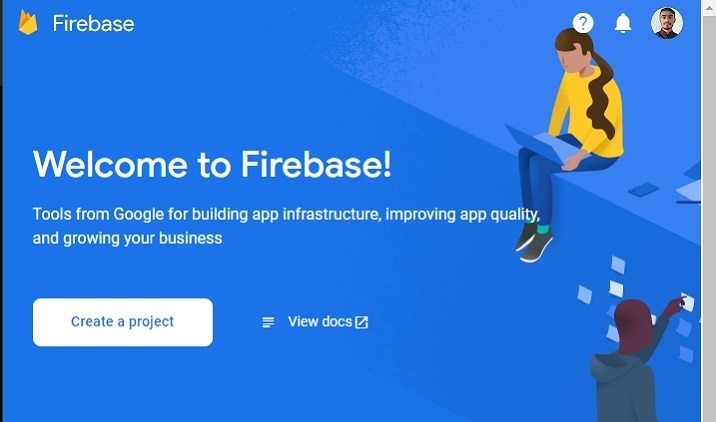
步驟 4 − 在這裡,填寫所需詳細資訊並單擊“繼續”按鈕。我們在這裡建立一個“測試”應用程式。

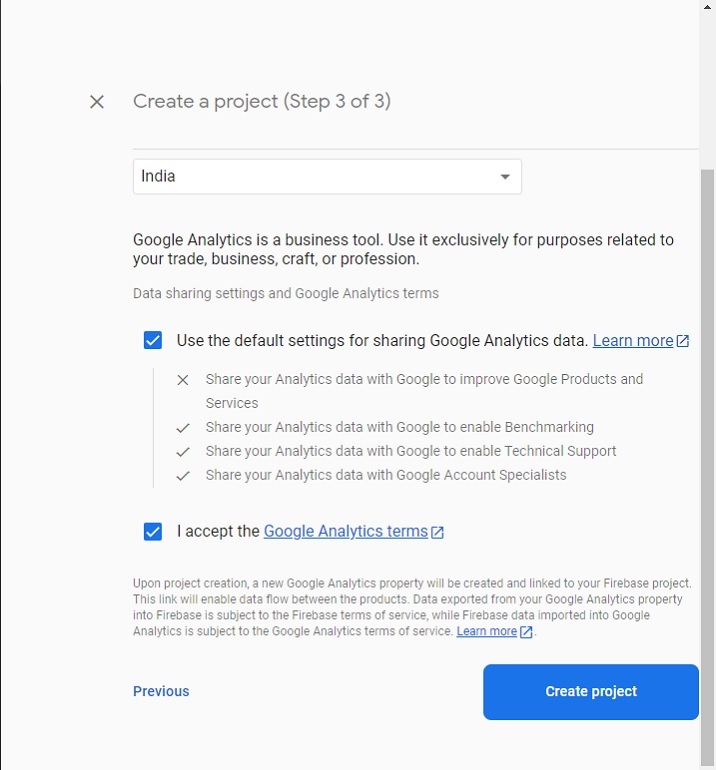
步驟 5 − 選擇首選位置,接受條款和條件,然後單擊“建立專案”按鈕。之後,請等待它為您建立一個專案。
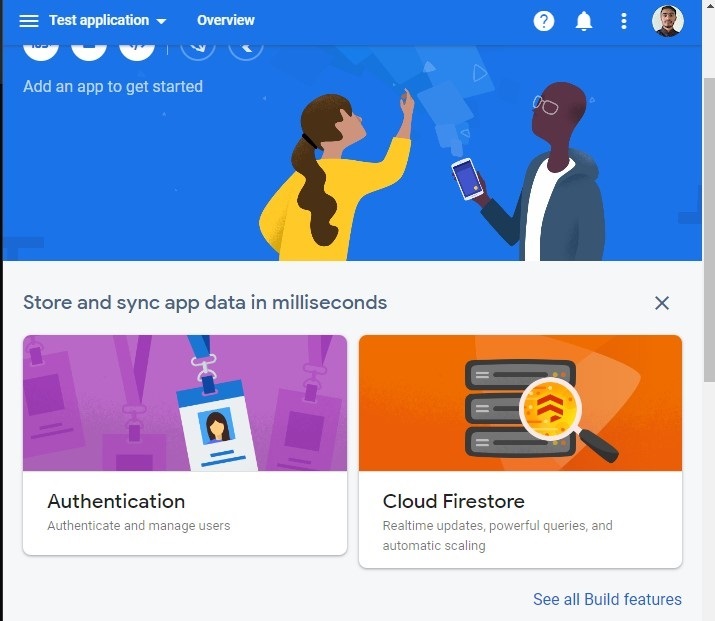
步驟 6 − 它會將您重定向到以下頁面。在這裡,單擊“身份驗證”卡片元素。之後,單擊“開始使用”按鈕。
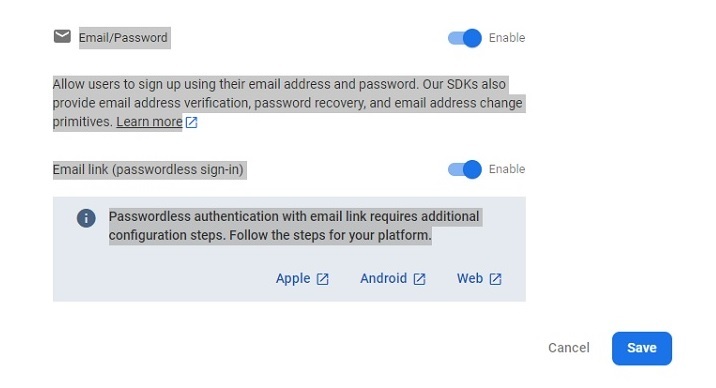
步驟 7 − 轉到“登入方法”選項卡,然後單擊“電子郵件/密碼”欄位。之後,啟用“電子郵件/密碼”方法,然後單擊“儲存”按鈕。使用者也可以從此處啟用其他身份驗證 Web 應用程式的方法。
步驟 8 − 現在,單擊“專案設定”,然後從中獲取 API 和專案 ID。將其儲存在某個位置。我們將在下面的示例中使用它。
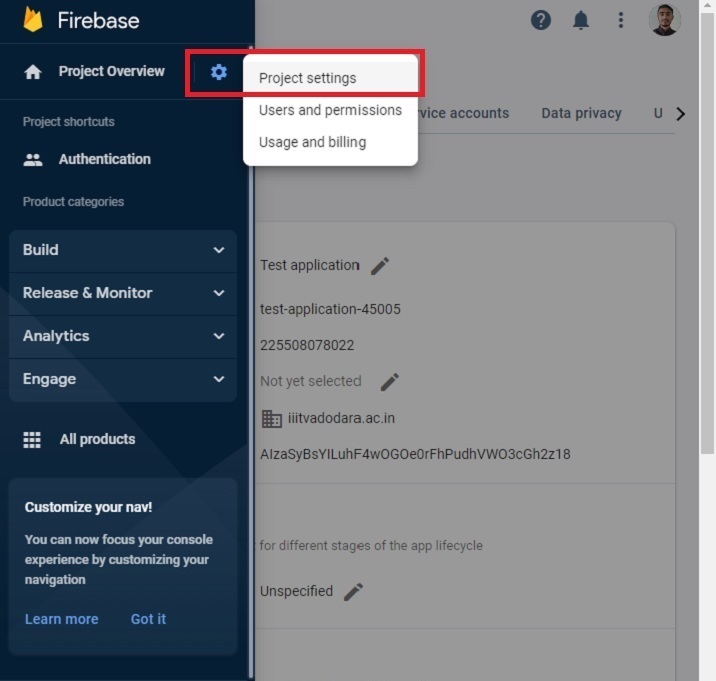
建立單頁靜態應用程式
現在,Firebase 專案的設定已完成。接下來,我們將建立一個單頁靜態應用程式。
步驟
步驟 1 − 透過任何一種方式將 Firebase 新增到您的專案中。在這裡,我們使用 CDN 添加了它。開發人員還可以根據他們當前正在使用的專案使用 SDK。
步驟 2 − 現在,構建一個簡單的 HTML 模板,其中包含電子郵件和密碼輸入。另外,添加註冊、登入和登出按鈕。
步驟 3 − 在 JavaScript 中,使用 API 金鑰和專案 ID 初始化 Firebase 配置。
步驟 4 − 使用 onAuthStateChanged() 方法在身份驗證狀態更改時列印訊息。
步驟 5 − 使用 Firebase 的 auth() 方法初始化身份驗證。
步驟 6 − 現在,建立一個 addUsers() 函式以將使用者新增到 Firebase。訪問函式中的電子郵件和密碼,並使用 createUserWithEmailAndPassword() 方法將使用者新增到 Firebase。
步驟 7 − 現在,建立一個 logIn() 函式,並使用 signInWithEmailAndPassword() 方法使用電子郵件和密碼登入應用程式。
步驟 8 − 同樣,建立一個 logout() 函式,該函式使用 signOut() 方法結束當前會話。
示例
在下面的示例中,我們建立了一個帶有兩個輸入欄位的簡單表單。每當使用者單擊 signUp 按鈕時,它都會呼叫 addUsers() 函式,該函式將使用者新增到 Firebase。如果使用者輸入弱密碼或錯誤的電子郵件地址,Firebase 會返回錯誤。
此外,當用戶單擊登入按鈕時,它會呼叫“login()”函式,允許使用者登入應用程式。如果使用者輸入錯誤的密碼或電子郵件,Firebase 會返回錯誤。當用戶單擊 signOut 按鈕時,它會執行 signOut() 函式,結束當前會話。
注意 − 在這裡,開發人員需要根據他們的專案更改 API 金鑰、專案 ID 和專案域名。以下憑據僅用於測試目的。
<html>
<head>
   <script src = "https://www.gstatic.com/firebasejs/8.2.7/firebase-app.js">
   </script>
   <script src = "https://www.gstatic.com/firebasejs/8.2.7/firebase-auth.js">
   </script>
   <style>
      button {
         width: 100px;
         height: auto;
         padding: 5px 10px;
         background-color: aqua;
         border: 2px solid green;
         border-radius: 12px;
      }
   </style>
</head>
<body>
   <h2>
      Using the <i> Firebase auth </i> to add authentication in a single page static website.
   </h2>
   <div class = "container">
      <h2>Enter the email and password below.</h2>
      <input type = "email" placeholder = "abcd@gamil.com" id = "email" />
      <br /> <br />
      <input type = "password" placeholder = "Add password" id = "password" />
      <br /> <br />
      <button onclick = "addUsers()" id = "signUp">
         SignUp
      </button>
      <button onclick = "login()" id = "logIp">
         SignIn
      </button>
      <button onclick = "logout()" id = "logOut">
         SignOut
      </button>
      <br> <br>
      <div id = "output"> </div>
   </div>
   <script>
      let output = document.getElementById('output');
      // Your web app's Firebase configuration
      var initialConfig = {
         apiKey: "AIzaSyBsYILuhF4wOGOe0rFhPudhVWO3cGh2z18", // change API keu
         authDomain: "localhost", // change domain
         projectId: "test-application-45005", // change project Id
      };

      // Initialize Firebase
      firebase.initializeApp(initialConfig);
      const authenticate = firebase.auth();

      // Check if there are any active users
      firebase.auth().onAuthStateChanged((user) => {
         if (user) {
            var email = user.email;
            output.innerHTML = "Active user is " + email + "<br>";
         } else {
            output.innerHTML = "No active users" + "<br>";
         }
      });

      // add users
      function addUsers() {
         var email = document.getElementById("email").value;
         var password = document.getElementById("password").value;

         // adding users via the promise
         authenticate.createUserWithEmailAndPassword(
            email,
            password
         ).then((userCredential) => {
            output.innerHTML = "User added successfully and user id is " + userCredential.user.uid + "<br>";
         }).catch((e) => {
            output.innerHTML = "Some error occurred - " + e.message + "<br>";
         });
      }

      // login function
      function login() {
         var email = document.getElementById("email").value;
         var password = document.getElementById("password").value;
         authenticate.signInWithEmailAndPassword(
         email, password).then((userCredential) => {
            output.innerHTML = "User login successfully and user id is " + userCredential.user.uid + "<br>";
         }).catch((e) => {
            output.innerHTML = "Some error occurred - " + e.message + "<br>";
         });
      }

      // logout currently logged-in user
      function logout() {
         authenticate.signOut();
         output.innerHTML = "User logout successfully";
      }

   </script>
</body>
</html>
使用者學習瞭如何將 Firebase 與 Web 應用程式整合。對於經驗豐富的開發人員來說,將 Firebase 與任何 Web 應用程式整合幾乎只需 15 分鐘。此外,如果使用者在登入應用程式時輸入弱密碼,它會返回錯誤,並且它管理開發人員無需擔心的所有其他內容。
此外,開發人員可以將 Firebase 的資料庫與任何 Web 或移動應用程式一起使用。

474 次檢視
