
 資料結構
資料結構 網路
網路 RDBMS
RDBMS 作業系統
作業系統 Java
Java MS Excel
 iOS
iOS HTML
HTML CSS
CSS Android
 Python
 C 程式設計
 C++
C++ C#
C# MongoDB
 MySQL
MySQL Javascript
 PHP
PHP 物理
物理 化學
化學 生物
生物 數學
數學 英語
英語 經濟學
經濟學 心理學
心理學 社會科學
社會科學 時尚研究
時尚研究 法律研究
法律研究在 Java 中使用更新的顏色和圖片自定義 JOptionPane 佈局
透過更改新增元件的面板的外觀和感覺來自定義佈局 −
ImageIcon icon = new ImageIcon(new URL("http −//tutorialspoint.tw/images/C-PLUS.png"));
JLabel label = new JLabel(icon);
JPanel panel = new JPanel(new GridBagLayout());
panel.add(label);
panel.setOpaque(true);
panel.setBackground(Color.ORANGE);
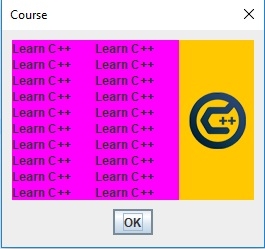
在上面,我們添加了一張圖片,甚至更新了面板的背景顏色。
現在,將其設定為文字面板 −
JPanel textPanel = new JPanel(new GridLayout(10, 5)); textPanel.setBackground(Color.Magenta);
以下是一個自定義 JOptionPane 佈局的示例 −
示例
package my;
import java.awt.BorderLayout;
import java.awt.Color;
import java.awt.GridBagLayout;
import java.awt.GridLayout;
import java.net.URL;
import javax.swing.ImageIcon;
import javax.swing.JLabel;
import javax.swing.JOptionPane;
import javax.swing.JPanel;
public class SwingDemo {
   public static void main(String[] args) throws Exception {
      ImageIcon icon = new ImageIcon(new URL("http −//tutorialspoint.tw/images/C-PLUS.png"));
      JLabel label = new JLabel(icon);
      JPanel panel = new JPanel(new GridBagLayout());
      panel.add(label);
      panel.setOpaque(true); panel.setBackground(Color.ORANGE);
      JPanel textPanel = new JPanel(new GridLayout(10, 5)); textPanel.setBackground(Color.MAGENTA);
      for (int i = 0; i < 20; i++) {
         textPanel.add(new JLabel("Learn C++"));
      }
      JPanel panel2 = new JPanel(new BorderLayout());
      panel2.add(textPanel);
      panel2.add(panel, BorderLayout.EAST);
      JOptionPane.showMessageDialog(null, panel2, "Course",JOptionPane.DEFAULT_OPTION);
   }
}
輸出

更新於:2019 年 7 月 30 日
2K+ 次瀏覽

廣告