
 資料結構
資料結構 網路
網路 RDBMS
RDBMS 作業系統
作業系統 Java
Java MS Excel
 iOS
iOS HTML
HTML CSS
CSS Android
 Python
 C 程式設計
 C++
C++ C#
C# MongoDB
 MySQL
MySQL Javascript
 PHP
PHP 物理學
物理學 化學
化學 生物學
生物學 數學
數學 英語
英語 經濟學
經濟學 心理學
心理學 社會研究
社會研究 時尚研究
時尚研究 法律研究
法律研究如何在 Java 中將 JOptionPane 與陣列元素配合使用?
讓我們先建立一個數組並新增元素 -
String[] sports = { "Football", "Cricket", "Squash", "Baseball", "Fencing", "Volleyball", "Basketball" };現在,將上述陣列元素設定為 JOptionPane -
String res = (String) JOptionPane.showInputDialog(null, "Which sports you play the most?", "Sports",
   JOptionPane.PLAIN_MESSAGE, null, sports, sports[0]);
上面,我們還設定了初始值,即 sports(0)。
以下是一個在 Java 中將 JOptionPane 與陣列元素配合使用的示例 -
示例
package my;
import javax.swing.JOptionPane;
public class SwingDemo {
   public static void main(String[] args) {
      String[] sports = { "Football", "Cricket", "Squash", "Baseball", "Fencing", "Volleyball", "Basketball" };
      String res = (String) JOptionPane.showInputDialog(null, "Which sports you play the most?", "Sports",
         JOptionPane.PLAIN_MESSAGE, null, sports, sports[0]);
      switch (res) {
         case "Football":
            System.out.println("I Love Football");
         break;
         case "Cricket":
            System.out.println("I Love Cricket");
         break;
         case "Squash":
            System.out.println("I Love Squash");
         break;
         case "Baseball":
            System.out.println("I Love Baseball");
         break;
         case "Fencing":
            System.out.println("I Love Fencing");
         break;
         case "Volleyball":
            System.out.println("I Love Volleyball");
         break;
         case "Basketball":
            System.out.println("I Love Basketball");
         break;
      }
   }
}
輸出
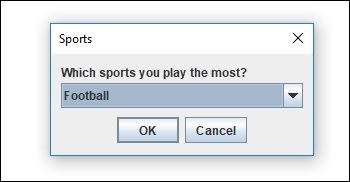
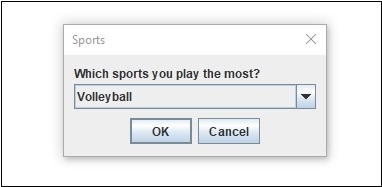
現在從上面選擇任何一項並單擊確定,以在控制檯中顯示所選的項。我們選擇了“排球” -
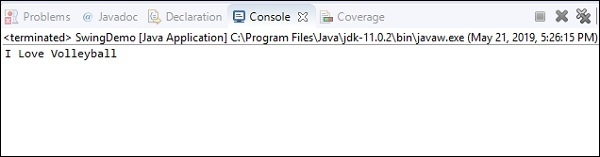
上面選擇的選項在控制檯中可見 -

更新於: 30-Jul-2019
989 次瀏覽

廣告