
 資料結構
資料結構 網路
網路 關係資料庫管理系統 (RDBMS)
 作業系統
作業系統 Java
Java MS Excel
 iOS
iOS HTML
HTML CSS
CSS Android
 Python
 C語言程式設計
 C++
C++ C#
C# MongoDB
 MySQL
MySQL Javascript
 PHP
PHP 物理學
物理學 化學
化學 生物學
生物學 數學
數學 英語
英語 經濟學
經濟學 心理學
心理學 社會學
社會學 服裝學
服裝學 法學
法學Android垂直滾動檢視
引言
Android 提供各種 UI 元件,我們可以使用這些元件在 Android 應用程式中建立不同的 UI 元件,例如影像檢視、文字檢視等等。在這些 UI 元件中,垂直滾動檢視是一個強大的 UI 元件,用於建立動態和互動式應用程式。垂直滾動檢視是一個檢視組,用於在一個檢視中顯示大量資料。它允許使用者垂直滾動瀏覽專案列表,並能夠與列表中的各個專案進行互動。在本文中,我們將瞭解如何在 Android 中實現垂直滾動檢視。
實現
我們將建立一個簡單的應用程式,在這個應用程式中,我們將建立一個滾動檢視,並在其中顯示一個文字檢視,用於顯示應用程式的標題。之後,我們將在這個滾動檢視中建立多個文字檢視,以顯示應用程式中的不同程式語言。現在讓我們轉向 Android Studio 建立一個新專案。
步驟 1:在 Android Studio 中建立一個新專案
導航到 Android Studio,如下面的螢幕所示。在下面的螢幕中,單擊“新建專案”以建立一個新的 Android Studio 專案。
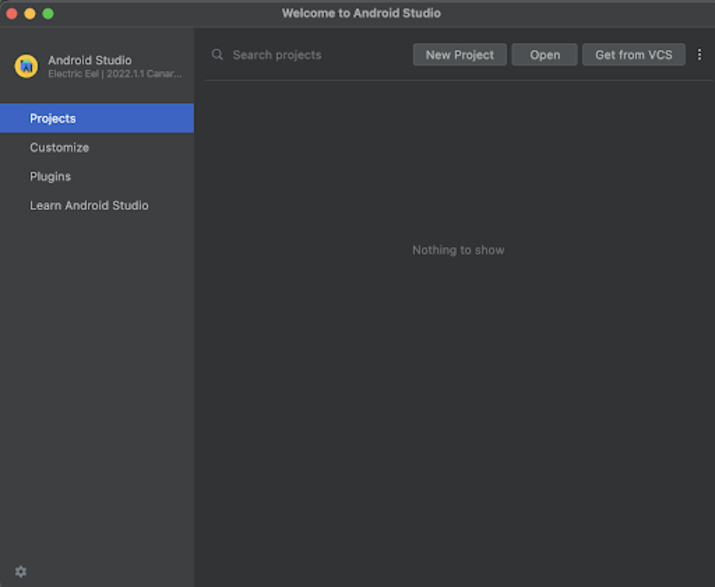
單擊“新建專案”後,您將看到下面的螢幕。
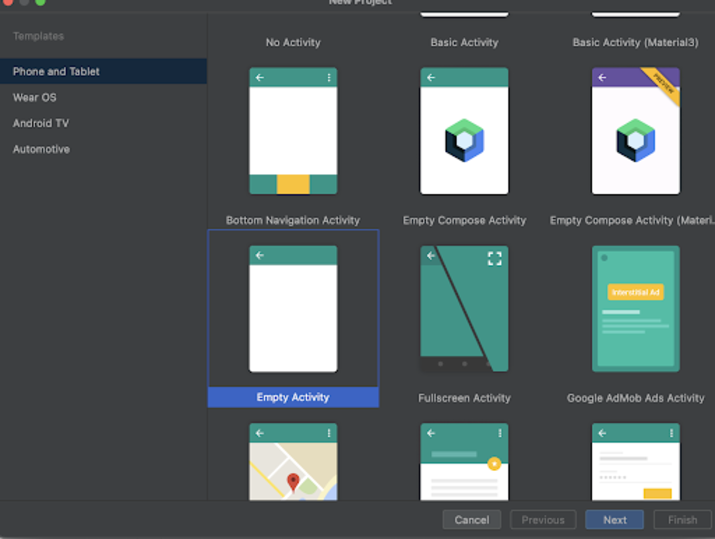
在這個螢幕中,我們只需選擇“空活動”,然後單擊“下一步”。單擊“下一步”後,您將看到下面的螢幕。
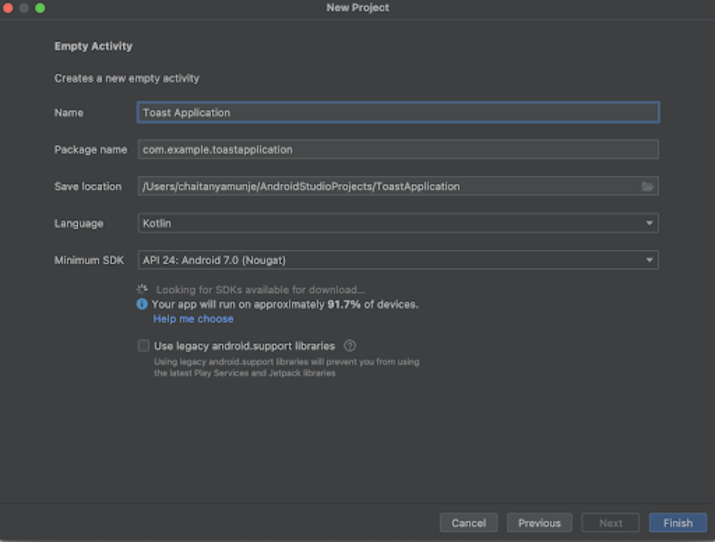
在這個螢幕中,我們只需指定專案名稱。然後包名將自動生成。
注意 - 確保選擇 Kotlin 作為語言。
指定所有詳細資訊後,單擊“完成”以建立一個新的 Android Studio 專案。
專案建立完成後,我們將看到開啟的兩個檔案,即 activity_main.xml 和 MainActivity.kt 檔案。
步驟 2:使用 activity_main.xml
導航到 activity_main.xml。如果此檔案不可見,則開啟此檔案。在左側窗格中,導航到 app>res>layout>activity_main.xml 以開啟此檔案。開啟此檔案後,將以下程式碼新增到其中。程式碼中添加了註釋以便詳細瞭解。
<?xml version="1.0" encoding="utf-8"?>
<ScrollView xmlns:android="http://schemas.android.com/apk/res/android"
   xmlns:app="http://schemas.android.com/apk/res-auto"
   xmlns:tools="http://schemas.android.com/tools"
   android:layout_width="match_parent"
   android:layout_height="match_parent">
   <RelativeLayout
       android:layout_width="match_parent"
       android:layout_height="wrap_content">
       <!-- text view to displaying heading of application -->
       <TextView
           android:id="@+id/idTVHeading"
           android:layout_width="match_parent"
           android:layout_height="wrap_content"
           android:layout_marginTop="150dp"
           android:padding="8dp"
           android:text="Vertical ScrollView in Android"
           android:textAlignment="center"
           android:textColor="@color/black"
           android:textSize="20sp"
           android:textStyle="bold" />
       <!-- on below line creating a text view for displaying the programming language -->
       <TextView
           android:id="@+id/idTVLng1"
           android:layout_width="match_parent"
           android:layout_height="wrap_content"
           android:layout_below="@id/idTVHeading"
           android:layout_centerHorizontal="true"
           android:layout_margin="20dp"
           android:padding="4dp"
           android:text="Java"
           android:textAlignment="center"
           android:textColor="@color/black"
           android:textSize="18sp" />
       <!-- on below line creating a text view for displaying the programming language -->
       <TextView
           android:id="@+id/idTVLng2"
           android:layout_width="match_parent"
           android:layout_height="wrap_content"
           android:layout_below="@id/idTVLng1"
           android:layout_centerHorizontal="true"
           android:layout_margin="20dp"
           android:padding="4dp"
           android:text="C++"
           android:textAlignment="center"
           android:textColor="@color/black"
           android:textSize="18sp" />
       <!-- on below line creating a text view for displaying the programming language -->
       <TextView
           android:id="@+id/idTVLng3"
           android:layout_width="match_parent"
           android:layout_height="wrap_content"
           android:layout_below="@id/idTVLng2"
           android:layout_centerHorizontal="true"
           android:layout_margin="20dp"
           android:padding="4dp"
           android:text="C"
           android:textAlignment="center"
           android:textColor="@color/black"
           android:textSize="18sp" />
       <!-- on below line creating a text view for displaying the programming language -->
       <TextView
           android:id="@+id/idTVLng4"
           android:layout_width="match_parent"
           android:layout_height="wrap_content"
           android:layout_below="@id/idTVLng3"
           android:layout_centerHorizontal="true"
           android:layout_margin="20dp"
           android:padding="4dp"
           android:text="Kotlin"
           android:textAlignment="center"
           android:textColor="@color/black"
           android:textSize="18sp" />
       <!-- on below line creating a text view for displaying the programming language -->
       <TextView
           android:id="@+id/idTVLng5"
           android:layout_width="match_parent"
           android:layout_height="wrap_content"
           android:layout_below="@id/idTVLng4"
           android:layout_centerHorizontal="true"
           android:layout_margin="20dp"
           android:padding="4dp"
           android:text="Xml"
           android:textAlignment="center"
           android:textColor="@color/black"
           android:textSize="18sp" />
       <!-- on below line creating a text view for displaying the programming language -->
       <TextView
           android:id="@+id/idTVLng6"
           android:layout_width="match_parent"
           android:layout_height="wrap_content"
           android:layout_below="@id/idTVLng5"
           android:layout_centerHorizontal="true"
           android:layout_margin="20dp"
           android:padding="4dp"
           android:text="C#"
           android:textAlignment="center"
           android:textColor="@color/black"
           android:textSize="18sp" />
       <!-- on below line creating a text view for displaying the programming language -->
       <TextView
           android:id="@+id/idTVLng7"
           android:layout_width="match_parent"
           android:layout_height="wrap_content"
           android:layout_below="@id/idTVLng6"
           android:layout_centerHorizontal="true"
           android:layout_margin="20dp"
           android:padding="4dp"
           android:text="Dart"
           android:textAlignment="center"
           android:textColor="@color/black"
           android:textSize="18sp" />
       <!-- on below line creating a text view for displaying the programming language -->
       <TextView
           android:id="@+id/idTVLng8"
           android:layout_width="match_parent"
           android:layout_height="wrap_content"
           android:layout_below="@id/idTVLng7"
           android:layout_centerHorizontal="true"
           android:layout_margin="20dp"
           android:padding="4dp"
           android:text="PHP"
           android:textAlignment="center"
           android:textColor="@color/black"
           android:textSize="18sp" />
       <!-- on below line creating a text view for displaying the programming language -->
       <TextView
           android:id="@+id/idTVLng9"
           android:layout_width="match_parent"
           android:layout_height="wrap_content"
           android:layout_below="@id/idTVLng8"
           android:layout_centerHorizontal="true"
           android:layout_margin="20dp"
           android:padding="4dp"
           android:text="Python"
           android:textAlignment="center"
           android:textColor="@color/black"
           android:textSize="18sp" />
       <!-- on below line creating a text view for displaying the programming language -->
       <TextView
           android:id="@+id/idTVLng10"
           android:layout_width="match_parent"
           android:layout_height="wrap_content"
           android:layout_below="@id/idTVLng9"
           android:layout_centerHorizontal="true"
           android:layout_margin="20dp"
           android:padding="4dp"
           android:text="Swift"
           android:textAlignment="center"
           android:textColor="@color/black"
           android:textSize="18sp" />
   </RelativeLayout>
</ScrollView>
說明 - 在上面的程式碼中,我們正在建立一個 ScrollView 作為根佈局。在這個滾動檢視中,我們正在建立一個相對佈局。在這個相對佈局中,我們首先建立一個文字檢視,用於顯示應用程式的標題。之後,我們為不同的程式語言建立多個文字檢視。然後,我們新增相對佈局的結束標籤,最後新增滾動檢視的結束標籤。
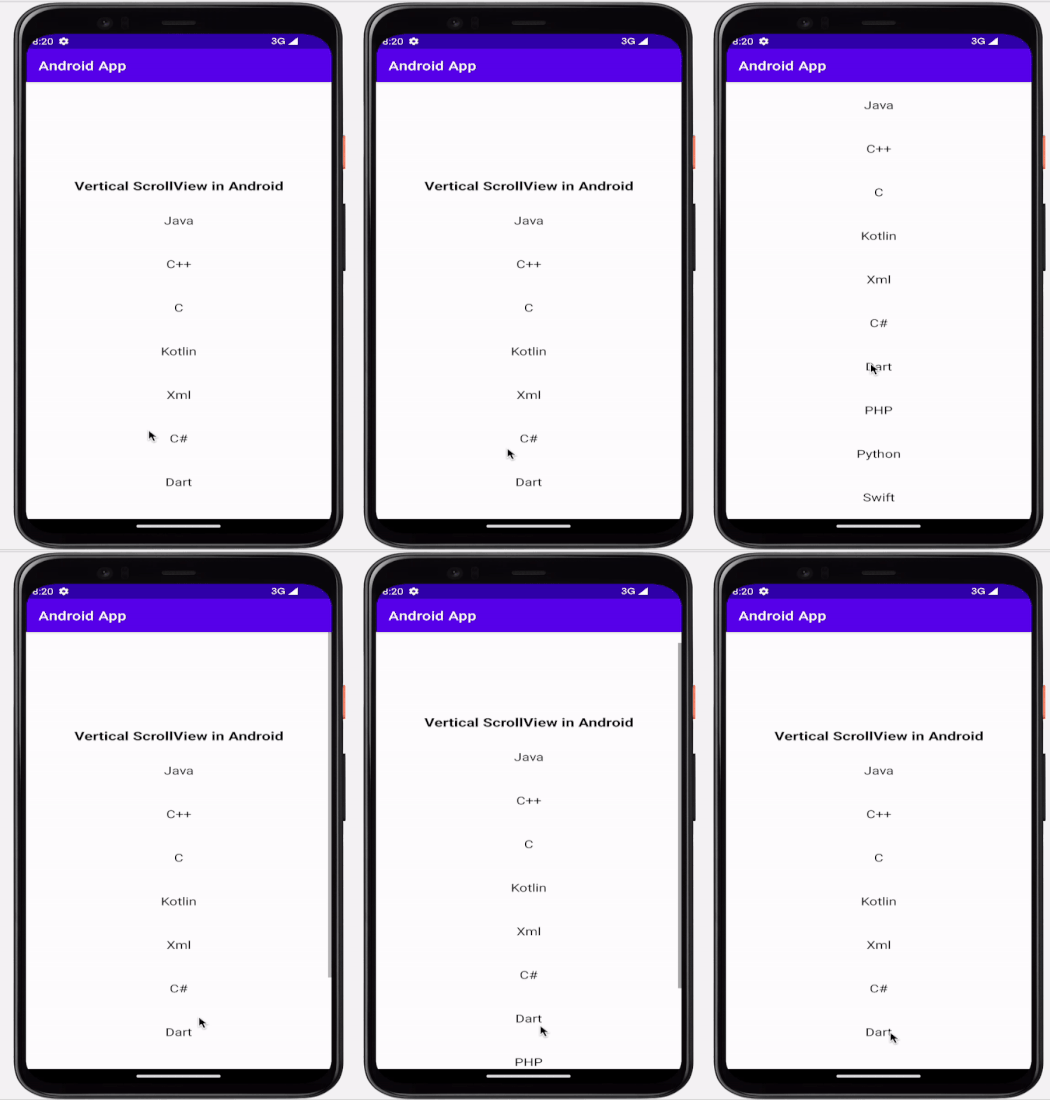
新增上述程式碼後,只需執行您的應用程式即可檢視應用程式的輸出。
注意 - 確保已連線到您的真實裝置或模擬器。
輸出
結論
在本文中,我們瞭解了什麼是垂直滾動檢視以及如何在 Android 應用程式中實現它。

511 次檢視
