
 資料結構
資料結構 網路
網路 RDBMS
RDBMS 作業系統
作業系統 Java
Java MS Excel
 iOS
iOS HTML
HTML CSS
CSS Android
 Python
 C 程式設計
 C++
C++ C#
C# MongoDB
 MySQL
MySQL Javascript
 PHP
PHP 物理學
物理學 化學
化學 生物
生物 數學
數學 英語
英語 經濟學
經濟學 心理學
心理學 社會科學
社會科學 時尚研究
時尚研究 法律研究
法律研究使用 Tkinter 製作比率計算器 GUI
在本文中,我們將瞭解如何建立計算比率的功能性應用程式。為了使其完全發揮功能,我們將使用 SpinBox 方法,它通常為值建立一個理想的旋轉器。此值可以透過框架中的旋轉器小部件進行修改。因此,SpinBox 物件獲取範圍從最小值到最大值的值。
首先,我們將在其中定義小部件,建立 Tkinter 框架。
示例
from tkinter import *
win = Tk()

win.title("Ratio Calculator")
win.geometry("600x500")
win.resizable(0,0)
#Create text Label for Ratio Calculator

label= Label(win, text="Ratio Calculator", font=('Times New Roman', 25))

#Define the function to calculate the value

def ratio_cal():
   a1=int(a.get())
   b1= int(b.get())
   c1= int(c.get())

   val= (b1*c1)/a1

   x_val.config(text=val)

#Add another frame
frame= Frame(win)
frame.pack()

#Create Spin Boxes for A B and C

a= Spinbox(frame, from_=0, to= 100000, font=('Times New Roman', 14), width=10)
a.pack(side=LEFT,padx=10, pady=10)

b= Spinbox(frame,from_=0, to=100000, font=('Times New Roman', 14), width=10)
b.pack(side=LEFT, padx= 10, pady=10)

c= Spinbox(frame, from_=0, to=100000, font=('Times New Roman', 14), width= 10)
c.pack(side= LEFT, padx=10, pady=10)

x_val= Label(frame, text="",font=('Times New Roman', 18))
x_val.pack(side=LEFT)

#Create a Button to calculate the result

Button(win, text= "Calculate",command=ratio_cal, borderwidth=3, fg="white",
bg="black", width=15).pack(pady=20)

win.mainloop()
輸出
執行以上程式碼,將建立一個基於 GUI 的比率計算器。
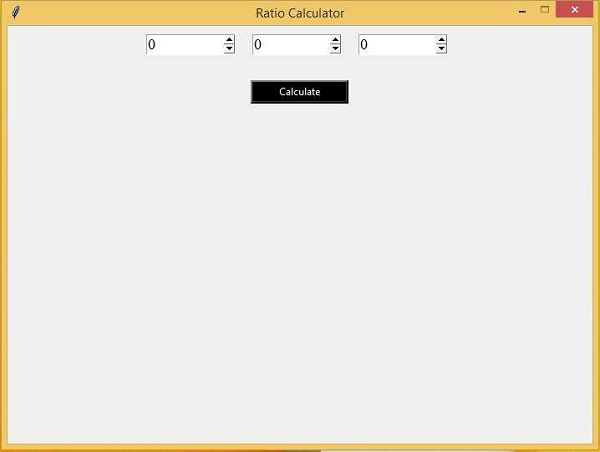

更新時間:2021 年 3 月 6 日
378 次瀏覽

廣告