
- Jython 教程
- Jython - 首頁
- Jython - 概述
- Jython - 安裝
- Jython - 匯入 Java 庫
- Jython - 變數和資料型別
- Jython - 使用 Java 集合型別
- Jython - 決策控制
- Jython - 迴圈
- Jython - 函式
- Jython - 模組
- Jython - 包
- Jython - Java 應用程式
- Jython - Eclipse 外掛
- Jython - Eclipse 中的專案
- Jython - NetBeans 外掛和專案
- Jython - Servlets
- Jython - JDBC
- Jython - 使用 Swing GUI 庫
- Jython - 佈局管理
- Jython - 事件處理
- Jython - 選單
- Jython - 對話方塊
- Jython 有用資源
- Jython - 快速指南
- Jython - 有用資源
- Jython - 討論
Jython - 選單
大多數基於 GUI 的應用程式在頂部都有一個選單欄。它位於頂級視窗標題欄的正下方。javax.swing 包具有構建高效菜單系統的完善功能。它藉助JMenuBar、JMenu和JMenuItem類構建。
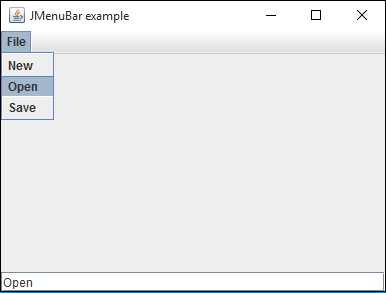
在下面的示例中,在頂級視窗中提供了選單欄。一個包含三個選單項按鈕的“檔案”選單被新增到選單欄中。現在讓我們準備一個 JFrame 物件,並將佈局設定為 BorderLayout。
frame = JFrame("JMenuBar example")
frame.setDefaultCloseOperation(JFrame.EXIT_ON_CLOSE)
frame.setLocation(100,100)
frame.setSize(400,300)
frame.setLayout(BorderLayout())
現在,透過 SetJMenuBar() 方法啟用 JMenuBar 物件。
bar = JMenuBar()
frame.setJMenuBar(bar)
接下來,宣告一個具有“檔案”標題的 JMenu 物件。三個 JMenuItem 按鈕被新增到“檔案”選單中。當單擊任何選單項時,將執行 ActionEvent 處理程式 OnClick() 函式。它使用 actionPerformed 屬性定義。
file = JMenu("File")
newfile = JMenuItem("New",actionPerformed = OnClick)
openfile = JMenuItem("Open",actionPerformed = OnClick)
savefile = JMenuItem("Save",actionPerformed = OnClick)
file.add(newfile)
file.add(openfile)
file.add(savefile)
bar.add(file)
OnClick() 事件處理程式透過 gwtActionCommand() 函式檢索 JMenuItem 按鈕的名稱,並在視窗底部的文字框中顯示它。
def OnClick(event):
   txt.text = event.getActionCommand()
“檔案”選單物件被新增到選單欄中。最後,在 JFrame 物件底部添加了一個 JTextField 控制元件。
txt = JTextField(10)
frame.add(txt, BorderLayout.SOUTH)
下面給出了 menu.py 的完整程式碼:
from javax.swing import JFrame, JMenuBar, JMenu, JMenuItem, JTextField
from java.awt import BorderLayout

frame = JFrame("JMenuBar example")
frame.setDefaultCloseOperation(JFrame.EXIT_ON_CLOSE)
frame.setLocation(100,100)
frame.setSize(400,300)
frame.setLayout(BorderLayout())

def OnClick(event):
   txt.text = event.getActionCommand()

bar = JMenuBar()
frame.setJMenuBar(bar)

file = JMenu("File")
newfile = JMenuItem("New",actionPerformed = OnClick)
openfile = JMenuItem("Open",actionPerformed = OnClick)
savefile = JMenuItem("Save",actionPerformed = OnClick)
file.add(newfile)
file.add(openfile)
file.add(savefile)
bar.add(file)

txt = JTextField(10)
frame.add(txt, BorderLayout.SOUTH)

frame.setVisible(True)
當使用 Jython 直譯器執行上述指令碼時,會出現一個帶有“檔案”選單的視窗。單擊它,它的三個選單項將下拉。如果單擊任何按鈕,它的名稱將顯示在文字框控制元件中。
廣告