
 資料結構
資料結構 網路
網路 關係資料庫管理系統 (RDBMS)
 作業系統
作業系統 Java
Java MS Excel
 iOS
iOS HTML
HTML CSS
CSS Android
 Python
 C語言程式設計
 C++
C++ C#
C# MongoDB
 MySQL
MySQL Javascript
 PHP
PHP 物理學
物理學 化學
化學 生物學
生物學 數學
數學 英語
英語 經濟學
經濟學 心理學
心理學 社會學
社會學 時尚研究
時尚研究 法律研究
法律研究如何在Tkinter中建立系統托盤應用程式?
系統托盤應用程式是為了程式的持續執行而建立的。當用戶關閉應用程式時,它將繼續在工作列上執行。為了識別系統托盤應用程式,我們可以為其應用程式提供影像或圖示。
要建立Tkinter應用程式的系統托盤圖示,我們可以在Python中使用pystray模組。它有很多內建函式和方法,可用於配置應用程式的系統托盤圖示。
要在您的機器上安裝pystray,您可以在shell或命令提示符中鍵入“**pip install pystray**”命令。
要建立系統托盤圖示,您可以按照以下步驟操作:
匯入所需的庫 - **Pystray**、Python **PIL** 或 **Pillow**。
定義一個函式**hide_window()**來隱藏視窗並將圖示新增到系統托盤。
新增並定義兩個選單項,“**顯示**”和“**退出**”。
透過為“顯示”和“退出”定義函式來在選單項中新增命令。
示例
# Import the required libraries
from tkinter import *
from pystray import MenuItem as item
import pystray
from PIL import Image, ImageTk

# Create an instance of tkinter frame or window
win=Tk()

win.title("System Tray Application")
# Set the size of the window
win.geometry("700x350")

# Define a function for quit the window
def quit_window(icon, item):
   icon.stop()
   win.destroy()

# Define a function to show the window again
def show_window(icon, item):
   icon.stop()
   win.after(0,win.deiconify())

# Hide the window and show on the system taskbar
def hide_window():
   win.withdraw()
   image=Image.open("favicon.ico")
   menu=(item('Quit', quit_window), item('Show', show_window))
   icon=pystray.Icon("name", image, "My System Tray Icon", menu)
   icon.run()

win.protocol('WM_DELETE_WINDOW', hide_window)

win.mainloop()
輸出
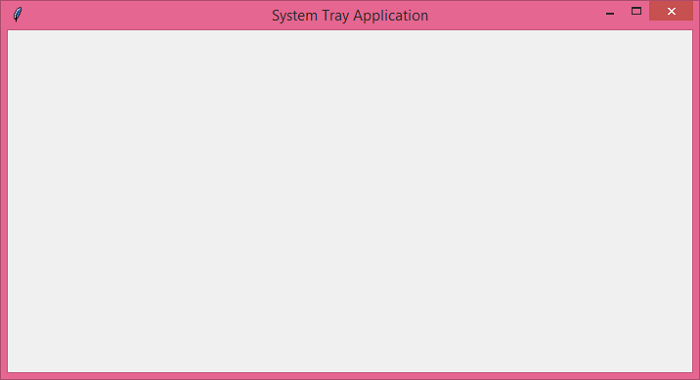
如果您執行以上程式碼,它將顯示應用程式視窗。
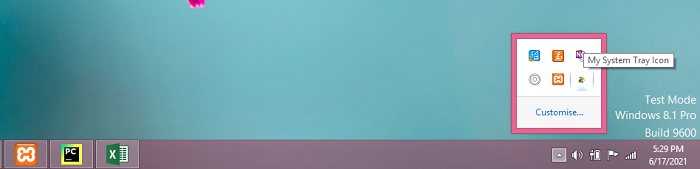
如果我們關閉視窗,它仍然會作為系統托盤應用程式出現在工作列中。

更新於:2021年6月19日
5K+ 次瀏覽

廣告