
 資料結構
資料結構 網路
網路 關係型資料庫管理系統
 作業系統
作業系統 Java
Java MS Excel
 iOS
iOS HTML
HTML CSS
CSS Android
 Python
 C 程式設計
 C++
C++ C#
C# MongoDB
 MySQL
MySQL Javascript
 PHP
PHP 物理
物理 化學
化學 生物
生物 數學
數學 英語
英語 經濟學
經濟學 心理學
心理學 社會研究
社會研究 時尚研究
時尚研究 法律研究
法律研究如何使用 Selenium Webdriver 下載任何檔案並將其儲存到所需位置?
我們可以使用 Selenium 下載任何檔案並將其儲存到所需位置。可以透過建立**FirefoxOptions**類的例項來實現此目的。然後,在**addPreference**方法的幫助下,我們必須設定瀏覽器首選項。
我們還應該使用 addPreference 方法指定必須下載檔案的位置。
示例
程式碼實現。
import org.openqa.selenium.By;
import org.openqa.selenium.WebDriver;
import org.openqa.selenium.WebElement;
import org.openqa.selenium.firefox.FirefoxDriver;
import org.openqa.selenium.firefox.FirefoxOptions;
import java.util.concurrent.TimeUnit;
public class FileDwnload{
   public static void main(String[] args) {
      System.setProperty("webdriver.gecko.driver", "C:\Users\ghs6kor\Desktop\Java\geckodriver.exe");
      // create object of FirefoxOptions class
      FirefoxOptions profile = new FirefoxOptions();
      // adding browser preferences with addPreference method
      profile.addPreference("browser.download.folderList", 2);
      // location of downloaded file
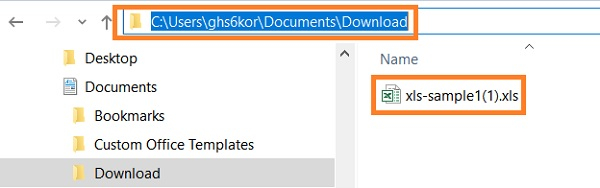
      profile.addPreference("browser.download.dir", "C:\Users\ghs6kor\Documents\Download");
      profile.addPreference("browser.helperApps.neverAsk.openFile", "text/csv,application/x-msexcel,application/excel," + "application/x-excel,application/vnd.ms-excel," + "image/png,image/jpeg,text/html,text/plain," + "application/msword,application/xml");
      profile.addPreference("browser.helperApps.neverAsk.saveToDisk", "text/csv,application/x-msexcel," + "application/excel," + "application/x-excel," +"application/vnd.ms- excel,image/png,image/jpeg,text/html," +"text/plain,application/msword,application/xml");
      profile.addPreference("browser.helperApps.alwaysAsk.force", false);
      profile.addPreference
      ("browser.download.manager.alertOnEXEOpen", false);
      profile.addPreference("browser.download.manager.focusWhenStarting", false);
      profile.addPreference("browser.download.manager.useWindow", false);
      profile.addPreference("browser.download.manager.showAlertOnComplete", false);
      profile.addPreference("browser.download.manager.closeWhenDone", false);
      // connecting browser options to webdriver
      WebDriver driver = new FirefoxDriver(profile);
      driver.get("https://the-internet.herokuapp.com/download");
      //maximize window
      driver.manage().window().maximize();
      // identify element and start download
      driver.findElement(By.linkText("xls-sample1.xls")).click();
   }
}
輸出

此外,檔案會下載到指定的位置。

更新於: 2020 年 12 月 28 日
3K+ 瀏覽量

廣告