
 資料結構
資料結構 網路
網路 RDBMS
RDBMS 作業系統
作業系統 Java
Java MS Excel
 iOS
iOS HTML
HTML CSS
CSS Android
 Python
 C 程式設計
 C++
C++ C#
C# MongoDB
 MySQL
MySQL JavaScript
 PHP
PHP 物理
物理 化學
化學 生物
生物 數學
數學 英語
英語 經濟
經濟 心理學
心理學 社會科學
社會科學 時尚研究
時尚研究 法律研究
法律研究如何使用 PowerShell 停用 Windows 防火牆配置檔案?
防火牆支援 3 種類型的配置檔案。a) 域 b) 公用 c) 私有配置檔案。您可以在**Windows 防火牆高階安全**設定視窗中使用 GUI 檢查相同的設定,如下所示。
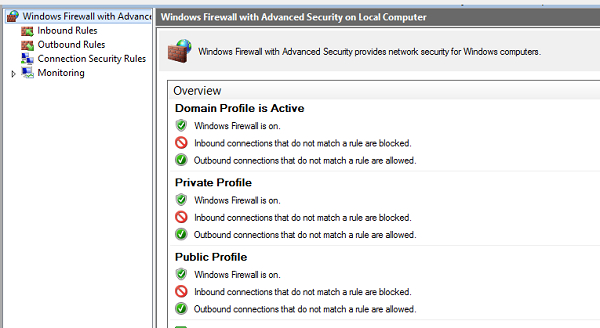
您可以使用**Get-NetFirewallProfile**命令檢查上述設定。
Get-NetFirewallProfile | Select Name, Enabled
Name    Enabled
----   -------
Domain  True
Private True
Public  True
要使用 PowerShell 關閉或停用上述配置檔案,您需要使用**Set-NetFirewallProfile**命令。
要停用特定配置檔案,請使用 -Profile 引數。您可以在此引數中傳遞 3 個不同的配置檔名(域、公用和私有)。例如,
Set-NetFirewallProfile -Profile Domain -Enabled False
要停用所有 Windows 防火牆配置檔案,
Set-NetFirewallProfile -Profile Domain,Private,Public -Enabled False -Verbose
您可以使用 GUI 或本文中提到的第一個命令進行檢查。
Get-NetFirewallProfile | Select Name, Enabled Name Enabled ---- ------- Domain False Private False Public False
要停用遠端計算機上的設定,您需要使用**Invoke-Command**或**PSSession**。
Invoke-Command -ComputerName RemoteServerName -ScriptBlock{ Set-NetFirewallProfile -Profile Domain, Private, Public -Enabled False}

更新時間:2020 年 9 月 28 日
1K+ 次瀏覽

廣告